


Loading Paper into the Paper Tray
The method of loading paper varies for each tray type.

- When pulling out the paper tray, do not pull it out swiftly. The tray may fall and cause injury.
- When replacing paper or removing jammed paper, make sure not to trap or injure your fingers.
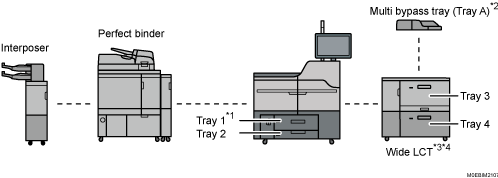
*1 The A3/11 × 17 tray unit can be attached.
*2 The banner sheet tray of multi bypass tray (Tray A) can be attached.
*3 You can attach LCT banner sheet tray on the topmost tray among trays 3, 5, and 7.
*4 You can attach Extension LCT banner sheet tray on the topmost tray among trays 3,5, and 7.
Even if paper is loaded as described above, normal operations and print quality might still not be possible, depending on the paper type.
When loading 40.0–52.3 g/m2 (11.0 lb. Bond–14.0 lb. Bond) paper into paper trays or loading translucent paper into the wide LCT or the multi bypass tray (Tray A), always use long grain paper.
Before loading paper into a tray, check the paper size and type that can be loaded in the tray, and confirm the paper size that is automatically detected.
When loading paper of a size that is not automatically detected, specify the paper size in the paper settings on the [Media] hub.
Specifying the Paper Size That Is Not Automatically Detected
Check the paper setting before printing. If the paper differs from the paper setting, a mismatch error will occur when you print.
While printing, do not change the paper size of the tray that is specified as the destination.
If the surface of the paper is dusty, white spots might appear on prints. To remove dust, fan the paper thoroughly.
Straighten curled or warped paper before loading.
If long grain paper does not uncurl properly, try short grain paper instead.
To prevent more than one sheet of paper being fed together in a bundle, fan the sheets thoroughly before setting them on the paper tray. If more than one sheet of paper is fed together at a time, it may cause a paper jam.
If the sheets of paper are in close contact with each other, causing a multi feed to occur, remove the paper from the tray, fan the paper thoroughly, and then load it on the tray again.
When loading paper on a tray which has a few sheets of paper, multiple sheets of paper may be fed at once from the tray. Take out all sheets, fan the sheets, and then load them again.
When you load paper into the paper tray for the first time or when you change the type of paper in the paper tray, be sure to specify the appropriate paper settings on the [Media] hub or in the [Tray Status] tile of the [Home] hub.
You may hear the sound of rubbing paper. This is not a malfunction.
Do not stack paper over the limit mark on the paper tray.
Fanning the Paper

If you load coated paper, label paper, transparencies, or thick paper of 150.1– 470.0 g/m2 (55.1 lb. Cover–172 lb. Cover), it is important that you fan the sheets thoroughly. Misfeeds may occur if paper is not fanned thoroughly. If the machine feeds several sheets of paper together or it does not feed paper, fan paper and load it again.
 Fan the stack of paper to load.
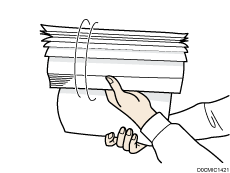
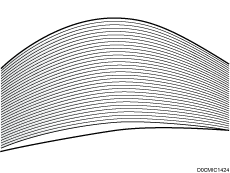
 Holding its shorter ends, flex the stack back and forth to create space between the sheets. Repeat this several times.
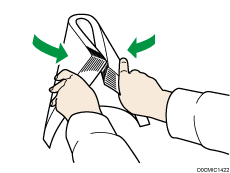
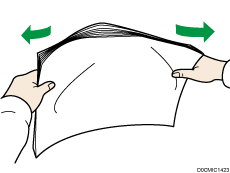
 Make sure there is space between the sheets.
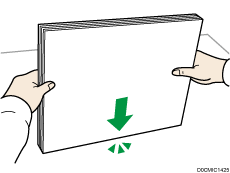
 Hold the stack of paper in both hands and tap the long and short edges of the paper against a flat surface to align them.
Loading Paper into Tray 1
 (mainly Europe and Asia)
Tray 1 can hold A4 paper only. If you want to print on 81/2 × 11 from Tray 1, contact your service representative.
 (mainly North America)
Tray 1 can hold 81/2 × 11 paper only. If you want to print on A4 from Tray 1, contact your service representative.
When paper loaded in the right side of Tray 1 runs out, paper on the left is automatically shifted to the right. Do not pull out Tray 1 while the tray is moving paper; wait until sounds stop coming from the tray.
If Tray 1 is closed too quickly, the paper in the tray may force the right tray's fence to slip out of place. If the paper misfeeds because of this, open the tray, adjust the fence, and close the tray slowly.
For the right stack, align the right edge of the paper with the right edge of the tray. For the left stack, align the left edge of the paper to the left edge of the tray.
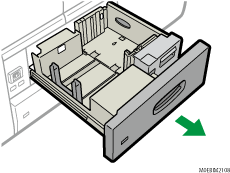
Carefully pull out the paper tray until it stops.
Square the paper and load it print side down.
Do not stack paper over the limit mark.
Whole tray pulled out
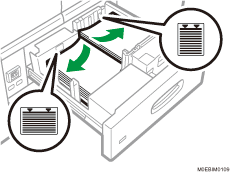
Left half of the tray pulled out
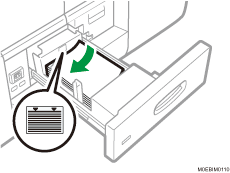
Carefully push the paper tray fully in.

You can load paper even if Tray 1 is in use. It is okay to pull out the left half of the tray while Tray 1 is in use.
Loading Paper into the A3/11 × 17 Tray Unit
A3/11 × 17 tray unit can hold 11 × 17 paper only. If you want to print on A3, A4, B4 JIS, 81/2 × 14, or 81/2 × 11, contact your service representative.
Check the paper edges are aligned at the right side.
Check that paper in the paper tray is not being used, and then pull the tray carefully out until it stops.
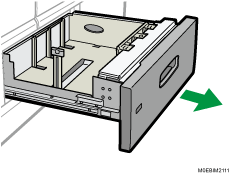
Square the paper and load it print side down.
Do not stack paper over the limit mark.
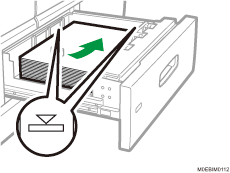
Carefully push the paper tray fully in.
Loading Paper into Tray 2
Check the paper edges are aligned at the right side.
If a paper tray is pushed vigorously when putting it back into place, the position of the tray's fences may slip out of place.
When loading a low number of sheets, be sure not to squeeze the fences in too tightly. If the fences are squeezed too tightly against the paper, the edges may crease, the paper may misfeed, or if it weighs between 52.3–63.0g/m2 (14.0–16.9 lb. Bond), it may wrinkle.
Check that paper in the paper tray is not being used, and then pull the tray carefully out until it stops.
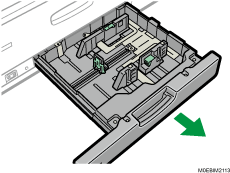
Square the paper and load it print side down.
Do not stack paper over the limit mark.
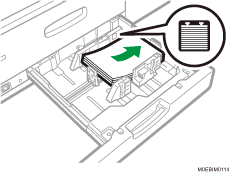
Carefully push the paper tray fully in.
Various sizes of paper can be loaded in Tray 2 by adjusting the positions of fences.
Loading Tab Stock into Tray 2
When loading tab stock, always use the tab sheet holder.
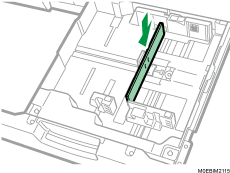
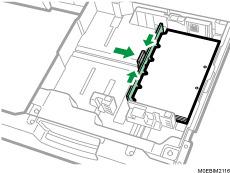
Load tab stock so that the side with the tab faces the tab sheet holder.
When loading tab stock, adjust the fence position so that the tab sheet holder will fit the tab stock.
Loading Paper into the Multi Bypass Tray (Tray A)
Use the multi bypass tray (Tray A) to use transparencies, translucent paper, and paper that cannot be loaded in the paper trays.
The maximum number of sheets you can load at the same time depends on paper type. Do not stack paper over the limit mark. For the maximum number of sheets you can load, see below.
Check the paper edges are aligned at the left side.
When loading a low number of sheets, be sure not to squeeze the fences in too tightly. If the fences are squeezed too tightly against the paper, the edges may crease, the paper may misfeed, or if it weighs between 52.3–63.0 g/m2 (14.0–16.9 lb. Bond), it may wrinkle.
Set the fences to the paper, and then square the paper and load it print side up.
Do not stack paper over the limit mark.
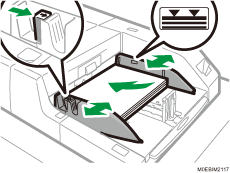
Set the fence.
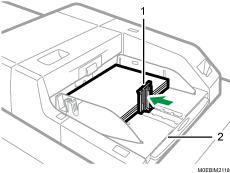
Fence
Extender
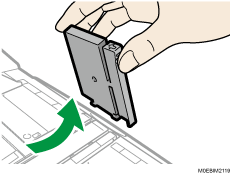
To remove the fence, slide it to the right by pressing the stopper down.
Press the elevator switch on the multi bypass tray (Tray A).
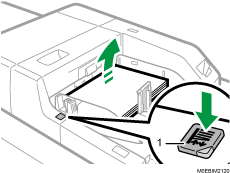
Elevator switch
The lamp of the elevator switch is blinking while the tray is going up, and keeps lit when it stops.
Press the elevator switch to move down the tray if you want to either add paper or remove jammed ones.
Pull the extender out when loading A4
, 81/2 × 11 or larger sheets in the multi bypass tray (Tray A).You can load envelopes into the multi bypass tray (Tray A). Envelopes must be loaded in a specific orientation. For details, see below.
If multiple sheet feeding occurs, fan sheets thoroughly or load sheets one by one from the multi bypass tray (Tray A).
Specify the sizes of paper that are not automatically detected. For details about how to specify sizes, see Specifying the Paper Size That Is Not Automatically Detected. For details about the sizes that can be detected automatically, see below.
Loading Tab Stock into the Multi Bypass Tray (Tray A)
When setting tab stock, always use the tab fence. Tabs must be set at the right side of the multi bypass tray (Tray A).
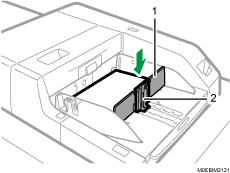
Tab fence
Fence
Loading Paper on the Multi Bypass Banner Sheet Tray
When the Multi bypass banner sheet tray is attached to the machine, you can load paper that is 487.8 mm–1260.0 mm (19.2–49.6 inches) long horizontally on the tray (Tray A).
Remove the fence.
To remove the fence, slide it to the right while pressing down on the stopper.
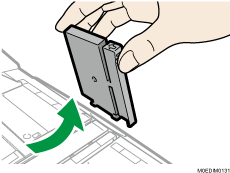
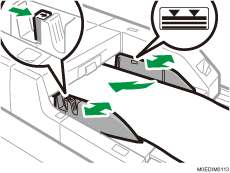
Set the fences against the paper, and then square the paper and load it print side up.
Do not stack paper over the upper limit mark.
Press the elevator switch on the multi bypass tray (Tray A).
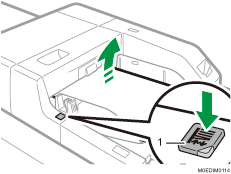
Elevator switch
The lamp of the elevator switch blinks while the tray is moving upward and stays lit when it stops.
Press the elevator switch to move the tray downward to either add paper or remove jammed paper.
Loading Paper into the Wide Large Capacity Tray
The wide LCT is identified as Tray 3, Tray 4, Tray 5, Tray 6, Tray 7, and Tray 8.
Check the paper edges are aligned at the left side.
Depending on the amount of paper curl, the upper limit exceeded notification may occur even if the upper limit sign is not exceeded. When the upper limit exceeded notification occurs, remove the loaded paper from the tray, and load it again.
Check that paper in the paper tray is not being used, and then pull the tray carefully out until it stops.
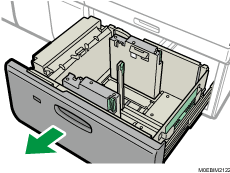
Remove paper if loaded.
Release the fence.
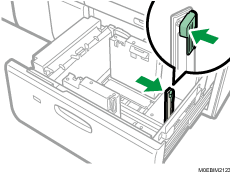
Loosen the screw on the arm holding the side fence in place.
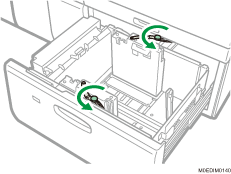
 Release the fence.
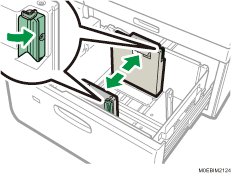
 Load paper by aligning the paper with the left side of the paper tray.
Place paper with print side up.
Load a stack of paper about 5–10 mm (0.2–0.4 inches) high.
Make sure the paper rest on top of the supporting plates on both sides.
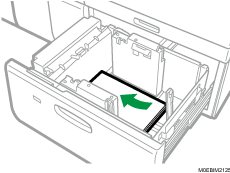
When you load paper that is 204 mm (8.04 inches) or smaller, remove the supporting plates from the bottom of the paper tray.
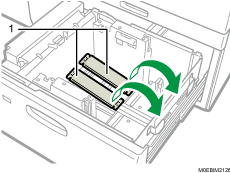
Supporting plates
Check that the paper retainer is extended when you load paper of 220 g/m2 (55 lb. Bond) or lower. Push on the lever on the fence to extend the paper retainer.
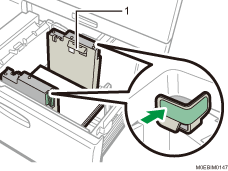
Paper retainer
Check that the paper retainer is retracted when you load paper of 220.1 g/m2 (55 lb. Bond) or higher.
Use the paper size indicators on the bottom of the paper tray to adjust the fences the space provided by the fences is somewhat wider than the paper size. Load paper so that both sides are on the auxiliary fences.
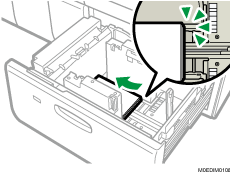
 Take the grip of the fences with your fingers, and adjust the fences to the paper.
Set the paper flush against the inner fence.
Check that the scale numbers on the top of the fences are roughly the same.
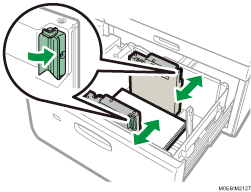
 Load additional sheets, if necessary.
Do not stack paper over the limit mark.
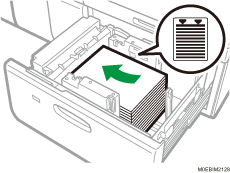
 Tightly fit the fence to the loaded paper, and then re-lock the fence again.
Make sure there are no gaps between the paper and fence.
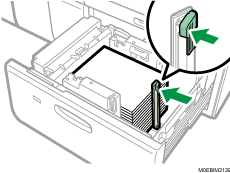
 Tighten the screw on the arm holding the side fence in place.
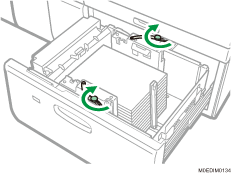
 Carefully push the paper tray fully in until it clicks.
Various sizes of paper can be loaded in the wide LCT by adjusting the positions of fences.
You can load envelopes in the wide LCT. When loading envelopes, place them in the correct orientation. For details, see below.
When you are using a special printing feature such as banner printing, cover page, and separation sheets, the indicator on the front side of the tray remains lit until printing is completed. You cannot reload paper while the indicator remains lit.
Attaching the Tab Fence in the Wide Large Capacity Tray
When loading tab stock, attach the tab fence.
Check that paper in the paper tray is not being used, and then pull the tray carefully out until it stops.
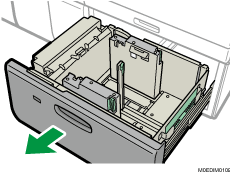
Take out the tab fence from the pocket on the right-hand side of the wide LCT.
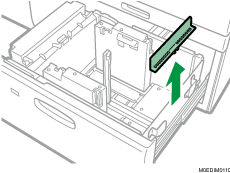
Adjust the side fences according to the size of the tab stock to be loaded, and then load the tab stock.
Load the tab stocks with their side with the tabs facing the end fence.
Attach the tab fence, and then align the end fence gently against the paper you loaded while pressing the release button of the end fence.
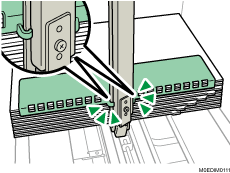
Carefully push the paper tray fully in until it clicks.
Replace the tab fence after use.
Attaching the Small Tab End Fence to the Wide Large Capacity Tray
When loading carbonless paper of paper weight 2 or less, attach the small tab end fence.
Check that paper in the paper tray is not being used, and then pull the tray carefully out until it stops.
Take out the small tab end fence from the pocket on the right-hand side of the paper source tray.
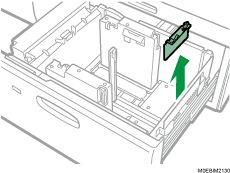
Set the fences to the paper to be loaded, and then load paper into the tray.
Attach the small tab end fence, and then align the fence gently against the paper you loaded while pressing the release button of the fence.
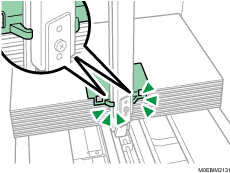
Carefully push the paper tray fully in until it clicks.
Replace the small tab end fence after use.
Loading the Paper on LCT Banner Sheet Tray
When LCT banner sheet tray is attached on the machine, you can load paper that is 420.0 mm–700.0 mm (16.5–23.6 inches) long horizontally on the wide LCT.
Press the Base Board Descent Button of LCT banner sheet tray.
The LED indicator flashes for 10 seconds, and then turns off.
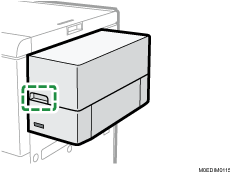
Wait until the LED indicator on the Base Board Descent Button is turned off completely, and then open the cover.
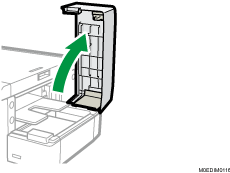
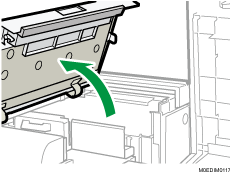
Open the cover on the top part of wide LCT.
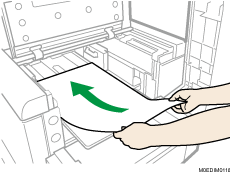
While holding the paper horizontally, load it on the tray in small stacks at a time.
When loading a large stack of thin or coated paper, load only a small stack of it at a time. Be careful not to move the sheet of the stack that is already set on the tray when loading an additional stack on top.
Check that the paper retainer is extended when you load paper of 220 g/m2 (55 lb. Bond) or lower. Push on the lever on the fence to extend the paper retainer.
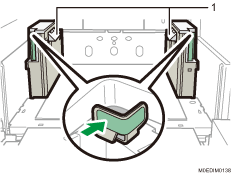
Paper retainer
Check that the paper retainer is retracted when you load paper of 220.1 g/m2 (55 lb. Bond) or higher.
Adjust the fences to match the paper width.
Check the size indicator to see if the paper is loaded correctly all the way to the back of the paper source tray.
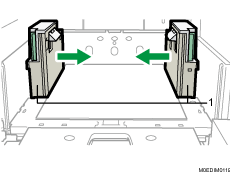
Fence
Set the auxiliary fences against the sides of the paper with the paper on the line extended along the fences, and adjust the short fences or the long fence to fit the width of the paper.
When loading paper that is 420.0–487.7 mm (16.5–19.2 inches) long
Use the two short fences.
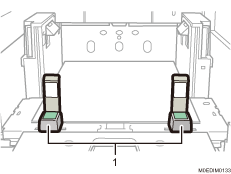
Short fences
When loading paper that is 487.8–559.9 mm (19.2–27.6 inches) long
Use the two auxiliary fences and two short fences.
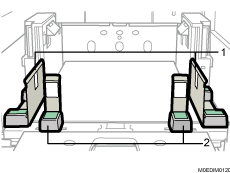
Auxiliary fences
Short fence
When loading paper that is 560.0–700.0 mm (22.0–27.6 inches) long
Use the two auxiliary fences and one long fence.
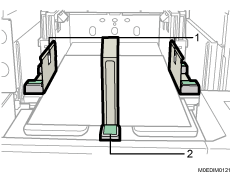
Auxiliary fences
Long fence
Add paper as required.
Remove and store the auxiliary fences, short fences, or long fence from the machine when you are not using them.
Loading the Paper on the Extension LCT Banner Sheet Tray
When the Extension LCT banner sheet tray is attached to the machine, you can load paper that is 420.0 mm–960.0 mm (16.5–37.8 inches) long horizontally on the wide LCT.
When feeding paper that is 700.1–960.0 mm (27.6–37.8 inches) long using Extension LCT banner sheet tray, reduce the height of the stack to 40 mm (1.6 inches) or lower for grain long paper of Paper Weight 8 or grain short paper of Paper Weight 6–8.
Contact your sales or service representative if you dropped the fence or other object beneath the base board.
Check that paper is not being fed from the source tray, and then open the cover of Extension LCT banner sheet tray.

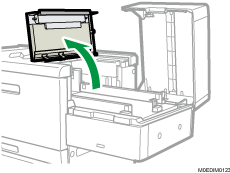
Open the Banner Sheet Tray Top Board.
Remove the two auxiliary fence and one fence.
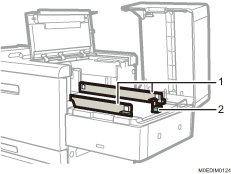
Auxiliary fences
Fence
If paper is loaded on the tray, remove it.
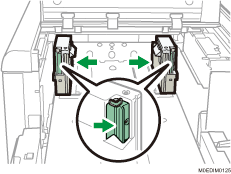
Pinch and slide the fences to widen the opening.
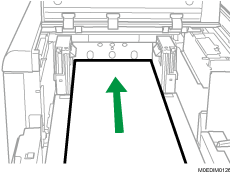
Load the paper so that the side is pushed lightly against the left side of the paper feeding tray.
When loading a large stack of thin or coated paper, load only a small stack of it at a time. Be careful not to move the sheet of the stack that is already set on the tray when loading an additional stack on top.
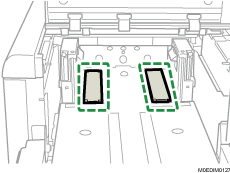
When loading paper that is than 310 mm (12.2 inches) or less in width, remove the supporting plate from the bottom of the tray.
Check that the paper retainer is extended when you load paper of 220 g/m2 (55 lb. Bond) or lower. Push on the lever on the fence to extend the paper retainer.
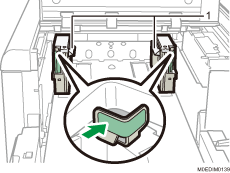
Paper retainer
Check that the paper retainer is retracted when you load paper of 220.1 g/m2 (55 lb. Bond) or higher.
Pinch and adjust the fences to match the size of the paper.
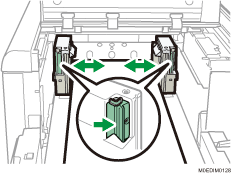
Add paper as required.
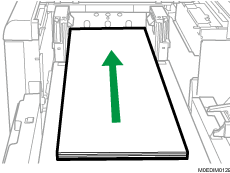
Attach the two auxiliary fences and one fence.
Make sure to keep the height of the paper stack below 50 mm (2.0 inches). When feeding paper that is 487.8–960.0 mm (19.2–37.8 inches) long, reduce the height of the stack to 40 mm (1.6 inches) or lower for grain long paper of Paper Weight 8 or grain short paper of Paper Weight 6–8. Load the paper so that it is not stacked above the upper limit marks on the auxiliary side fences and end fence.
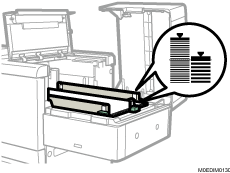
Close the Banner Sheet Tray Top Board.
Close the cover of Extension LCT banner sheet tray.
Remove and store the auxiliary fences or fence from the machine when you are not using them.
Loading Paper into the Interposer
Do not place anything on top of or leave documents on the sensor. This may lead to the paper size not being correctly scanned or paper jams.
While pressing the release lever, align the fences with the paper to be loaded.
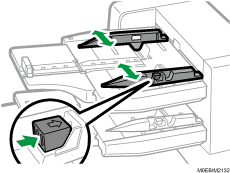
Load paper orderly.
Do not stack paper over the limit mark.
The interposer tray automatically starts the operation shortly after loading paper. Adjust the fences before that.
Align the fences gently against the paper you loaded, if necessary.
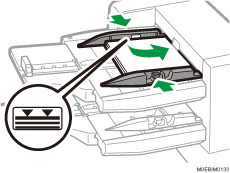
While pressing the release lever, align the fence to the loaded paper.
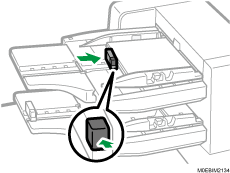
Load paper with its printed side up (the front side). If you are using the booklet finisher, load sheets print side down.
Load paper in the interposer in the same orientation as paper in the paper tray.
The staple position or punch hole position will be on the left side of the paper, when you are facing the machine.
Loading Cover Sheets into the Interposer of the Perfect Binder
The length/size of cover sheets depends on the thickness of the spine.
Load paper in the
orientation.Do not place anything on top of or leave documents on the sensor. This may lead to the paper size not being correctly detected or paper jams.
Estimating the thickness of the spine
This section explains how to calculate the approximate spine thickness.
Note that the length and size of a cover sheet depends on the thickness of the book block spine.
The following list shows examples for A4 or 81/2 × 11 size, 80.0 g/m2 (21.0 lb. Bond) paper:
10-sheet book block: 1 mm (0.04 inches)
30-sheet book block: 3 mm (0.12 inches)
50-sheet book block: 5 mm (0.20 inches)
80-sheet book block: 8 mm (0.32 inches)
100-sheet book block: 10 mm (0.40 inches)
200-sheet book block: 20 mm (0.80 inches)
Specify the cover sheet size based on the thickness of the book block spine. Use the following equation to calculate the length of the cover sheet:
Minimum length of cover sheet (mm/inch) = "length of book block sheet (mm/inch)" × 2 + "thickness of spine (mm/inch)"
For example, specify a cover sheet length of at least 440 mm (17.4 inches) to perfect bind a booklet comprising 200 sheets of A4 forming a book block of 210 mm (8 1/4 inches) long and 20 mm (4/5 inches) thick.
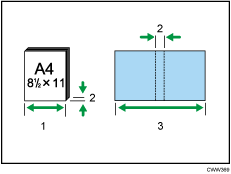
Length of book block sheet
Thickness of spine
Length of cover sheet
While lightly pinching the fence, align it with the paper to be loaded.
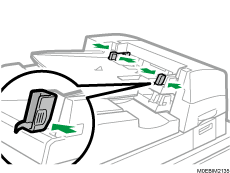
Load paper face up and neatly stacked.
Do not stack paper over the limit mark.
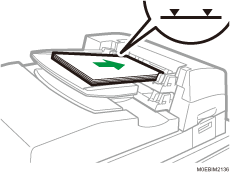
You cannot perfect bind a booklet if the thickness of the book block's spine exceeds 23 mm (0.9 inches).
Depending on your machine, the procedure for selecting the orientation of covers and originals might be slightly different. For details, refer to the procedure for your machine.
When loading thick paper of 251.0 g/m2 (138.8 lb. Index) or heavier in the interposer trays of the perfect binder, make sure the grain of the paper is perpendicular to the feed direction.
If you are loading sheets that are likely to stick together (such as sheets of coated paper), be sure to fan them thoroughly before loading. Fanning them will help prevent jams and allow them to be fed in one sheet at a time.
The perfect binding process may scratch glossy paper.
Specifying the Paper Size That Is Not Automatically Detected
Specify the paper size on the control panel when loading paper of a size that cannot be detected automatically.
Press the [Media] hub.
Press [Add].
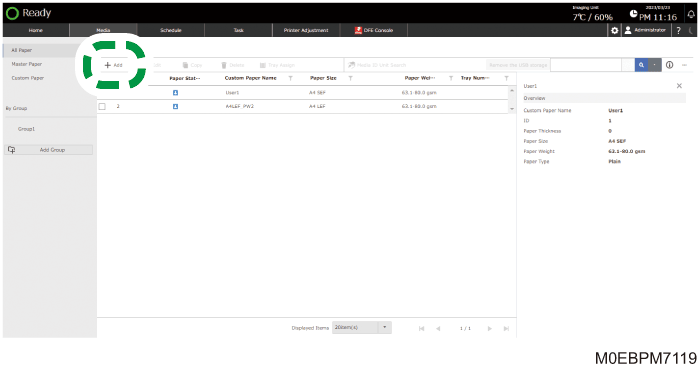
Specify the Paper Size in the list and then press [OK].
Enter the paper name, and specify the paper weight, thickness, type, and other attributes.

Press [OK].
Specify a registered paper, and then press [Tray Assign].
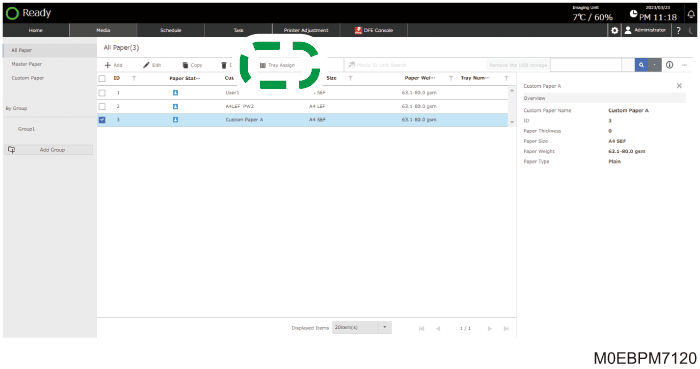
Specify the paper tray to specify the paper size, and then press [OK].
Specifying a Custom Size Paper
Specify the paper size on the control panel when loading paper of a custom size.
Press the [Media] hub.
Press [Add].
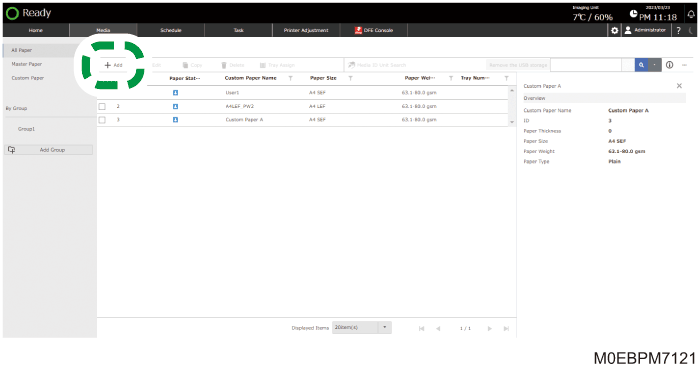
Select [Create New Custom Size].
Enter the dimensions of [A] (vertical) and [B] (horizontal), and then press [OK].
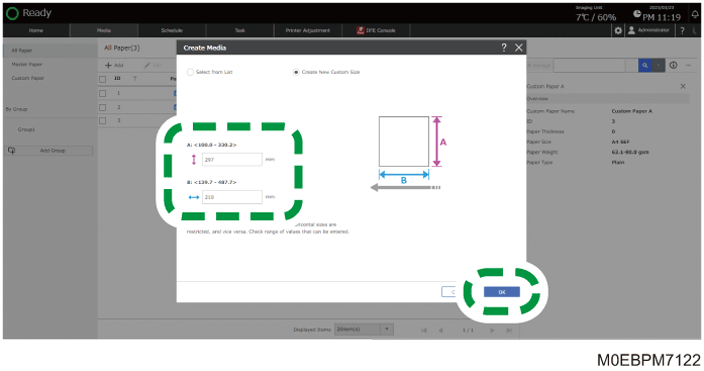
Enter the paper name, and specify the paper weight, thickness, type, and other attributes.
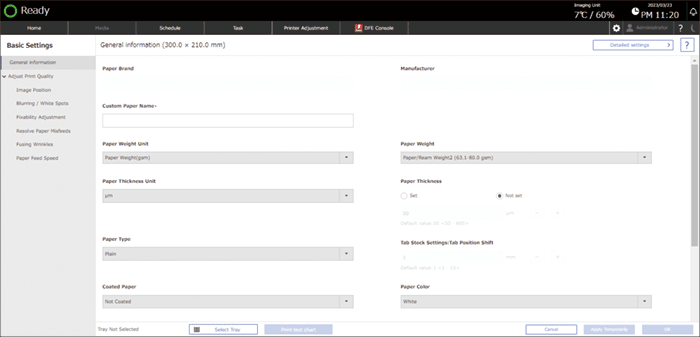
Press [OK].
Specify a registered paper, and then press [Tray Assign].
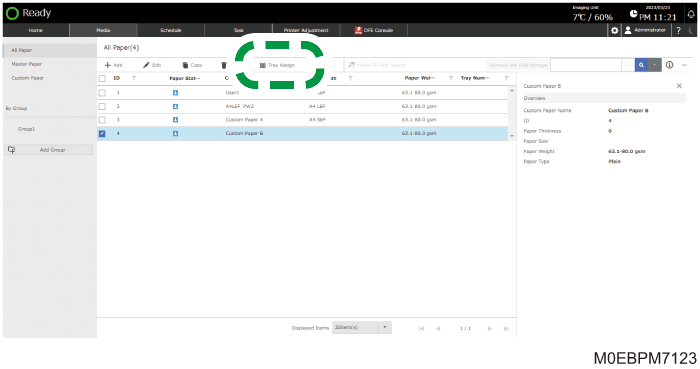
Specify the paper tray to specify the paper size, and then press [OK].