




Custom Paper Screen
This section explains the items on the “Program / Change / Delete Custom Paper” screen.
This screen appears when you press [Program/ Change/ Delete Custom Paper] on the Tray Paper Settings screen.
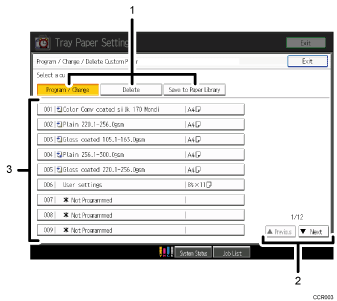
[Program / Change], [Delete], [Save to Paper Library]
Press these keys to register, modify, delete, or save a custom paper in the library.
When “Program / Change” is selected:
Select “
 Not Programmed” or a registered custom paper from the list to display a screen where you can specify a custom paper's settings. For details, see “Manually Specifying a Paper's Type and Weight”, “Registering a New Custom Paper by Modifying an Existing Paper”, and “Modifying a Custom Paper”.
When “Delete” is selected:
Select a custom paper from the list to delete it. For details, see “Deleting a Custom Paper”.
“Save to Paper Library”
Press [Save to Paper Library] to save all the registered custom papers to the library at once. For details, see “Saving Custom Papers to the Saved Paper Library”.
[
 Previous], [
 Next]
Next]Displays the previous or next page of the list.
List of custom papers
The registration numbers, names, and sizes of custom papers are displayed in the list. Icons to the left of the paper names indicate which paper is registered from the paper library and whether their settings have been modified.
 : Indicates a paper that is registered from the paper library.
 : Indicates a paper that is registered from the paper library and that its “Advanced Settings” have been modified.
No icons appear for papers that were registered manually.


