




Registering a New Custom Paper by Modifying an Existing Paper
You can open and modify the settings of a registered custom paper and register them as a new custom paper.
This function is useful when registering paper that is the same type as an existing paper, but a different size.
When modifying a custom paper that is registered from the paper library, you can change its “Name”, “Paper Size”, “Apply Duplex”, and “Apply Auto Paper Select” settings. You can also confirm the paper name and the version of data.
 Press the [Paper Setting] key.
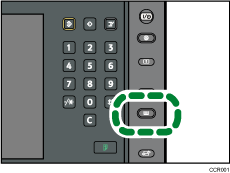
The control panel on your machine might differ slightly from the control panel in this illustration.
 Press [Program/ Change/ Delete Custom Paper].
 Select a number that is “
 Not Programmed”.
Press [ Previous] or [
 Next] to scroll through the list.
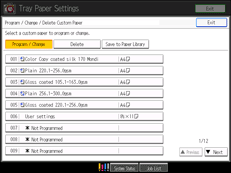
 Press [Custom Papers Reference].
 Select the custom paper whose settings you want to modify.
After selecting a custom paper, press [Check Modes] to check the type and weight of the selected paper.
 Press [Exit].
 Change the paper's name, size, and type, as necessary.
When referring to a custom paper that is registered from the paper library, press [Check Product Name] to find the name of the paper.
If you do not change its name, the paper will be registered with the same name as the existing paper.
 Press [OK].
The custom paper is registered.
 Press [Exit].
 Press the [Paper Setting] key.
You can also close the Tray Paper Settings screen by pressing [Exit].

When you register a new custom paper by opening and modifying an existing custom paper, the settings corresponding to the opened custom paper will be copied and created as new settings with modified items on the color controller. Note that the color controller-specific information of the original settings will not be copied to the created settings.
For details about custom paper settings, see “Custom Paper Settings”.
For details about “Advanced Settings”, contact your machine administrator.


