




Modifying a Custom Paper
This section explains how to modify custom paper.
You can only change the “Name”, “Paper Size”, “Apply Duplex”, and “Apply Auto Paper Select” settings for a custom paper that is registered from the paper library.
 Press the [Paper Setting] key.
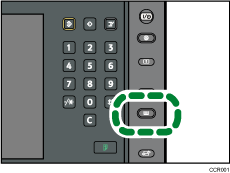
The control panel on your machine might differ slightly from the control panel in this illustration.
 Press [Program/ Change/ Delete Custom Paper].
 Select the custom paper whose settings you want to modify.
Press [ Previous] or [
 Next] to scroll through the list to find the paper that you want to modify.
 Change the settings.
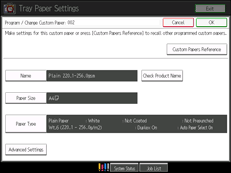
 Press [OK].
 Press [Exit].
 Press the [Paper Setting] key.
You can also close the Tray Paper Settings screen by pressing [Exit].

For details about custom paper settings, see “Custom Paper Settings”.
You cannot modify a custom paper that is assigned to a paper tray. To modify it, cancel the assignment.
For details about “Advanced Settings”, contact your machine administrator.


