




Deleting a Custom Paper
This section explains how to delete a custom paper.
You can back up custom papers to the saved paper library. For details about backing up custom papers, see “Saving Custom Papers to the Saved Paper Library”.
 Press the [Paper Setting] key.
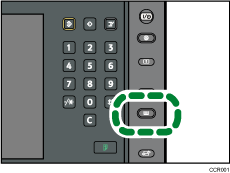
The control panel on your machine might differ slightly from the control panel in this illustration.
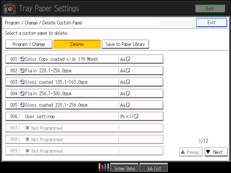
 Press [Program/ Change/ Delete Custom Paper].
 Press [Delete].
 Select the custom paper that you want to delete.
Press [ Previous] or [
 Next] to scroll through the list to find the paper that you want to delete.
 Press [Yes].
The selected custom paper is deleted.
 Press [Exit].
 Press the [Paper Setting] key.
You can also close the Tray Paper Settings screen by pressing [Exit].

You cannot delete a custom paper that is currently assigned to a paper tray.
When the number of registered custom papers reaches the maximum, you will not be able to register a new custom paper. Delete any unnecessary custom papers from the list, and then try registering again.


