




Removing Paper Jammed in Tray 1
Follow the procedure below to remove paper jammed in tray 1.
You can feed the jammed paper to output ramp by opening the left cover and turning the paper feed wheel.
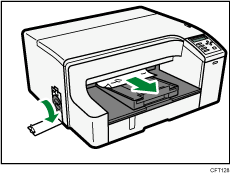
If turning the paper wheel does not remove the jammed paper, use the following procedure to remove it:
 Hold the grip on tray 1, lift the tray slightly (
 ), and then pull it out (
 ).
).
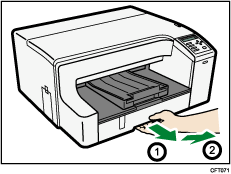
Pull tray 1 completely out. Take care not to drop it.
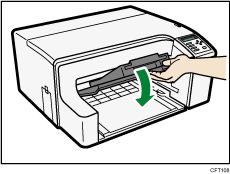
 Open the output ramp.
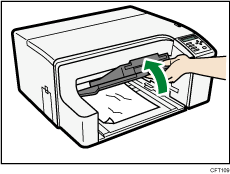
 Remove jammed paper.
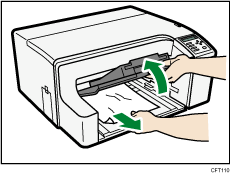
If you cannot remove the jammed paper or it is difficult to remove, the paper may be jammed inside the printer. Examine the paper carefully and remove.
 Close the output ramp.
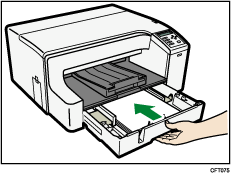
 Push tray 1 gently in until it stops.
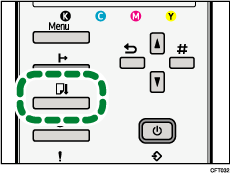
 Press the [Form Feed] key.
Printing starts.
Blank paper may be delivered after printing resumes.

The error message will remain displayed until you remove the jammed paper. Check the places where paper jams are likely to occur and remove the jammed paper.
To remove paper from Tray 2, see "Removing Paper Jammed on Tray 2".
To remove paper from the multi bypass tray, see "Removing Paper Jammed in the Bypass Tray".
To remove paper from the top cover, see "Removing Paper Jammed under the Top Cover".
To remove paper from the guide board, see "Removing Paper Jammed around the Guide Board".
To remove paper from the duplex unit, see "Removing Paper Jammed in the Duplex Unit".
If you cannot remove jammed paper completely, see "If You Cannot Remove Jammed Paper".
If paper jams occur repeatedly, see "Paper Is Not Fed or Delivered Normally".


