




Removing Paper Jammed around the Guide Board
Follow the procedure below to remove paper that is jammed around the guide board.
The GX e2600 features a rear cover in place of a duplex unit.

If the bypass tray or the duplex unit is attached to the printer, switch the printer off and detach the bypass tray or the duplex unit.
 Press and hold down the [Power] key on the printer until it turns off , and then unplug the power cord.
 Pressing the catches on both side of the duplex unit, remove the unit.
Detach the duplex unit completely so you can see the guide board in the recess.
GX e3350N/GX e3300N
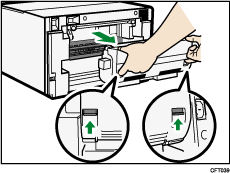
GX e7700N
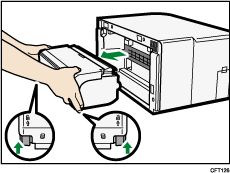
If using the GX e2600, remove the rear cover.
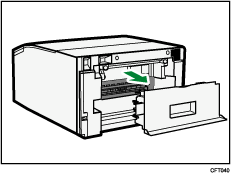
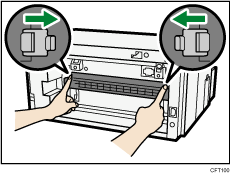
 Unlock the guide board by moving the tabs on both sides toward the middle, and then open the guide board.
 Open the left cover.
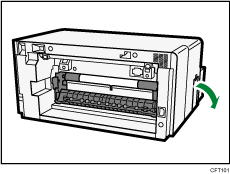
 Turn the paper feed wheel to release paper from the feed belt.
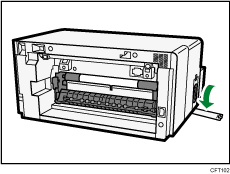
Release paper from the feed belt to make it removable.
 Insert your finger between the paper and the feed belt, and then remove the paper slowly.
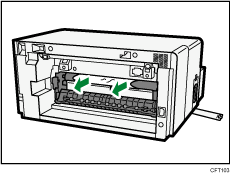
Do not touch the feed belt.
 Close the guide board.
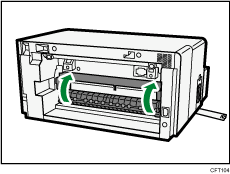
Push the PUSH area on both sides of the guide board until it firmly closes.
 Without pressing the catches on its sides, push the duplex unit all the way in until it clicks into place.
GX e3350N/GX e3300N
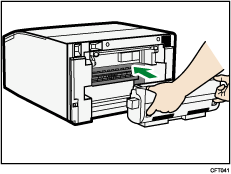
GX e7700N
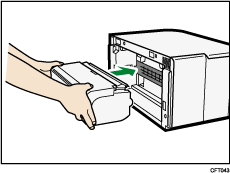
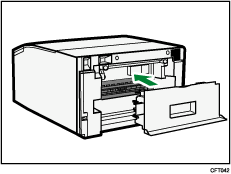
If using the GX e2600, attach the rear cover.
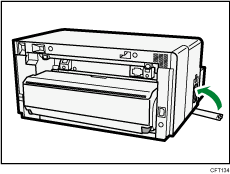
 Close the left cover.
Printing starts.

Depending on how the paper was jammed, printing may resume from the next page, not the one jammed.
For details about attaching and detaching the multi bypass tray, see "Attaching and Detaching the Multi Bypass Tray BY1000".
For details about attaching and detaching the multi bypass tray, see "Attaching and Detaching the Multi Bypass Tray BY1020".
The error message will remain displayed until you remove the jammed paper. Check the places where paper jams are likely to occur and remove the jammed paper.
To remove paper from Tray 1, see "Removing Paper Jammed on Tray 1".
To remove paper from Tray 2, see "Removing Paper Jammed on Tray 2".
To remove paper from the multi bypass tray, see "Removing Paper Jammed in the Bypass Tray".
To remove paper from the top cover, see "Removing Paper Jammed under the Top Cover".
To remove paper from the duplex unit, see "Removing Paper Jammed in the Duplex Unit".
If you cannot remove jammed paper completely, see "If You Cannot Remove Jammed Paper".
If paper jams occur repeatedly, see "Paper Is Not Fed or Delivered Normally".


