Turning On and Off the Power
To turn the machine on and off, press the main power switch on the top left of the machine.

Do not push the main power switch repeatedly.
When you push the main power switch, wait at least 10 seconds after it is confirmed that the main power indicator has lit up or gone out.
If the main power indicator does not light up or go out in 5 minutes after you push the main power switch, contact your service representative.
Confirm how much power the options draw, and then plug them into an outlet that is nearby but separate from the outlet that the main machine is plugged into.

This machine automatically enters Low Power mode (Standby for Printing Priority), Low Power mode (Energy Saving Priority) or Sleep mode if you do not use it for a while. For details, see Energy Saving Mode.
When the power of the DFE is set to synch with the power of the machine, turning the power of the machine on or off also turns the power of the DFE on or off. Turn on the power of the machine first, and then turn on the power of the DFE if the power of the DFE is not set to synch with the machine. To turn off the power of the machine and DFE, turn off the power of the DFE first, and then turn off the machine.
Turning On the Main Power
 Make sure the power cord is firmly plugged into the wall outlet.
 Open the main power switch cover, and then push the main power switch.
The main power indicator goes on.
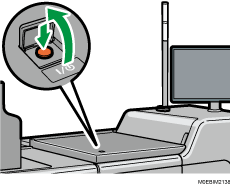
If the machine does not turn on even if you press the main power switch, open the front left cover and make sure that the AC power switch is turned on. For details about the AC power switch, see below.
Turning Off the Main Power

- When disconnecting the power cord from the wall outlet, always pull the plug, not the cord. Pulling the cord can damage the power cord. Use of damaged power cords could result in fire or electric shock.
Do not turn off the power while the machine is in operation.
Do not hold down the main power switch while turning off the main power. Doing so forcibly turns off the machine's power and may damage the SSD or memory and cause malfunctions.
Open the main power switch cover, and then push the main power switch.
The main power indicator goes out. The main power turns off automatically when the machine shuts down. If the screen on the control panel does not disappear, contact your service representative.
To turn off the main power of the machine from the control panel, press [ ], and then press [System Maintenance]
 [Power Management][Shutdown Printer].
Energy Saving Mode
The machine enters the Energy Saving mode automatically if no operation is performed for the specified period of time.
Energy Saving mode has the following two stages:
First stage: Low Power mode (Standby for Printing Priority) or Low Power mode (Energy Saving Priority)
Second stage: Sleep mode
You can specify either "Standby for Printing Priority" or "Energy Saving Priority" only in Low Power mode.
In the factory default setting, the machine enters the "Low Power mode (Standby for Printing Priority)", and then shifts to the "Sleep mode".
Low Power Mode (Standby for Printing Priority)
If you do not perform an operation for a specified period of time, the screen of the control panel turns off while the main power indicator keeps flashing, and the machine enters the Low Power mode (Standby for Printing Priority). In this state, the power consumption is lower than in the normal standby mode.
You can specify the time to wait before the machine enters the Low Power mode in [Low Power Mode Timer].
When you touch the control panel screen while the machine is in the Low Power mode (Standby for Printing Priority), the machine recovers from the Low Power mode (Standby for Printing Priority) and displays the operation screen.
In [Energy Saver Key to Change Mode], you can change the setting of the machine to enter the Low Power mode (Standby for Printing Priority) when you press
 (Energy Saver Key).
Low Power Mode (Energy Saving Priority)
If you do not operate the machine for a specified period of time, the machine emits a clicking sound and enters the Low Power mode (Energy Saving Priority) while turning off the heater in the fusing unit with the control panel displaying the operation screen. In this state, the power consumption is constrained further compared to the Low Power mode (Standby for Printing Priority).
To enable the Low Power mode (Energy Saving Priority), select [Energy Saving Priority] in [Low Power Mode Entry]. You can specify the time the machine waits before entering the Low Power mode in [Low Power Mode Timer].
Operations that do not involve printing, such as changing the machine settings from the control panel, are executed while the machine remains in the Low Power mode (Energy Saving Priority).
Sleep Mode
The control panel screen turns off, and the main power indicator flashes slowly. The machine consumes the least energy in this mode. The machine enters the Sleep mode when no operation is performed for a specified period of time, or when you press (Energy Saver Key).
You can specify the time the machine waits before entering the Sleep Mode in [Sleep Mode Timer].
The machine recovers from the Sleep mode when you touch the screen of the control panel.
- (Energy Saver Key) appears on the control panel screen only. The key does not appear when you access the screen from a client computer.
The machine does not enter the energy saving mode in the following cases:
When fixed warm-up is in progress
When operations are suspended during printing
When a screen that does not support Auto Logout is displayed
The machine does not enter Low Power Mode (Energy Saving Priority) in the following cases:
When the covers of the machine including the covers of the external options are open
When a user is operating on the control panel of the machine (excluding operations from a client computer)
The machine does not enter Sleep Mode in the following cases:
When the machine is warming up
When the machine is initializing its data
When the machine is preparing to restart
When receiving remote support from a call center
When the machine is performing Image Position adjustment
When performing a Batch Update of the system
When outputting the device information of the machine
Even when the machine is in the energy saving mode, you can connect remotely to the machine from the web browser on a client computer as long as the printer controller remains turned on.
Anti-humidity Heater Switch
During winter or humid periods when there can be sudden changes in temperature and humidity, the paper in the paper trays can absorb moisture. This may cause image quality to deteriorate.
To prevent this, the machine has two built-in anti-humidity heaters.
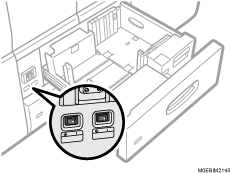
There are two switches for the anti-humidity heaters on the internal cover which is revealed when the Tray 1 is pulled out. Turn these switches on if the humidity level becomes high and image quality is affected. Turn the switches off at other times.
The left switch is for the paper tray heater and the right switch is for the transfer unit heater.