


Screen Configuration of the Navigation Bar
The navigation bar is displayed in the upper part of the operation screen on the control panel at all times.
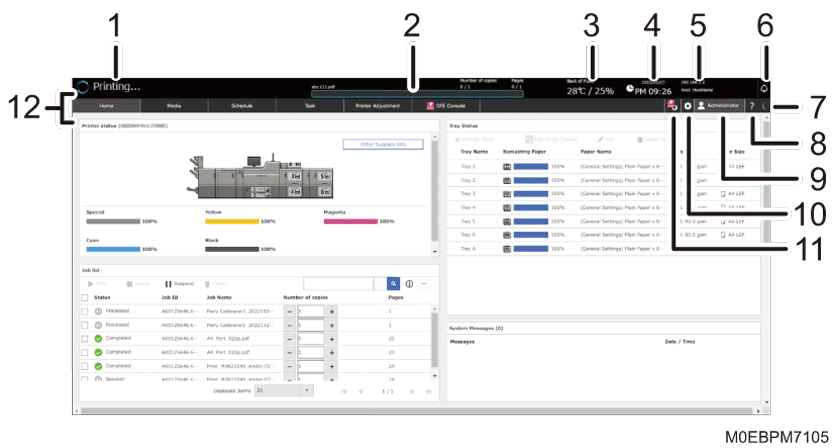
Printer Status
Displays the status of the machine.
The icon lights up in blue when the machine is warming up, printing a page, or performing the automatic print head cleaning process. The icon lights up in red when an error occurs.
Progress Bar
Shows the progress of the job that is currently being processed.
Temperature and Humidity Display
Displays the temperature and humidity in the room where the machine is placed.
Clock
IP Address
Displays the hostname and IP address of the machine.
Alert Icon
Displayed when there is a message from the system. You can read the message content on the [System Messages] tile in the [Home] hub. Also, the notification screen is displayed when a malfunction occurs on the machine, and the user needs to be notified of the error details or how to resolve the problem.
 (Energy Saver Key)*
Press this when you want the machine to enter Energy Saving mode.
 (Help, Enter Maintenance Mode*, TeamViewer*, Remote Diagnostics )
Help
Displays the built-in HTML manual of the machine.
Enter Maintenance Mode*
Use this to perform a simple maintenance on the machine. You can browse the manual and troubleshooting on the control panel of the machine.
TeamViewer*
Use this to get a remote support from your call center.
Remote Diagnostics
Displays the e-mail sending screen for requesting remote management service.
It is displayed only when the remote management service is installed, and user calls are enabled.
User Name display
Displays the user name. Press this to log in or log out from the machine, change the password, or select the language to use.
 (Settings)
You can configure the items displayed on the control panel, specify the machine behavior, create, or edit the timer, configure the network, and specify other system-wide settings of the machine.
 (Fiery Settings)*
The Fiery Settings hub displays the setting items of the Fiery controller that is connected to the machine.
Switch Hub
Press this to switch the screen that is displayed under the navigation bar.
* This item is displayed on the control panel of the machine only.