


Create a Role for the User
Create a new role to specify the functions to allow on the user account.
You do not need to create a new role when using only the roles that are pre-defined in the default setting.
In the default setting, two pre-defined roles are available: Operator and Administrator. The pre-defined roles cannot be deleted.
You can register up to 200 roles inducing 6 pre-defined roles*.
4 "Operation sets" are available for use as templates for assigning various functions easily when you create a role.
* Pre-defined users other than Operator and Administrator, and the pre-defined roles, do not appear in normal operation.
Pre-defined user | Pre-defined role | Available printer |
|---|---|---|
Operator | Operator | All printers that are registered on the UI server |
Administrator | Administrator |
Functions Assigned to the Operation Set
One of the following functions is assigned to each operation set.
Function | Operation Set Name | |||
|---|---|---|---|---|
Operator | Administrator (UI server)* | Administrator (printer) * | Administrator | |
General Settings | - |
|
|
|
Authentication Settings | - |
| - |
|
Email Sending Settings | - |
| - |
|
Account Management | - |
| - |
|
Printer Management | - |
| - |
|
Auto Logout Settings | - |
|
|
|
Media ID Unit Settings | - |
|
|
|
Security settings: User Lockout Policy | - |
|
|
|
Security settings: Password Policy | - |
|
|
|
Security settings: Device certificate settings | - | - |
|
|
Security settings: Audit log settings | - | - |
|
|
Security settings: Customer engineer login settings | - | - | - |
|
Backup/Restore | - |
|
|
|
Firmware Update | - |
|
|
|
Log Acquisition | - |
|
|
|
Output Device Info | - |
|
|
|
Power Management |
|
|
|
|
Version Information | - |
|
|
|
Installed Options List |
|
|
|
|
In/Output Tray Priority |
|
|
|
|
Settings of Output Tray | - | - |
|
|
Adjust Fold Position | - | - |
|
|
Perfect Binder Settings | - | - |
|
|
Manage Custom Paper Sizes | - | - |
|
|
Unit Display Switching | - |
|
|
|
Manage Settings Display | - | - |
|
|
Date & Time Settings | - | - |
|
|
Setting of Parts Maintenance Task Start Time | - | - |
|
|
Energy Saver Settings | - | - |
|
|
Weekly Timer | - | - |
|
|
Network Settings | - | - |
|
|
Proxy Settings | - | - |
|
|
DFE Management | - | - |
|
|
DFE Remote Desktop Connection Settings | - | - |
|
|
Notification Sound | - | - |
|
|
External Keyboard Settings | - | - |
|
|
Cartrdge Unlock Setting | - | - |
|
|
Clear Settings | - |
|
|
|
Inquiry |
|
|
|
|
Counter |
|
|
|
|
Administrator Counter | - | - |
|
|
Printer Adjustment |
|
|
|
|
Edit Task | - |
|
|
|
Implement Task |
|
|
|
|
Edit a schedule | - |
|
|
|
TeamViewer |
|
|
|
|
Maintenance Mode |
|
|
|
|
Remote Diagnostics |
|
|
|
|

* You can specify the role to assign from [Operation set] when assigning a role to a user.
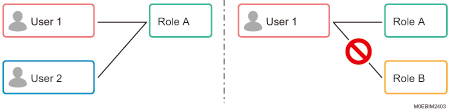
Only one role can be assigned to a user account.
Registering/Modifying/Deleting a Role for a User
 Log in to the machine using a user account with a role that can change the account management settings.
 Press [
 ].
].
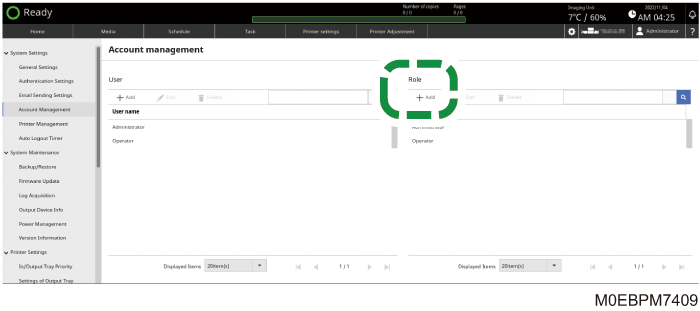
 Press [Account Management] in [System Settings].
 Press [Add] in [Role].
To modify a registered role, select a role, and then press [Edit].
To delete a registered role, select a role, press [Delete], and then press [OK].
 Specify the functions, printers, and other items to make available for the role.
Configure and register the following items:
Role name: Specify the name to use for identifying the role. The name cannot be change after the role is registered.
Specify a name that is unique on the machine, using up to 30 UTF-8 characters (no blanks allowed).
Operation set: Specify an operation set. Select the operation set that comes the closest to the role as a template of the function to be assigned, and then add or delete the function to enable in [Functions].
Functions: Specify the functions to allow usage. Multiple items can be selected simultaneously.
Printer: Specify the printer to allow usage on the role among the printers registered on the UI server. Multiple items can be selected simultaneously.
Default: All registered printers
 Press [OK].