


Logging In
To remove restrictions applied to the machine usage and use its various functions, log in to the machine first, and then begin operations.
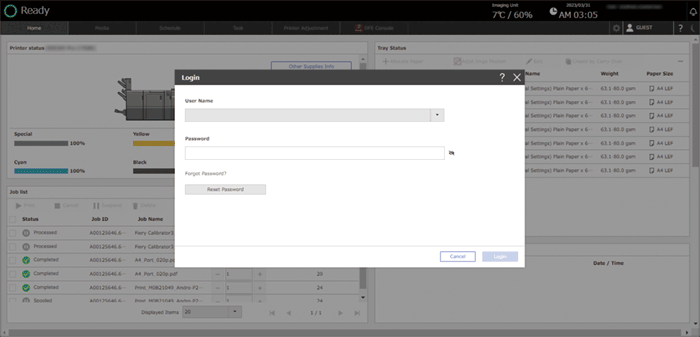
On the operation screen of the machine, enter the user name and password before starting operation.
To prevent use of the machine by an unauthorized person, always log out when you have finished using the machine. The name of the logged-in user is displayed on the navigation bar while the user is logged into the machine.

The logged-in user is automatically logged out when the user performs no operation on the machine for a certain period of time. The default automatic logout time is set to three minutes. You can change the time to wait before a user is logged out automatically, or disable this feature in [Auto Logout Timer] under [System Settings].
Logging In by Entering the User Name and Password
 Press the user name, and then press [Login].
When logging into the operation screen of the machine from a client computer or smart device, enter the IP address of the operation screen of the machine (https://(IP address of the machine):8080/dist) in the address bar of a web browser to display the operation screen before you start operating the machine remotely.

 Enter the login user name under [User Name].
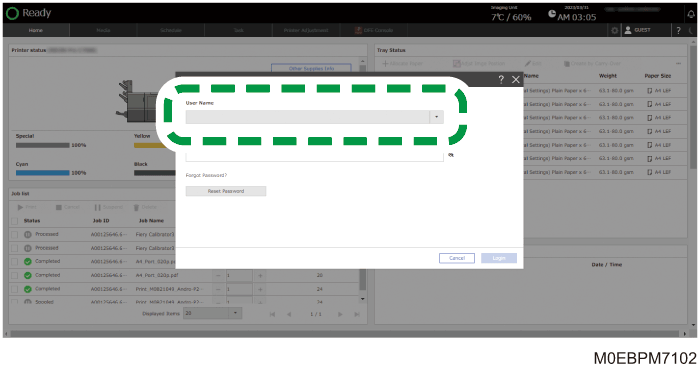
You can also select a registered user from the drop-down menu.
 Enter the password under [Password].
 Press [Login].
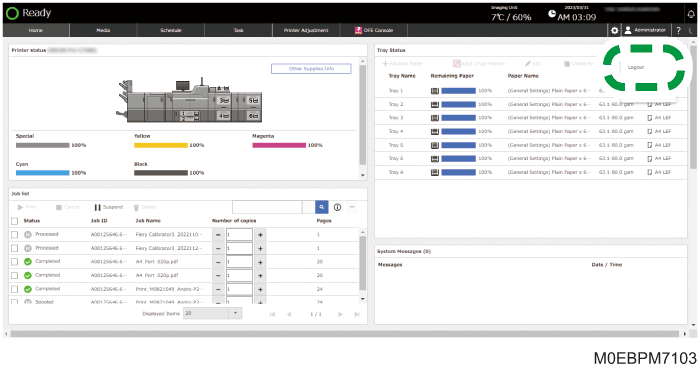
To log out from the machine, press the user name, and then press [Logout].
Changing the Login Password
To prevent unauthorized use of the machine, change the password regularly.
You can use up to 128 alphanumeric characters in the password. Do not use a string that can be easily guessed.
Pay attention to the capitalization when you enter alphabetic characters, and enter the string correctly.
The symbols that you can use in a password are as follows:
(space) ! " # $ % & ' ( ) * + , - . / : ; < = > ? @ [ \ ] ^ _ ` { | } ~
Log in to the machine.
Press the user name, and press [Change password].
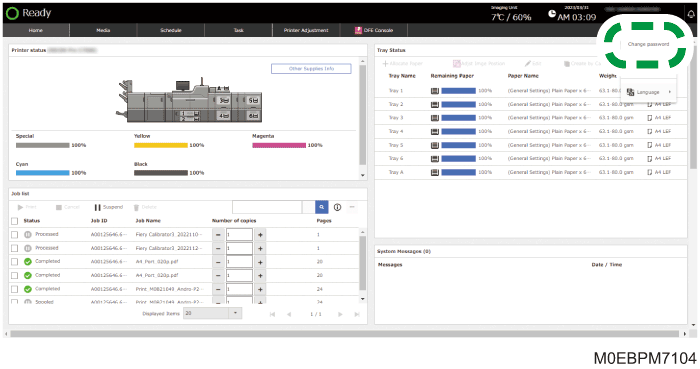
Enter "Current Password", "New password", and "Confirm New Password".
Press [OK].
If you forget your password, press [Reset Password] on the login screen to issue a temporary password for the specified user. The temporary password is sent to the e-mail address that is registered in the account information. Log in to the account using the temporary password, and change the password.
The temporary password is disabled 1 hour after it has been issued. Change it as soon as possible.
To issue a temporary password, the machine must be configured to send e-mail in [Email Sending Settings].