


Configuring the Settings to Send E-mails from the Machine
Configure the e-mail server on the machine to send an e-mail for resetting the password when a user forgets it.
 Login to the machine using a user account with a role that can change the Email Sending Settings.
 Press [
 ].
].
 Press [Email Sending Settings] in [System Settings].
 Specify [Set] in "Email Sending Server", and then configure the e-mail server.
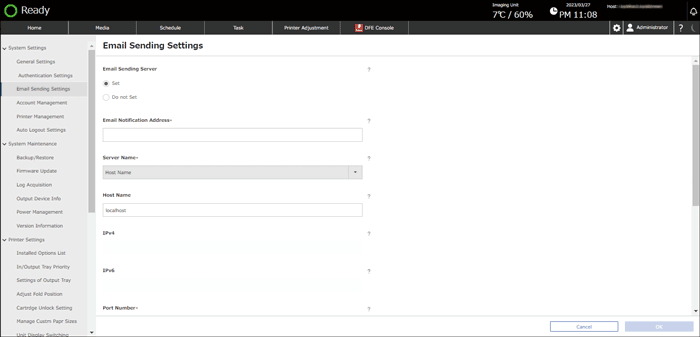
Email Notification Address: Enter the e-mail address to which to send an e-mail when sending a password-reset message. Enter the name using up to 254 alphanumeric characters (a–z, A–Z, and 0–9), and symbols (0x21–0x7e).
Server Name: Enter the server name (host name, IPv4 or IPv6 address) of the e-mail server.
Host Name: Enter the name using up to 256 alphanumeric characters (a–z, A–Z, and 0–9), and symbols (0x21–0x7e).
IPv4: Enter the address using numbers (0–9) and periods ".".
IPv6: Enter the address using alphanumeric characters (a-f, 0-9, colons ":"). The name and address are not case sensitive.
Port Number: Enter the port number to use for authentication. The default is "25".
Authentication Method: Select whether to perform SMTP authentication when sending an e-mail from the server. The default is [No Authentication]. To use SMTP authentication, specify the following:
User Name: Enter using up to 30 characters (single- and double-byte spaces cannot be used).
Password: Enter using up to 128 alphanumeric characters (a–z, A–Z, and 0–9).
Encryption: Select from [Off], [SMTP over SSL], and [STARTTLS]. The default is [Off].
 Press [OK].