
3. Check the connection between the RICOH multifunction printer and AWS
3-1. Check the [Check Status] screen on the Smart Operation Panel of the RICOH multifunction printer
Tap [Check Status] at the bottom-left of the Smart Operation Panel and check the display status of [Intelligent Voice Control].
Example of a [Check Status] screen
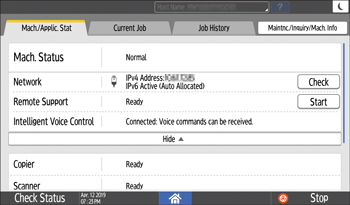
“Connected: Voice commands can be received.” is displayed.
No problem with the connection between the RICOH multifunction printer and AWS.
The [Intelligent Voice Control] item is not displayed on the [Check Status] screen or "Setup Incomplete" is displayed.
Setup of the Intelligent Voice Control function at the RICOH multifunction printer is not complete. See Setting Up With the RICOH Multifunction Printer and make the settings from the Smart Operation Panel of the RICOH multifunction printer.
“Disconnected: Voice commands cannot be received.” is displayed.
Voice commands cannot be received because the RICOH multifunction printer and AWS are not connected. Check that the RICOH multifunction printer is connected to the Internet.
Set the IP address, gateway, DNS, and proxy settings correctly in the network settings for the RICOH multifunction printer. Check that sites such as Amazon can be accessed using the browser application in the RICOH multifunction printer.
“Invalid certificate” is displayed.
The certificate downloaded from AWS had expired when setting the Smart Operation Panel of the RICOH multifunction printer. Run a connection test using the Smart Operation Panel of the RICOH multifunction printer and download a new certificate. For details about the connection test using the Smart Operation Panel of the RICOH multifunction printer, see Performing a Connection Test Using the Smart Operation Panel of the RICOH Multifunction Printer.
“Invalid function” is displayed.
The Intelligent Voice Control function is not enabled. See Setting Up the Intelligent Voice Control Function and enable Intelligent Voice Control function from the Smart Operation Panel of the RICOH multifunction printer.
3-2. Performing a connection test on the [Intelligent Voice Control] screen on the Smart Operation Panel of the RICOH multifunction printer
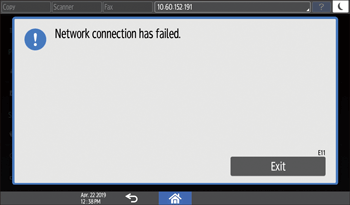
Examples of errors during the connection test
Connection test ended normally
No problem with the connection between the RICOH multifunction printer and AWS.
“Network connection has failed.” (E11) is displayed.
The RICOH multifunction printer is not connected to the Internet. Check the network connections settings for the RICOH multifunction printer.
The AWS server is down. Access https://status.aws.amazon.com/ and check the operating status of AWS IoT.
The RICOH Intelligent Voice Control service is down. Several connection tests are required because AWS server registration might be prevented by temporary network access congestion. If the situation does not improve, contact our call center.
“Registering information to the server has failed.” (E41) is displayed.
No information for the device is registered in the AWS server. Several connection tests are required because AWS server registration might be prevented by temporary connectivity errors. If the situation does not improve, contact our call center.
“Writing a certificate has failed.” is displayed.
Failed to write the certificate acquired from the AWS server to the RICOH multifunction printer. There may be a problem with the storage in the RICOH multifunction printer. Contact our call center.
“Authentication has failed. Check RICOH Smart Integration login information.” is displayed.
The RICOH Smart Integration email address or password is incorrect. Enter the correct account information in the login screen for RICOH Smart Integration.
[Connection Test] is grayed out.
The settings at the Smart Operation Panel of the RICOH multifunction printer are not complete. See Setting Up With the RICOH Multifunction Printer and complete the settings from the Smart Operation Panel of the RICOH multifunction printer.