
Performing a Connection Test
The connection test can be run using the Smart Operation Panel of the RICOH multifunction printer or using the smart speaker.
Performing a Connection Test Using the Smart Operation Panel of the RICOH Multifunction Printer
 Log in as machine administrator.
 Tap [Settings].
When [Switch Screen Type] is set to [Standard], the following [Settings] screen is displayed.
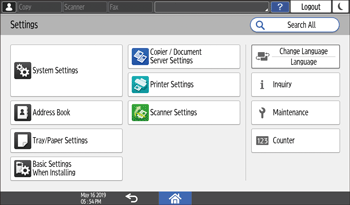
When [Switch Screen Type] is set to [Classic], the following [Settings] screen is displayed.
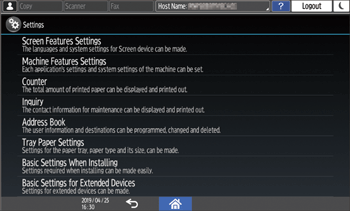
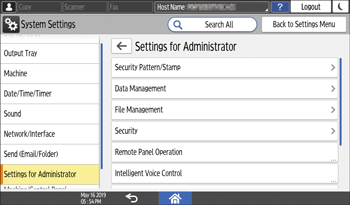
 When [Switch Screen Type] is set to [Standard], tap in the order [System Settings]
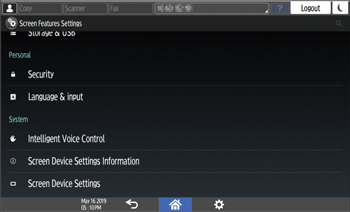
 [Settings for Administrator]. When [Switch Screen Type] is set to [Classic], tap in the order [Screen Feature Settings][Intelligent Voice Control].
The screen when [Switch Screen Type] is [Standard]
The screen when [Switch Screen Type] is [Classic]
The [Intelligent Voice Control] screen appears.
 Tap [Connection Test].
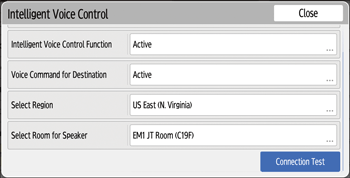
If no valid certificate is installed in the RICOH multifunction printer, a screen appears to acquire the certificate. Enter the RICOH Smart Integration Account email address and password in the screen, and tap [OK].
If the test ends normally, the message “Connecting with the smart speaker has succeeded.” is displayed.
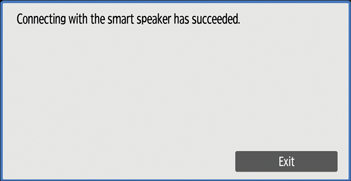
 Tap [Exit].
The Connection Test screen closes.
 Tap [Close].
The [Intelligent Voice Control] screen closes.

If a connection error occurs, the error number is displayed.
For details about the errors and how to remedy them, see Error Messages.
Performing a Connection Test Using the Smart Speaker
Say “Alexa, start Ricoh Printer.” towards the smart speaker.
The smart speaker makes the following response.
“Welcome to the Ricoh Printer. What would you like to do?”
Say “Connection Test, please.” towards the smart speaker.
The smart speaker makes the following response.
“Connection test. I will send the test information to the printer. The connection has been successfully performed when the message appears.”
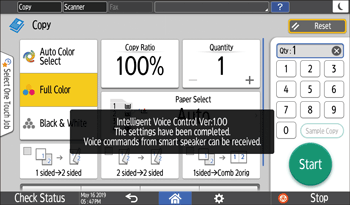
Check the message displayed on the Smart Operation Panel of the RICOH multifunction printer.
If the test ends normally, the message “Intelligent Voice Control Ver:xx. The settings have been completed. Voice commands from smart speaker can be received.” is displayed.“”
If a connection error occurs, the smart speaker responds: “I couldn't connect to the machine. Activate the printer and execute the connection test again.”.
For details about the how to remedy the errors, see Error Messages.