Covers
You can use this function to create cover sheets by adding additional pages of different paper, or copying existing pages onto different paper.
Before using this function, select the tray for covers in the following settings. For details, see User Guide of your device.
Settings screen type: Standard
[Tray/Paper Settings]Settings screen type: Classic
[Tray Paper Settings]

You cannot specify the bypass tray as the main sheet tray.
The Covers function includes Front Cover and Front/Back Cover.
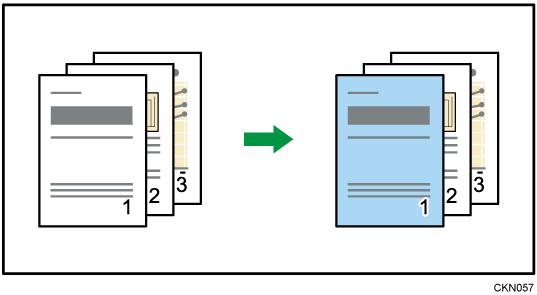
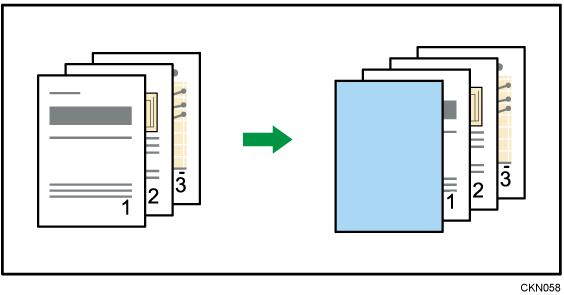
Front Cover
This function copies the first page of an original onto paper that has been specified for covers, or places a cover sheet before the first copy page.
Copy
Blank
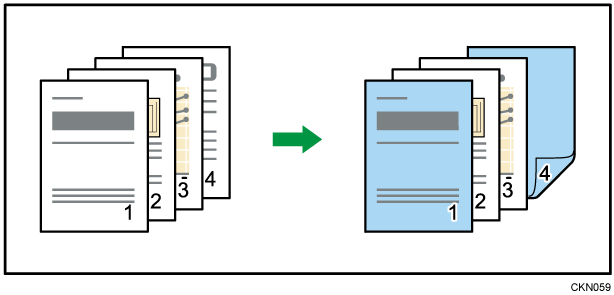
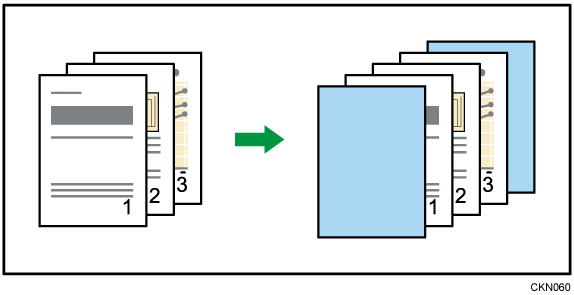
Front/Back Cover
This function copies the first and last pages of an original onto paper that has been specified for covers, or places a cover sheet before the first copy page and after the last copy page.
Copy
Blank
Press [Cover/Slip Sheet].

Select [Copy] or [Blank] for the cover sheet.

Press [OK].
Select the main sheet tray that contains the paper to copy the originals.

You cannot specify both Front Cover and Front/Back Cover at the same time.
The cover sheets should be the same size and orientation as the main sheets.
When selecting [Copy], select whether the front and back covers are copied one-sided or two-sided.
If [Blank] is selected, the cover will not be counted as a copy.
You can make a combined copy on the front cover sheet. For details about [Front Cover Copy in Combine], see User Guide of your device.
In the following settings, you can select whether the front and back covers are duplex printed.
Settings screen type: Standard
- [At Mode Selected]... Settings made in the tray for covers will take priority.
- [Full Time]... Settings made in [Paper Type/Thickness] will take priority.
Settings screen type: Classic
- [At Mode Selected]... Settings made in the tray for covers will take priority.
- [Full Time]... Settings made in [Paper Type] will take priority.
For details, see User Guide of your device.