




 Previous

Check that the paper edges are aligned with the left side.
 Check that paper in the paper tray is not being used, and then pull the tray carefully out until it stops.
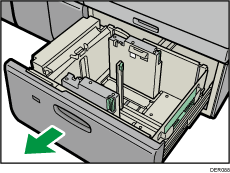
 Remove paper if loaded.
 Release the end fence.
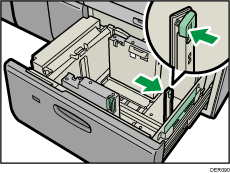
 While pressing the release button of the side fence, slide the side fence outward.
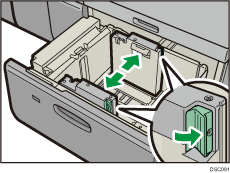
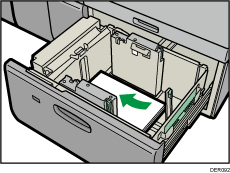
 Load paper by aligning the paper with the left side of the paper tray.
Place paper with print side up.
Load a stack of paper about 5–10 mm (0.2–0.4 inches) high.
Make sure the paper rest on top of the supporting plates on both sides.
When loading paper that is 204 mm (8.04 inches) or narrower, remove the supporting plates from the bottom of the paper tray and store them in the pocket located on the right side of the source tray.
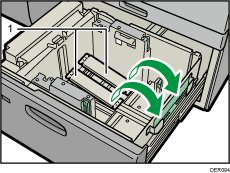
Supporting plates
Use the paper size indicators on the bottom of the paper tray to adjust the side fences the space provided by the side fences is somewhat wider than the paper size. Load paper so that both sides are on the auxiliary side fences.
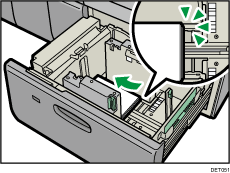
 Take the grip of the side fences with your fingers, and adjust the side fences to the paper size.
Load the paper so that it is not warped or lifted by the edge.
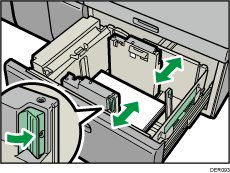
 Load additional sheets, if necessary.
Do not stack paper over the limit mark.
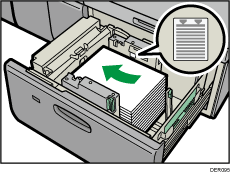
 Tightly fit the end fence to the loaded paper, and then re-lock the end fence again.
Make sure there are no gaps between the paper and end fence.
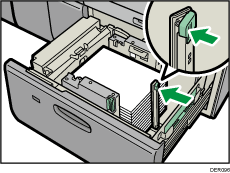
 Push the paper tray fully in until it clicks.

After sliding the paper tray in, make sure that the paper size is changed correctly on the printer's initial screen. To display the printer's initial screen, press the [Home] key, and then press the [Printer] icon.
You can load envelopes into the two-tray wide LCT. When loading envelopes, place them in the correct orientation. For details, see Envelopes.
If the top paper holders of the two-tray wide LCT are pushed in at an angle, they may not return to their original positions. Return them to their original positions by hand.
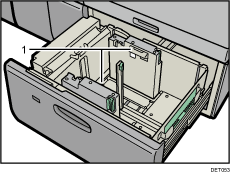
Top paper holders


