




 Previous
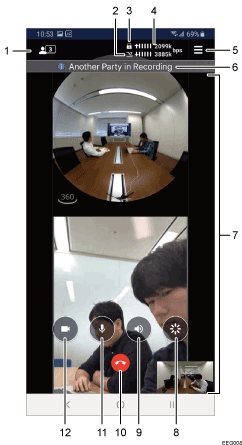
No. |
Item |
Descriptions |
|---|---|---|
1 |
Checking the contact |
Displays a list of contacts. Check the contacts that have joined the meeting. Tap a contact name to display a video from the contact in full screen. |
2 |
Limited Bandwidth Usage |
This icon is displayed when you specify [Limited] for [Bandwidth settings]. You can specify whether or not to limit the bandwidth. This setting is useful when you want to prevent an increase in the network line load, limit the amount of data transmitted, or limit the network bandwidth used in a meeting to the absolute minimum |
3 |
Private meeting |
This icon is displayed during a private meeting. |
4 |
Checking the network bandwidth |
Check the amount of network bandwidth available for receiving ( The bandwidth status indicates whether the network environment satisfies the operating requirements. It also helps you determine whether meetings can be held normally. |
5 |
Displaying menu |
Tap the screen to display the menu. For details about the menu, see About the Menu. |
6 |
Recording notification |
When a meeting is recorded by other contacts, "Another Party in Recording" is displayed. |
7 |
Changing the display of meeting images |
|
8 |
Resetting video display |
When tapped, the size and position of the video display windows are reset to their initial state. |
9 |
Muting the speaker |
When tapped, the speaker is muted. When tapped again, the speaker is unmuted. Use the volume control on the device to adjust the volume. |
10 |
Leaving |
Leave the meeting. |
11 |
Muting the microphone |
When tapped, the microphone is muted. When tapped again, the microphone is unmuted. |
12 |
Switching between cameras |
Used to switch between the front camera and rear camera, or disable the cameras (OFF). When a RICOH THETA, RICOH R or other external camera is connected, a video taken with the external camera is used. |
 ) and transmitting (
 ) data.

