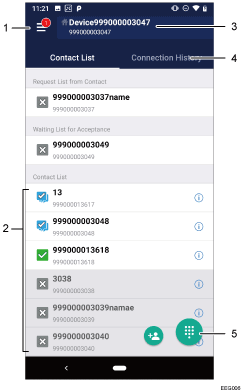
No. |
Item |
Descriptions |
1 |
Changing the settings / Logging out |
Report If there is a problem with this product, send the operation log, system information, and other details about this product to Ricoh for problem diagnosis. Only send a report when requested to do so by the support desk. Help Displays a page containing frequently asked questions related to the RICOH Unified Communication System. News When you receive a notice about the services, this icon changes to . . Auto Answer When set to [ON], the system automatically answers a call from an unregistered contact. Logout If you log out by tapping [Logout], you will not be allowed to log in automatically. You can also log out by performing one of the following operations:
Press the home button to display the home screen Press the power/lock button Display a different application
If you log out by performing one of these operations, you will be allowed to log in automatically when Auto Login is set to [ON]. Perform one of these operations to temporarily log out and prevent other contacts from calling you when you do not want to be contacted. My Camera Preview Used to preview a video you want to deliver to your contact. Tap  on the preview screen to switch between the front camera and rear camera. If a RICOH THETA or RICOH R external camera is connected, a video taken with the external camera is used. on the preview screen to switch between the front camera and rear camera. If a RICOH THETA or RICOH R external camera is connected, a video taken with the external camera is used. Settings
Account Settings Displays Basic Settings in RICOH Unified Communication System Settings. Auto Login If Auto Login is set to [ON], the only time you need to enter the login ID and password is when you log in for the first time. You are logged in automatically each subsequent time you use the system. Answer a Call When the Display is Off When set to [ON], the system will automatically answer an incoming call even when the display is off. When set to [OFF], the system displays an incoming call dialog box when the display is off. Service Status Check Displays the server operating status of RICOH Unified Communication System. Bandwidth Settings The network bandwidth used during a meeting can be suppressed to the minimum required level to prevent the network connection from becoming overloaded, or to limit the amount of data sent. Port Settings If the UDP port cannot be used for communication during a video meeting due to problems with the network environment, you can use the TCP port (443) instead. Microphone Gain Displays the set microphone gain. Status If Status is set to [ON], the contacts whose status is  or or  are displayed at the top of the list. are displayed at the top of the list. The contacts sharing the same status are displayed in alphabetical order. Apps version About Vidyo Legal notices
|
2 |
Selecting a contact to start a meeting |
Select the contact with whom you want to have a meeting. You can connect to a contact whose status is or .
Connect Before starting a meeting, use  , ,  , and , and  to turn the camera, microphone, and speaker on or off respectively. to turn the camera, microphone, and speaker on or off respectively. Connect as Private Meeting Start a private meeting. By specifying and sharing the meeting code in advance, multiple contacts can participate in the private meeting. The meeting code must be a four-digit number. If you connect to the contact without pressing [Connect as Private Meeting], you will be unable to limit the participants. If you want join a private meeting that is already in progress, ask the participants for the meeting code before the meeting starts. Before starting a meeting, you can use , , and to turn the camera, microphone, and speaker on or off respectively.
When you receive a call from an other party, a message is displayed. Check the message to confirm which party is making the call, and then accept the call. |
3 |
Checking contact information |
Check the name and Contact ID of your contact. |
4 |
Connection History |
Displays a list of previously connected contacts. Up to 50 of the last connected contacts are displayed in chronological order. From the list, you can select a contact with whom you want to start a meeting. |
5 |
Specifying a contact ID to start a meeting |
When tapped, a screen is displayed that prompts you to specify the contact to whom you want to connect. Enter the contact ID of the contact with whom you want to start a meeting.
Connect Before starting a meeting, use , , and to turn the camera, microphone, and speaker on or off respectively. Connect as Private Meeting Start a private meeting. By specifying and sharing the meeting code in advance, multiple contacts can participate in the private meeting. The meeting code must be a four-digit number. If you connect to the contact without pressing [Connect as Private Meeting], you will be unable to limit the participants. If you want join a private meeting that is already in progress, ask the participants for the meeting code before the meeting starts. Before starting a meeting, you can use , , and to turn the camera, microphone, and speaker on or off respectively.
|





 Previous