




 Previous
To have a meeting, you must register contacts beforehand. Send a registration request to a party with which you want to have a meeting. When the other party accepts the request, the party is registered as a contact. You can now hold a meeting with that contact.
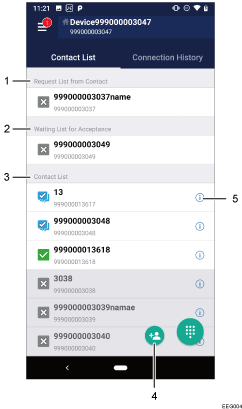
No. |
Item |
Descriptions |
|---|---|---|
1 |
Request List from Contact |
Displayed when you receive a registration request from a contact. Tap the contact, and then decide whether or not to accept the request. |
2 |
Waiting List for Acceptance |
Displays the contacts to which you sent a registration request. You can cancel registration requests. To cancel a request, tap the contact to which you sent the request. |
3 |
Contact List |
Displays the registered contacts. New contacts are added to the list when a party accepts the registration request you sent, and when you accept a request sent from another party. For details about Contact List, see What You Can Do. |
4 |
Add contact |
Enter the Contact ID and name of the party you want to add as a contact, and then send a registration request. Make sure to check the party’s Contact ID beforehand. |
5 |
Edit contact name |
Edit the name or spelling of a registered contact. You can also delete the contact from Contact List. |


