
 Previous
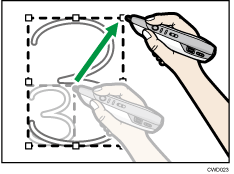
To edit writing on the screen, select  , the Select icon. Once the icon is selected, the scrolls that are enclosed by the pen on the screen will be specified. All strokes on a page can also be selected. To edit strokes on the screen, move or enlarge them.
Edit written information on the screen as follows:
 Touch
Touch  , the Select / Delete icon with the pen nib.
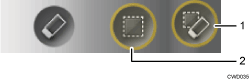
Select / Delete icon
Select icon
 Touch , the Select icon with the pen nib.
To select all strokes on the page, touch [Select All].
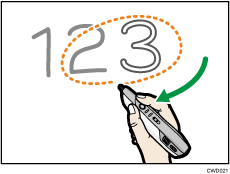
 Move the pen around the strokes you want to select.
 Edit selected strokes.
To move the selected stroke, drag it to an area where you want to place the stroke.
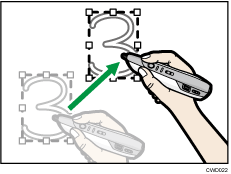
To enlarge or reduce a stroke, place the pen nib on a corner or the center of a side, and then drag the pen nib, so that the stroke can be enlarged or reduced to the size you want.