




 Manuals
 Contents
 Previous
 Next
Next


| | | |
| |||
| |||
| | | |
| ManualsContentsPreviousNext | | |
The " (C)Open Rear Cover and remove misfeed." error message appears when a paper misfeed occurs in the paper feed section.

Forcefully removing misfed paper may cause paper to tear and leave scraps of paper in the printer. This might cause a misfeed and damage the printer.
Do not touch the metal part of the fusing unit. It becomes very hot. Touching it could result in a burn.
Open the rear cover.
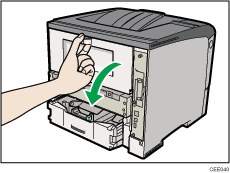
Lower the rear cover until it is horizontal, and then pull it away.
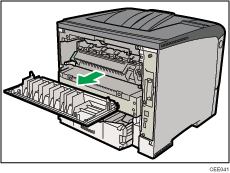
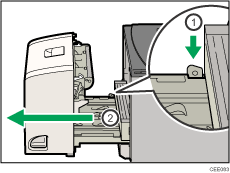
If the optional duplex unit is attached, push down the lever on the right side of the duplex unit ( ), and then pull it out until it stops (
 ).
).
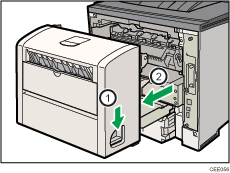
Push the under board levers () and then pull the duplex unit out of the printer ().
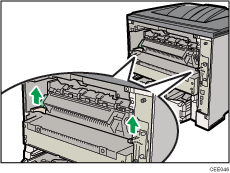
Lift the lock levers of the fusing unit as shown in the illustration.
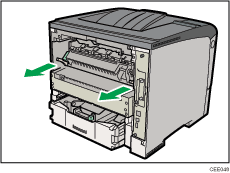
Pull the fusing unit out.
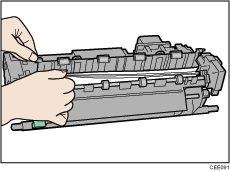
Hold the tab, and then remove the misfed paper.
Push the fusing unit until it stops.
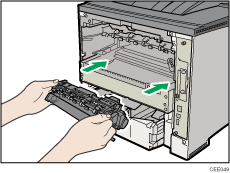
Push the lock levers of the fusing unit down until they click.
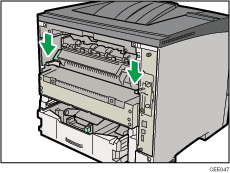
Proceed to step 12 if the optional duplex unit is installed.
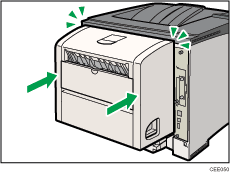
Position the rear cover horizontally and align it with the grooves in the printer's interior.
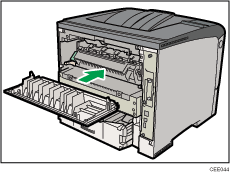
Close the rear cover.
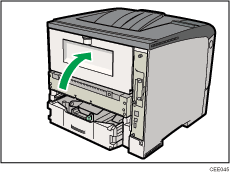
If the optional duplex unit was removed, re-install it in the printer by pushing it along the rails on the inside of the printer.
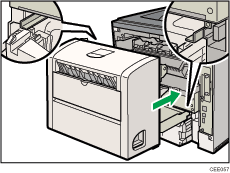
Securely push the duplex unit into the printer.
 |
 | Copyright (C) 2010 |
