












 Manuals
 Contents
 Previous
 Next
Next


| | | |
| |||
| |||
| | | |
| ManualsContentsPreviousNext | | |
Describes the detailed specifications of the respective functions.
Batch mode
You cannot switch between 1-sided and 2-sided originals during copying.
Mixed Sizes mode
Since small originals may not be correctly aligned with the document guide, the copy image may be slanted.
Copying speed and scanning speed will be reduced.
The weight range for originals in the Mixed Sizes mode is 52  81 g/m2 (14 20 lb. Bond).
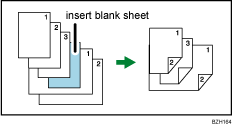
When using this function with 1 Sided  2 Sided mode, always ensure that the originals of each size are in even numbers. If you have an odd number of originals, insert blank sheets to adjust the total.
Copy Face Up
The paper weight that can be used with this function is 60 300 g/m2 (16 lb. Bond 110 lb. Cover).
You cannot use the following copy paper with this function:
Label Paper (adhesive labels)
Envelope
Copying from the multi bypass tray (tray 7)
The following paper sizes can be selected as the standard sizes:
SRA3 , A3, B4 JIS, A4
 , B5 JIS, A5, 12 × 18,
11 × 17, 11 × 15, 11 × 14, 10 × 15, 10 × 14, 81/2 × 14,
81/2 × 13, 81/2 × 11, 81/4 × 14, 81/4 × 13, 8 × 13, 8 × 10,
71/4 × 101/2, 51/2 × 81/2
Preset Reduce / Enlarge
You can select one of 12 preset ratios (5 enlargement ratios, 7 reduction ratios).
The following shows the relation between the original and paper sizes at respective scaling factors.
Metric version
400% (Area ratio 16 times):
200% (Area ratio 4 times): A5 A3
141% (Area ratio 2 times): A4 A3, A5 A4
122%: 8 × 13 A3, A4 B4 JIS
115%: B4 JIS A3
93%:
82%: 8 × 13 A4, B4 JIS A4
75%: B4 JIS 8 × 13
71% (Area ratio 1/2 times): A3 A4, A4 A5
65%: A3 8 × 13
50% (Area ratio 1/4 times): A3 A5, 8 × 13 A5
25%:
Inch version
400% (Area ratio 16 times):
200% (Area ratio 4 times): 51/2 × 81/2 11 × 17
155% (Area ratio 2 times): 51/2 × 81/2 81/2 × 14
129%: 81/2 × 11 11 × 17
121%: 81/2 × 14 11 × 17
93%:
85%: 81/2 × 13 81/2 × 11
78%: 81/2 × 14 81/2 × 11
73%: 11 × 15 81/2 × 11
65%: 11 × 17 81/2 × 11
50% (Area ratio 1/4 times): 11 × 17 51/2 × 81/2
25%:
You can select a ratio regardless of the size of an original or copy paper. With some ratios, parts of the image might not be copied or margins will appear on copies.
Zoom
The reproduction ratios you can specify are 25 400%.
You can select a ratio regardless of the size of an original or copy paper. With some ratios, parts of the image might not be copied or margins will appear on copies.
Auto Reduce / Enlarge
The machine selects reproduction ratios of between 25 400%.
Duplex
You cannot use the following copy paper with this function:
Paper smaller than A5, 51/2 × 81/2
Label paper (adhesive labels)
Cardstock
Tab stock
Envelope
You can use the following copy paper with this function:
SRA3, A3, B4, A4, B5, A5, 12 × 18, 11 × 17,
11 × 15, 11 × 14, 10 × 15, 10 × 14, 81/4 × 14, 8 × 10,
81/2 × 14, 81/2 × 11, 51/2 × 81/2, 81/2 × 13, 81/4 × 13,
8 × 13, 71/4 × 101/2
When an odd number of originals are placed in the ADF, the back of the last page of copied paper is blank.
During copying, the image is shifted to allow for the binding margin.
Combine
In this mode, the machine selects the reproduction ratio automatically. This reproduction ratio depends on copy paper sizes and the number of originals.
The reproduction ratios selectable by the machine are 25 400%.
If the calculated ratio is under the minimum ratio, it is automatically adjusted to within available range. However, with some ratios, parts of the image might not be copied.
You cannot use custom size paper.
If the orientation of originals is different from that of the copy paper, the machine will automatically rotate the image by 90 degrees to make copies properly.
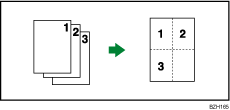
If the number of originals placed is less than the number specified for combining, the last page segment is left blank as shown.
Sort
When using the Staple functions, the capacity may be reduced.
Stack
Paper sizes and orientations that can be used with the Shift Stack are as follows:
SRA3, A3, B4, A4, B5, A5, 12 × 18, 11 × 17,
11 × 15, 11 × 14, 10 × 15, 10 × 14, 81/4 × 14, 8 × 10,
81/2 × 14, 81/2 × 11, 51/2 × 81/2, 81/2 × 13, 81/4 × 13,
8 × 13, 71/4 × 101/2
Staple
The following type of paper cannot be stapled:
Envelope
Label paper (adhesive labels)
Curled paper
Paper of low stiffness
You can specify how the machine responds if its memory becomes full during copying, or if the number of copies exceeds the capacity of the stapler:
Divides the copies into the number of sheets that can be stapled
Cancels the stapling job
To specify Left 2, Top 2, or Slant together with 2 Originals or 8 Originals of Combine 1 Side, or 4 Originals or 16 Originals of Combine 2 Sides: specify paper for orientation originals and specify paper for orientation originals.
To specify Left 2, Top 2, or Slant together with Double Copies: specify paper for orientation originals and specify paper for orientation originals.
Even if you place different size originals in the ADF, appropriate size of copy paper can be automatically selected and stapled using the Mixed Sizes mode and Auto Paper Select function. Load the paper you want to use in the paper trays beforehand. Paper sizes that can be stapled when using the Mixed Sizes mode are as follows:
A3 and A4
B4 JIS and B5 JIS
11 × 17 and 81/2 × 11
When stapling B4 JIS, 81/2 × 14 or larger paper sizes, be sure to extend the paper support plate of the finisher tray.
You cannot change stapling positions during copying.
When the original image is rotated, the staple orientation changes by 90 degrees.
The maximum original image size that can be rotated is as follows: Metric version: A4, Inch version: 81/2 × 11
When using Slant, Left 2, or Top 2 with the Combine, Double Copies or Auto Reduce / Enlarge function, "Blank part will appear. Check orientation." message may appear depending on the orientation of originals and paper you placed. In this case, change the paper orientation.
When Top or Bottom is selected and the paper with the same orientation as the original is not loaded, the image is rotated and the paper with the same size and the different orientation is selected.
When Left 2, or Top 2 is selected, the following settings are useful to rotate images appropriately:
Auto Reduce / Enlarge or Auto Paper Select
Replace Auto Tray Switching with With Image Rotation in User Tools.
If you select Center for the Booklet or Magazine function, the machine staples the paper, and folds it like a book, then delivers the paper folded.
Punch
When using Punch and Combine, Double Copies, or Auto Reduce / Enlarge, the message "Blank part will appear. Check orientation." may appear because of the orientation of the original and the copy paper. If this occurs, change the orientation of the copy paper.
Since punch holes are made in each copy, the punch hole positions vary slightly.
Z-fold
You cannot use the following paper with this function:
Special paper
Letterhead
Thick paper
Thin paper
Tab stock
Label paper (adhesive labels)
Cardstock
Envelope
Even if you place different size originals in the ADF, appropriate size of copy paper can be automatically selected and Z-folded using the Mixed Sizes mode and Auto Paper Select function. Load the paper you want to use in the paper trays beforehand. Paper sizes that can be Z-folded when using the Mixed Sizes mode are as follows (the larger size paper is Z-folded):
A3 and A4
B4 JIS and B5 JIS
11 × 17 and 81/2 × 11
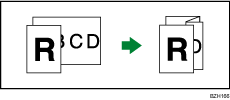
The paper sizes that can be stapled after being Z-folded are A3, B4 JIS, and 11 × 17.
The number of Z-folded copies that can be stapled is as follows (paper weight: 80 g/m2, 20 lb. Bond):
10 Z-folded sheets, 9 Z-folded sheets and 0 to 10 unfolded sheets, 8 Z-folded sheets and 0 to 20 unfolded sheets, 7 Z-folded sheets and 0 to 30 unfolded sheets, 6 Z-folded sheets and 0 to 40 unfolded sheets, 5 Z-folded sheets and 0 to 50 unfolded sheets, 4 Z-folded sheets and 0 to 60 unfolded sheets, 3 Z-folded sheets and 0 to 70 unfolded sheets, 2 Z-folded sheets and 0 to 80 unfolded sheets, 1 Z-folded sheets and 0 to 90 unfolded sheets
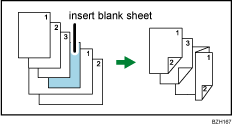
When using this function with 1 Sided 2 Sided and Mixed Sizes modes, always ensure that the originals of each size are in even numbers. If you have an odd number of originals, insert blank sheets to adjust the total.
Depending on the Z-fold settings, you may not be able to use Rotate Copy.
Even if you have selected Face Up for Copy Eject Face Method in Glass Mode in User Tools, the copies will be delivered face down.
You cannot specify Punch with Z-fold.
The printed side of the paper may occasionally be scratched or stained with toner depending on the paper and the conditions of the machine's environment.
Size Magnification
If the calculated ratio is over the maximum or under the minimum ratio, it is automatically adjusted to within available range. However, with some ratios, parts of the image might not be copied or margins will appear on copies.
The machine selects reproduction ratios of between 25 400%.
Directional Size Magnification
The reproduction ratios you can specify are 25 400%.
When entering a percentage ratio, you can specify any value in the permitted range, regardless of original or copy paper size. However, depending on settings and other conditions, part of the image may not be copied, or margins will appear on copies.
When entering a size in mm (inch), if the calculated ratio is over the maximum or under the minimum ratio, it is automatically adjusted to within available range. However, with some ratios, parts of the image might not be copied or margins will appear on copies.
Preset Stamp
Depending on paper size, if you change the stamp size, parts of the stamp might not be printed.
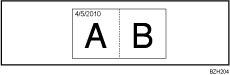
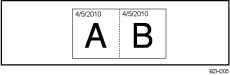
Date Stamp
When Date Stamp is used with the Combine, Magazine, or Booklet function, the date stamp is printed as follows:
With the Combine function
With the Magazine or Booklet function
Page Numbering
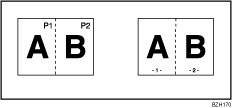
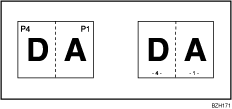
When Page Numbering is used with Combine, Magazine, or Booklet function, page numbers are printed as follows:
Per Original is selected in Page Numbering in Combine:
With 1 Sided/2 Sided using the Combine function
With the Magazine or Booklet function
Per Copy is selected in Page Numbering in Combine:
With 1 Sided/2 Sided using the Combine function
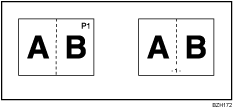
If you combine this function with the Duplex (Top to Top) function and select [P1,P2...] or [1/5,2/5...], page numbers on the back are printed as follows:
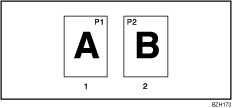
Front
Back
Stamp Text
Depending on the stamp position, parts of the text might not be copied.
Margin Adjustment
If you set a binding margin that is too wide, part of the image may not be copied.
When making copies in Combine mode, the binding margin is added to the copies after the combination is finished.
Erase
The width of the erased margin varies depending on the reproduction ratio.
Image Repeat
Depending on the paper size, ratio, and orientation, parts of repeated images may not be copied.
Centering
Though the original is set to a different orientation from the paper loaded, the machine will not rotate the image by 90 degrees (Rotate copy).
Booklet/Magazine
The machine sets the reproduction ratio automatically to meet the paper size and copies the originals together onto the paper.
The reproduction ratios selectable by the machine are 25 400%.
If the calculated ratio is under the minimum ratio, it is automatically adjusted to within available range. However, with some ratios, parts of the image might not be copied.
If the orientation of originals is different from that of the copy paper, the machine will automatically rotate the image by 90 degrees to make copies properly.
You cannot copy with originals different in size and orientation.
If the number of originals scanned is less than a multiple of 4, the last page is copied blank.
In Magazine mode, the copying may take some time after scanning originals.
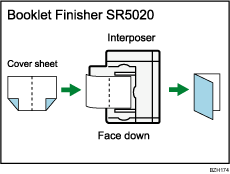
When the Booklet Finisher SR5020 is installed, if you select Staple: Center in Magazine mode, the machine staples and folds the paper in the center, then delivers the paper folded.
If you are using this function with the interposer and have specified Staple: Center, load cover sheets face down in the interposer.
Covers
If Blank mode is selected, the cover will not be counted as a copy.
The settings made under Front Cover Sheet and Back Cover Sheet in Tray Paper Settings determine whether or not the front and back covers are duplex printed.
At Mode Selected... Settings made in Front Cover Sheet and Back Cover Sheet will take priority.
Full Time... Settings made in Paper Type will take priority.
Designate
When Duplex (1 Sided 2 Sided) has been selected, specified pages will always be copied on the front of copies in the same way as in Chapters mode.
If you select [Designate: Blank], the specified pages will be excluded from the copy count.
Slip Sheet
If you do not copy onto slip sheets, they are excluded from the number of copies counted.
 |
 | Copyright (C) 2010 |
