












 Manuals
 Contents
 Previous
 Next
Next


| | | |
| |||
| |||
| | | |
| ManualsContentsPreviousNext | | |
The multi bypass tray (tray 7) allows you to copy non-standard paper.
Use the multi bypass tray (tray 7) to copy onto paper that cannot be loaded in the paper trays.

Paper that has a vertical length of 139.7  330.2 mm (5.5 13 inches) and a horizontal length of 182 487.7 mm (7.17 19.2 inches) can be copied from the multi bypass tray (tray 7).
The machine can automatically detect the following sizes as regular size copy paper:
Metric version:
A3 , B4 JIS, A4
 , B5 JIS, A5, 12 × 18, 11 × 17, 81/2 × 11, 8 × 13, 51/2 × 81/2
Inch version:
12 × 18, 11 × 17, 81/2 × 11, 51/2 × 81/2, 8 × 13, A3, B4 JIS, A4, B5 JIS, A5
If you want to use the size of paper other than the above, be sure to specify the size.
To copy onto paper other than plain paper, specify the paper type under Tray Paper Settings.
The maximum number of sheets you can load at the same time depends on paper type. Load only as much paper as can be held between the paper guides on the multi bypass tray (tray 7).
Place paper print side up on the multi bypass tray (tray 7).
While pinching the release lever, adjust the side fences to the size of the paper.
If the guides are not flush against the paper, images might be skewed or paper misfeeds might occur.
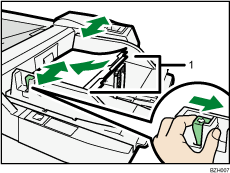
Side fences
Set the end fence.
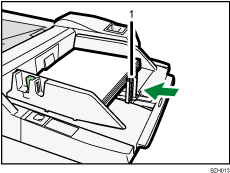
End fence
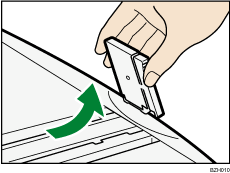
To remove the end fence, pinch it to release the stopper and slide it to the right.
Press the elevator switch on the multi bypass tray (tray 7).
The green lamp of the elevator switch is blinking while the original table is going up and down, and keeps lit when it stops.
Press the elevator switch to move down the original table if you want to either add paper or remove jammed ones.
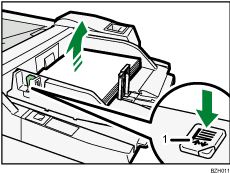
Elevator switch
Select the multi bypass tray (tray 7) on the control panel.
Press the [ ] key.
Select the size and type of the paper.
Press [OK].
Place the originals, and then press the [Start] key.

To use the multi bypass tray (tray 7), the Wide LCT is required.
Load only as much paper as can be held between the guides on the multi bypass tray (tray 7). Overloading the multi bypass tray (tray 7) can result in misfeeds and skewed images.
To support A4, 81/2 × 11 or larger paper sizes, pull out the extender.
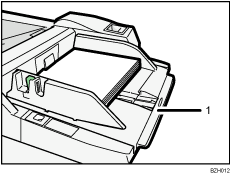
Extender
To prevent multiple sheets from being fed at once, fan paper before placing it on the tray.
When the Sort function is selected, press the [] key after all originals have been scanned.
When the Panel Key Sound is turned off, it will not sound if you insert paper into the multi bypass tray (tray 7). For details about Panel Key Sound, see "System Settings", General Settings Guide.
Printing on special paper such as thick paper may be slower than printing on plain paper.
If you place originals on the exposure glass and want the copies to be delivered face down, select Face Down for Copy Eject Face Method in Glass Mode. For details about Copy Eject Face Method in Glass Mode, see "Copier/Document Server Features", General Settings Guide.
When copying multiple originals using the multi bypass tray (tray 7), pages are delivered in reverse order because the factory default setting is face up.
If you select Tab Stock, you cannot have copies delivered face up.
If you use paper larger than 458 mm, 18.1 inches in size, you cannot have copies delivered face down.
Depending on the environment where the machine is being used, you might at times hear a rustling noise from paper moving through the machine. This noise does not indicate a malfunction.
For standard paper sizes that can be used with the multi bypass tray (tray 7), see "Supplementary Information".
 |
 | Copyright (C) 2010 |

