












 Manuals
 Contents
 Previous
 Next
Next


| | | |
| |||
| |||
| | | |
| ManualsContentsPreviousNext | | |
This section explains configuration using the initial screen of the display panel.
The items are highlighted when selected.

Do not touch the display panel.
The following screen appears when you turn on the printer.
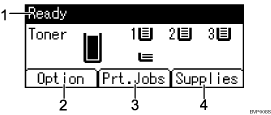
Operational Status or Messages
Displays the printer status or the messages.
[Option]
Press to display the status of options installed in the printer.
[Prt.Jobs]
Press to display print jobs sent from a computer.
[Supplies]
Press to display the menu of supplies for the printer.

[Prt.Jobs] is displayed only when the hard disk is installed in the printer.
By default, the remaining amount of toner is displayed. To not display the remaining amount of toner, press the [Menu] key, and then select [Maintenance] on the display. Select [General Settings], then [Display Supply Info], and then select [Off].
Adjust the brightness if the screen is dark. To adjust the display contrast, press the [Menu] key, and then select [Maintenance] on the display. Select [General Settings] and then [Display Contrast].
 |
 | Copyright (C) 2009 |
