












 Manuals
 Contents
 Previous
 Next
Next


| | | |
| |||
| |||
| | | |
| ManualsContentsPreviousNext | | |
This section describes how to load paper in the multi bypass tray. The multi bypass tray is referred to as Tray 7.

When two Wide Large Capacity Trays are installed, the multi bypass tray cannot be installed on the second Wide Large Capacity Tray.
Check that the paper edges are aligned at the left side.
The maximum number of sheets you can load into the multi bypass tray depend on paper type.
The tray can hold up to 500 sheets in the multi bypass tray. The number should not exceed the upper limit.
Place paper in the multi bypass tray.
When loading paper larger than A4/ 81/2" × 11", draw out the paper extender.
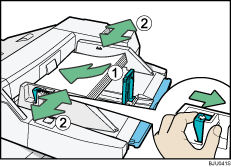
Set the side fence to the paper size.
Set the end fence.
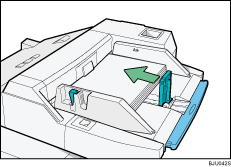
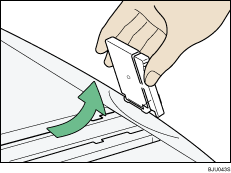
To remove the end fence, slide it to the right.
Press the elevator switch on the multi bypass tray.
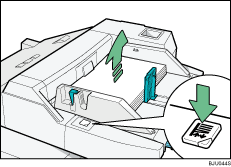
The green lamp of the elevator switch flashes when the tray is moving and remains lit when the tray is still.
If you want to add new paper or remove jammed paper, first press the elevator switch to lower the tray.

When paper is loaded which cannot be detected automatically, the user must set the paper size on the control panel.
 |
 | Copyright (C) 2008, 2009 |

