




Wireless LAN Configuration
Configure the printer to use wireless LAN. The following table shows the control panel settings and their default values. These items appear in the [Host Interface] menu.
Setting Name |
Default Value |
|---|---|
Comm. Mode |
802.11 Ad hoc |
Ad-hoc Channel |
11 |
SSID |
blank |
Security Method |
None |

Ethernet and wireless LAN cannot be used at the same time.
To use wireless LAN, set as the followings using the control panel: press the [Menu] key, and then select [Host Interface], [Network Setup], [LAN Type], and then [Wireless LAN]. Also, set the IPv4 Address, Subnet Mask, Gateway Address, DHCP, Frame Type (NW), and Active Protocol under the [Network Setup] menu. For details about setting items, see Ethernet Configuration
 .
.The wireless LAN interface unit cannot be used simultaneously with a standard Ethernet interface.
The optional wireless LAN interface unit supports 802.11 Ad hoc and Infrastructure modes. Select [802.11 Ad hoc] or [Infrastructure] for [Comm.Mode].
 Press the [Menu] key.
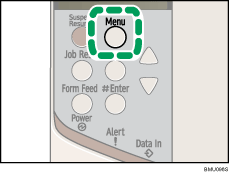
The [Menu] screen appears.
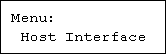
 Press the [
 ] or [
 ] key to display [Host Interface], and then press the [
 Enter] key.
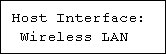
 Press the [] or [] key to display [Wireless LAN], and then press the [ Enter] key.
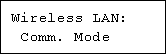
 Press the [] or [] key to display [Comm. Mode], and then press the [ Enter] key.
 Press the [] or [] key to select the transmission mode of wireless LAN, and then press the [ Enter] key.
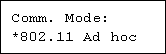
The factory default is [802.11 Ad hoc].
The transmission mode of wireless LAN can also be set using a Web browser. For details, see Web browser, and "Configuring the Network Interface Board", Software Guide.
 If [802.11 Ad hoc] is selected for [Comm. Mode], set the channel to use for transmission.
Confirm the network administrator for the channel to use.
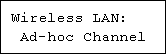
 In the [Wireless LAN] menu, press the [] or [] key to display [Ad-hoc Channel], and then press the [ Enter] key.
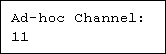
 Press the [] or [] key to set the channel, and then press the [ Enter] key.
 Print a configuration page to confirm the settings made.

"Printing the Test Page", Quick Installation Guide.

