


Double Feeding (J099, J470, J471, J485, J486, J500, J501)
Cause:
The cause may vary depending on the paper and operating environment.
Solution:
 Perform the common troubleshooting procedure.
For details, see Common Troubleshooting.
 Check if the double feeding is resolved.
Yes | Finished! |
No | Go to the next step. |
 If using paper with a thickness of Paper Weight 5 or below, extend the paper retainer.
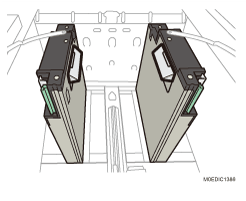
If using paper with a thickness of Paper Weight 6 or above, go to the next step.
 To feed paper from LCT banner sheet tray, attach the end fence for long paper.
For details, see Attaching the Side Fences, Auxiliary Side Fence, and End Fence (for Long Paper).
For paper with a length of 420.0 mm to 559.9 mm (16.5 inches to 22.0 inches), attach the 2 short end fences.
For paper with a length of 560.0 mm to 700.0 mm (22.0 inches to 27.6 inches), attach the 1 long end fence.
If Vacuum Feed Banner Sheet Tray Type S9 is not used, go to the next step.
 To print on tab stocks, attach the tab sheet holder.
For details, see Attaching the Tab Fence in the Wide Large Capacity Tray.
To print on other types of paper, go to the next step.
 Check if the double feeding is resolved.
Yes | Finished! |
No | Go to the next step. |
 To feed paper from Extension output banner sheet tray, attach the side fences and end fence for extra-long paper.
For details, see Attaching the Side Fences, Auxiliary Side Fence, and End Fence (for Long Paper).
Otherwise, go to the next step.
 Check if the double feeding is resolved.
Yes | Finished! |
No | Go to the next step. |
 In [Detailed settings] for custom paper, select 1301: [2-Tray LCIT: Paper Feed Mode] and set [Paper Feed Mode:Fan Level] to [Prevent Double Feed (Weaker Blow)].

If set to [Prevent Double Feed (Weaker Blow)], paper misfeeds may be prone to occur with paper with a width of 182 mm to 225 mm (7.2 inches to 8.9 inches). If this happens, attach the small tab end fence. For details, see Attaching the Small Tab End Fence to the Wide Large Capacity Tray.
 Check if the double feeding is resolved.
Yes | Finished! |
No | Go to the next step. |
 In [Detailed settings] for custom paper, select 1301: [2-Tray LCIT: Paper Feed Mode] and set [Paper Feed Mode:Fan Level] to [Prevent Double Feed (Weakest Blow)].
If set to [Prevent Double Feed (Weakest Blow)], paper misfeeds may be prone to occur with paper with a width of 182 mm to 225 mm (7.2 inches to 8.9 inches). For details, see Attaching the Small Tab End Fence to the Wide Large Capacity Tray.
 Check if the double feeding is resolved.
Yes | Finished! |
No | Go to the next step. |
 In [Detailed settings] for custom paper, select 1303-02: [Extend Fan Operating Time], and then change it from "Off" to "On".
 Check if the double feeding is resolved.
Yes | Finished! |
No | There is no other solution, so do not feed paper. |
If the double feeding still persists after performing the above procedure, do as follows.
If paper misfeeds persist even after performing the abovementioned procedure, enable 307: [Auto Continue Paper Feeding] in [Operator Adjust.] in order to resolve the problem of reduced operation rate due to paper jam detection.
Double feeding may be erroneously detected when printing on thin paper with a narrow width. Select 1331-03: [Detect JAM080] in [Detailed settings] for custom paper, and then set it to "Off".