


Glossy Lines at the Edge of the Paper
A glossy line appears in parallel to the paper feed direction. This may occur on solid-fill images.
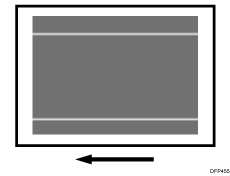
Cause:
Due to edge roughness on the paper, the toner on the fusing belt surface fluctuates parallel to the paper feed direction, causing glossy streaks on solid-fill images and uneven density on halftone images.
This problem is prone to occur on synthetic paper and coated paper with a medium thickness or more.
Solution:
 In the [Machine: Maintenance] group on the [Operator Adjust.] menu, select 0508: [Manually Smooth Fusing Belt], and then execute 01: [Belt Scratches].
 Print the image. Has the problem been resolved?
Yes | Go to the next step. |
No | Start over from Step 1. If the problem persists even after executing [Belt Scratches] 5 times, go to the next step. |
 If the fuser unit can be replaced, replace the fusing unit, and then go to Step 5.
 In [Detailed settings] for custom paper, select 1240: [Fusing Nip Width: Paper Type], and then check the value for 01 [Type].
Other than envelopes | Proceed to "If the paper type for fusing nip width is set to "other than envelopes". |
Envelope | Proceed to Step 5. |
 Check whether or not to enable [For Belt Scratches] in [Interval] in [Fusing Belt Smoothing].

With this function, the fusing belt smoothing roller automatically polishes the surface of the fusing belt after a certain number of sheets have been fed. (Automatic polishing)
Normally, this is set to "Off (Do not Execute)".
The higher the frequency of polishing, the shorter the replacement cycle of the fusing belt smoothing roller becomes.
Yes | Go to the next step. |
No | Finished! |
 Enable [For Belt Scratches] in [Interval] in [Fusing Belt Smoothing].
Select the paper from the Master paper, change the paper name to "(Paper Name) Refreshing", and register it as custom paper.
In [Detailed settings] for custom paper, select 1243 [Fusing Belt Smoothing], select [Interval] in 02: [For Belt Scratches], and then adjust the setting.
You can select the frequency of polishing from among "Frequently", "More Frequently" and "Most Frequently".
Be sure to change the frequency in the order of "Off", "Frequently", "More Frequently", and "Most Frequently".
It is recommended to feed the paper by separating the jobs into the following number of sheets (because the interval of automatic polishing execution is close to this number of sheets).
Frequently: 1 job = up to 2000 sheets
More Frequently: 1 job = up to 600 sheets
Most Frequently: 1 job = up to 400 sheets
If the paper type for fusing nip width is set to "other than envelopes"
Select the paper from the Master paper, change the paper name to "(Paper Name) Refreshing", and register it as custom paper.
In [Detailed settings] for custom paper, select 1241-01: [Fusing Nip Width Adjustment: Other than Envelope], and then change it to "Nip Width 2".
Select 1244: [Fusing Pressure Roller On Before Fusing] to [On].
In [Detailed settings] for custom paper, use the following settings to increase the margin width by 1 mm at the leading edge of the image.
1239-01: Margin: BW/FC/FCS/S: Leading Edge
1239-03: Margin: FCS: Leading Edge: Clear/Special
1239-04: Margin: FCS: Leading Edge: White
1239-05: Margin: FCS: Leading Edge: Metallic
Select 1232 [Fusing Temperature], and then check the temperature setting or the fusing heat roller.
1232-01: Fusing Temperature: BW/FC/FCS: Heat Roller Temp
1232-06: Fusing Temperature: FCS: Heat Roller Temp: Clear/Special
1232-07: Fusing Temperature: FCS: Heat Roller Temp: White
1232-08: Fusing Temperature: FCS: Heat Roller Temp: Metallic
1232-26: Fusing Temperature: S: Heat Roller Temp: Clear/Special
1232-27: Fusing Temperature: S: Heat Roller Temp: White
1232-28: Fusing Temperature: S: Heat Roller Temp: Metallic
1232-46: Fusing Temperature: BW/FC/FCS: Fuser Setting HQ: Heat Roller Temp
1232-51: Fusing Temperature: FCS: Fuser Setting HQ: Heat Roller Temp: Clear/Special
1232-52: Fusing Temperature: FCS: Fuser Setting HQ: Heat Roller Temp: White
1232-53: Fusing Temperature: FCS: Fuser Setting HQ: Heat Roller Temp: Metallic
1232-71: Fusing Temperature: S: Fuser Setting HQ: Heat Roller Temp: Clear/Special
1232-72: Fusing Temperature: S: Fuser Setting HQ: Heat Roller Temp: White
1232-73: Fusing Temperature: S: Fuser Setting HQ: Heat Roller Temp: Metallic
170°C or less | Go to the next step. |
171°C or higher | Go to the troubleshooting "Unacceptable Fusibility / The Problem Persisting Even after Increasing the Fusing Heat Roller Temperature to 185°C". |
Increase the temperature setting for the fusing heat roller by 15°C.
 Print on 20 or more sheets of A4 paper, short edge feed (SEF), to check if the image is within the acceptable range.
Yes | Go to the next step. |
No | Go to the troubleshooting "Unacceptable Fusibility / The Problem Persisting Even after Increasing the Fusing Heat Roller Temperature to 185°C". |
If paper jams occur, you can increase margin width according to the troubleshooting described in see Paper Jams Occur with Crumpling of the Leading Edge When Thin Paper Is Used.
 Check to see if the fusibility is within the acceptable range.
The required level of fusibility is as follows.
The printed image does not come off.
The toner does not come off even if it is lightly rubbed by a nail.
The toner does not come off even if the image is wiped with an optical cloth.
Yes | Go to the next step. |
No | Increase the temperature setting for the fusing heat roller by 5°C, start over from Step 7. If the problem persists even after increasing the fusing heat roller temperature to 185°C, go to the troubleshooting described in "Unacceptable Fusibility / The Problem Persisting Even after Increasing the Fusing Heat Roller Temperature to 185°C" |
 In [Detailed settings] for custom paper, select 02: [For Belt Scratches] in [Interval] in 1243: [Fusing Belt Smoothing], and then increase by one step the interval for polishing the fusing belt by the fusing belt smoothing roller.
For example, if the present value is "Frequently", change it to "More Frequently".
This procedure is complete.
Unacceptable Fusibility / The Problem Persisting Even after Increasing the Fusing Heat Roller Temperature to 185°C
Check if it is permissible to reduce throughput.
Yes | Go to the next step. |
No | In [Detailed settings] for custom paper, select 1241-01: [Fusing Nip Width Adjustment: Other than Envelope], and then restore the value to the fusing nip width 1. In [Detailed settings] for custom paper, select 1243: [Fusing Belt Smoothing], select [Interval] 02: [For Belt Scratches], and then increase by one step the interval for polishing the fusing belt by the fusing belt smoothing roller. For example, if the present value is "Frequently", change it to "More Frequently". This procedure is complete. |
If glossy streaks occur, check if the special toner (clear) is being used.
Yes | Go to the next step. |
No | Proceed to "Increasing the Fusing Heat Roller Temperature to 200°C / Decreasing the Print Speed to "Low"". |
In [Detailed settings] for the custom paper you are using, select 1231: [Print Speed], and check the value.
1231-01: Print Speed: BW/FC/FCS: BW/FC/FCS
1231-03: Print Speed: FCS: White
1231-04: Print Speed: FCS: Metallic
1231-07: Print Speed: S: White
1231-08: Print Speed: S: Metallic
1231-10: Print Speed: BW/FC/FCS: Fuser Setting HQ: BW/FC/FCS
1231-12: Print Speed: FCS: Fuser Setting HQ: White
1231-13: Print Speed: FCS: Fuser Setting HQ: Metallic
1231-16: Print Speed: S: Fuser Setting HQ: White
1231-17: Print Speed: S: Fuser Setting HQ: Metallic
"High" | Go to the next step. |
"Middle" or "Low" | Proceed to "Increasing the Fusing Heat Roller Temperature to 200°C / Decreasing the Print Speed to "Low". |
Select 1232 [Fusing Temperature], and then check the fusing heat roller temperature settings for every mode except for the mode for the special color (clear).
1232-01: Fusing Temperature: BW/FC/FCS: Heat Roller Temp
1232-07: Fusing Temperature: FCS: Heat Roller Temp: White
1232-08: Fusing Temperature: FCS: Heat Roller Temp: Metallic
1232-27: Fusing Temperature: S: Heat Roller Temp: White
1232-28: Fusing Temperature: S: Heat Roller Temp: Metallic
1232-46: Fusing Temperature: BW/FC/FCS: Fuser Setting HQ: Heat Roller Temp
1232-52: Fusing Temperature: FCS: Fuser Setting HQ: Heat Roller Temp: White
1232-53: Fusing Temperature: FCS: Fuser Setting HQ: Heat Roller Temp: Metallic
1232-72: Fusing Temperature: S: Fuser Setting HQ: Heat Roller Temp: White
1232-73: Fusing Temperature: S: Fuser Setting HQ: Heat Roller Temp: Metallic
175°C or less | Go to the next step. |
176°C or higher | Proceed to "Increasing the Fusing Heat Roller Temperature to 200°C / Decreasing the Print Speed to "Low". |
Except for the mode for the special toner (clear), increase the fusing heat roller temperature by 10°C.
Go back to 1232: [Fusing Temperature] and then change it to "Middle".
Print on 20 or more sheets of A4 paper, short edge feed (SEF), to check if the image is within the acceptable range.
Yes | Go to the next step. |
No | Proceed to "Increasing the Fusing Heat Roller Temperature to 200°C / Decreasing the Print Speed to "Low"". |
If paper jams occur, you can increase margin width according to the troubleshooting described in see Paper Jams Occur with Crumpling of the Leading Edge When Thin Paper Is Used.
Check to see if the fusibility is within the acceptable range.
The required level of fusibility is as follows.
The printed image does not come off.
The toner does not come off even if it is lightly rubbed by a nail.
The toner does not come off even if the image is wiped with an optical cloth.
Yes | Go to the next step. |
No | Except for the mode for the special toner (clear), increase the fusing heat roller temperature by 5°C, then retry from Step 7. If the problem persists even after increasing to 185°C, go to the troubleshooting described in "Increasing the Fusing Heat Roller Temperature to 200°C / Decreasing the Print Speed to "Low". |
In [Detailed settings] for custom paper, select 02: [For Belt Scratches] in [Interval] in 1243: [Fusing Belt Smoothing], and then increase by one step the interval for polishing the fusing belt by the fusing belt smoothing roller.
For example, if the present value is "Frequently", change it to "More Frequently".
This procedure is complete.
Increasing the Fusing Heat Roller Temperature to 200°C / Decreasing the Print Speed to "Low"
In [Detailed settings] for the custom paper you are using, select 1231: [Print Speed], and check the value.
1232-01: Fusing Temperature: BW/FC/FCS: Heat Roller Temp
1232-06: Fusing Temperature: FCS: Heat Roller Temp: Clear/Special
1232-07: Fusing Temperature: FCS: Heat Roller Temp: White
1232-08: Fusing Temperature: FCS: Heat Roller Temp: Metallic
1232-26: Fusing Temperature: S: Heat Roller Temp: Clear/Special
1232-27: Fusing Temperature: S: Heat Roller Temp: White
1232-28: Fusing Temperature: S: Heat Roller Temp: Metallic
1232-46: Fusing Temperature: BW/FC/FCS: Fuser Setting HQ: Heat Roller Temp
1232-51: Fusing Temperature: FCS: Fuser Setting HQ: Heat Roller Temp: Clear/Special
1232-52: Fusing Temperature: FCS: Fuser Setting HQ: Heat Roller Temp: White
1232-53: Fusing Temperature: FCS: Fuser Setting HQ: Heat Roller Temp: Metallic
1232-71: Fusing Temperature: S: Fuser Setting HQ: Heat Roller Temp: Clear/Special
1232-72: Fusing Temperature: S: Fuser Setting HQ: Heat Roller Temp: White
1232-73: Fusing Temperature: S: Fuser Setting HQ: Heat Roller Temp: Metallic
195°C or less | Go to the next step. |
196°C or higher | In [Detailed settings] for custom paper, select 1243: [Fusing Belt Smoothing], select [Interval] 02: [For Belt Scratches], and then increase by one step the interval for polishing the fusing belt by the fusing belt smoothing roller. For example, if the present value is "Frequently", change it to "More Frequently". This procedure is complete. |
Increase the temperature setting for the fusing heat roller by 5°C.
Select 1231 [Motor Speed], and then change the print speed from [Middle] to [Low].
1231-01: Print Speed: BW/FC/FCS: BW/FC/FCS
1231-02: Print Speed: FCS: Clear/Special
1231-03: Print Speed: FCS: White
1231-04: Print Speed: FCS: Metallic
1231-06: Print Speed: S: Clear/Special
1231-07: Print Speed: S: White
1231-08: Print Speed: S: Metallic
1231-10: Print Speed: BW/FC/FCS: Fuser Setting HQ: BW/FC/FCS
1231-11: Print Speed: FCS: Fuser Setting HQ: Clear/Special
1231-12: Print Speed: FCS: Fuser Setting HQ: White
1231-13: Print Speed: FCS: Fuser Setting HQ: Metallic
1231-15: Print Speed: S: Fuser Setting HQ: Clear/Special
1231-16: Print Speed: S: Fuser Setting HQ: White
1231-17: Print Speed: S: Fuser Setting HQ: Metallic
Print on 20 or more sheets of A4 paper, short edge feed (SEF), to check if the image is within the acceptable range.
Yes | Go to the next step. |
No | No further improvement is likely. |
If paper jams occur, you can increase margin width according to the troubleshooting described in see Paper Jams Occur with Crumpling of the Leading Edge When Thin Paper Is Used.
Check to see if the fusibility is within the acceptable range.
The required level of fusibility is as follows.
The printed image does not come off.
The toner does not come off even if it is lightly rubbed by a nail.
The toner does not come off even if the image is wiped with an optical cloth.
Yes | Go to the next step. |
No | Increase the fusing heat roller temperature further by 5°C. If the problem persists even after increasing the value to "200", there is no other solution. |
In [Detailed settings] for custom paper, select 02: [For Belt Scratches] in [Interval] in 1243: [Fusing Belt Smoothing], and then increase by one step the interval for polishing the fusing belt by the fusing belt smoothing roller.
For example, if the present value is "Frequently", change it to "More Frequently".
This procedure is complete.
The throughput is reduced if you decrease the print speed. As a reference, the throughput for printing on A4 LEF paper is as follows.
High
Middle
Low
Pro C7500/ Pro C7500H
85ppm
69ppm
40ppm
When using Productivity Upgrade Unit Type S14
85ppm
79ppm
40ppm
After performing the solution, it is recommended to perform the color calibration of the external printer controller.
Select "Clear/Special" when using Neon Yellow, Neon Pink, or Invisible Red. Select "Metallic" when using Gold or Silver.