


When Paper Is Jammed
Remove the jammed sheet by following the procedure described in the animated illustration displayed on the control panel. If paper jams occur frequently, check that the paper size in the tray, and the [Media] hub displayed on the control panel are the same.
Be careful not to rip the jammed paper and leave small pieces inside the machine when removing. Hold on the left and right edges of the paper firmly and apply force evenly to pull out the paper.

- There are highly-heated parts inside the machine. When removing misfed paper, do not touch areas other than those specified in this manual. Touching those areas can result in burns.
- When replacing paper or removing jammed paper, make sure not to trap or injure your fingers.
- When operating the machine, do not put your hand inside the booklet finisher tray of the finisher's staple unit. You may trap your fingers in the machine's gap and injury can result.

When clearing misfeeds, do not turn off the power. If you do, your settings will be lost.
Only perform the operation described in the animated illustration. Failure to do so may degrade the print quality or cause a malfunction.
There are hot surfaces inside the machine. Before removing jammed paper in the fusing unit, wait until the temperature of the covers in the fusing unit and duplex unit to cool down adequately.
When removing the paper, be careful not to touch the glass surface that comes in contact with the feeding paper.
When removing jammed paper, you can touch only those areas explicitly indicated in the manual.
Do not remove the fusing unit. Doing so will result in loss of print quality.
When removing jammed paper in the fusing unit, remove the paper from the right side first. Only when you cannot remove the paper from the right side, remove it from the left side. Also, check that no paper remains in the fusing unit.
Close the fuser unit cover slowly after removing a paper jam in the unit. You may damage the fuser belt or other parts in the unit if you close the cover too fast.
If a paper jam occurs in the fold unit, and the LED is flashing when you open the front cover, close the cover, open it again, and then check if the LED is turned off. Do not remove paper jam while the LED is flashing. Doing so may cause a malfunction to occur.
If paper jams occur frequently in the same location, perform "Adjust Print Quality" to check for the correct method to load paper on the machine, or adjust the machine settings. For details about "Adjust Print Quality", see Using "Adjust Print Quality".
 Check the part where the paper jam occurred on the screen.
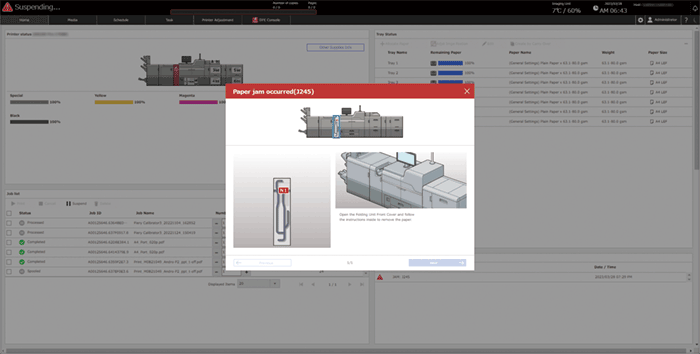
 Follow the procedure described in the animated illustration to remove the jammed paper.
 Close all covers that have been opened.

After closing the emergency message of paper jam occurring, press the message for the JAM on the [System Messages] tile in the [Home] hub. On a screen other than the [Home] hub, press the alarm icon (
 ), and press the message for the JAM on the "System Messages" screen.
Multiple locations of paper jams may be indicated simultaneously. If this occurs, check all the locations that are displayed.
If the jammed paper was torn apart while removing it, check that all pieces are accounted for.
When a paper jam occurs in C6, see the procedure that is shown in the animation, and remove the jammed paper. Before closing the door, pull out the unit while holding on to lever C2, and check the space where the unit occupied from below. If paper is caught between the belt and the unit, remove the paper. Then, check from below that no paper is caught between the unit and the belt directly above the C6 section. If paper is caught between the belt and the unit, remove the paper. When you are finished checking, close the door.
When a paper jam occurs in Rb1–Rb5, check if paper is ejected on the paper holder of the Finisher Shift Tray. When paper is ejected on the paper holder, remove the ejected paper first, and then remove any jammed paper inside the finisher.
When a paper jam occurs in D, and you cannot remove the jammed paper from the right side of the fusing unit, use the knob behind the left front cover.
Remove the knob behind the left front cover.
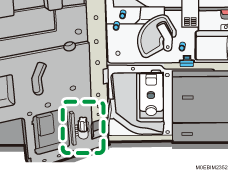
Firmly insert the knob into the slot on the fusing unit aligning its tip to the direction of the slot.
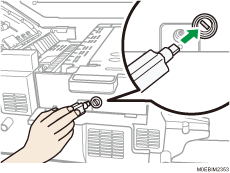
Turn the knob counterclockwise until the paper is ejected to the right side of the fusing unit to remove the jammed paper.
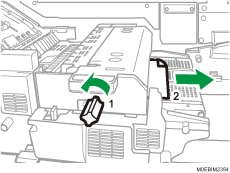
Store the knob in its original location.
When the Animation Does Not Appear
If a paper jam has occurred in certain locations, the procedure for removing the jammed paper is not displayed on the control panel. Open the front cover in the place corresponding to the letter displayed (on the control panel), and then proceed as instructed on the sticker or sheet inside the front cover, or in the following descriptions. If a lamp is lit when the front cover is opened, open the guide plate at the indicated location, and remove the jammed paper.
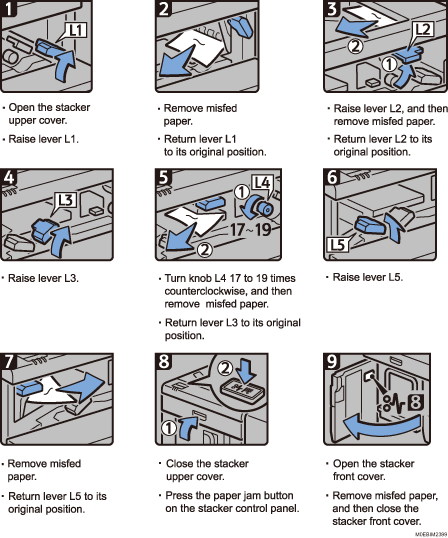
When L is displayed
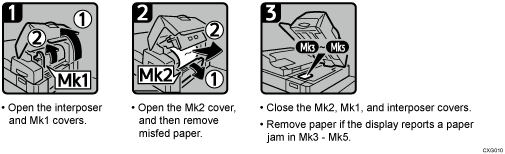
When Mk1 or Mk2 is displayed
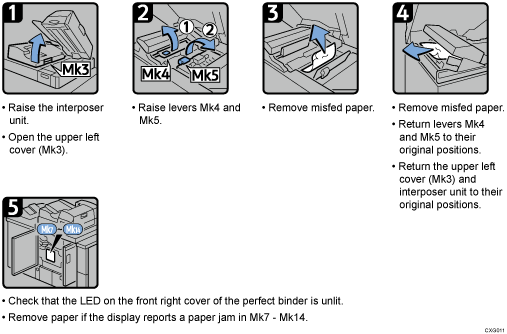
When Mk3 – Mk5 is displayed
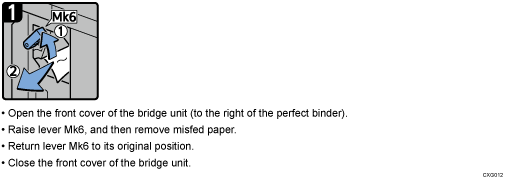
When Mk6 is displayed
When Mk7 or Mk8 is displayed

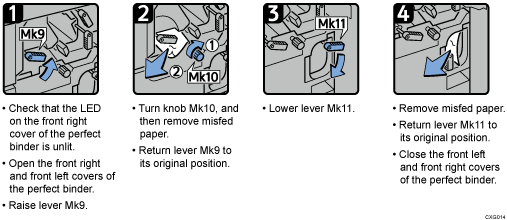
When Mk9 – Mk11 is displayed
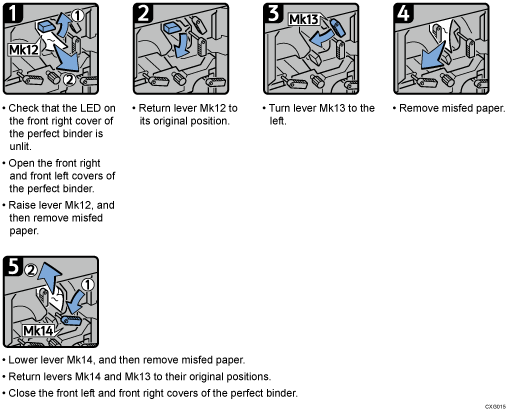
When Mk12 – Mk14 is displayed
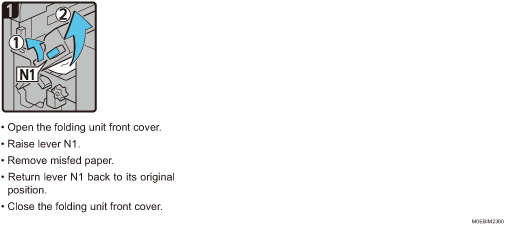
When N1 is displayed
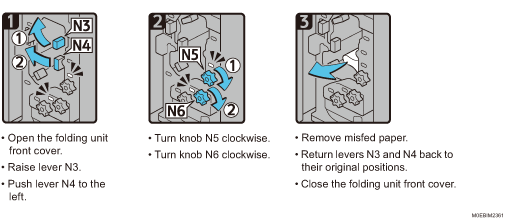
When N3-N6 is displayed
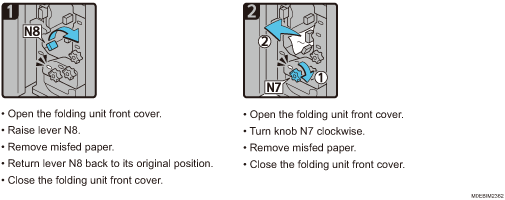
When N7 or N8 is displayed
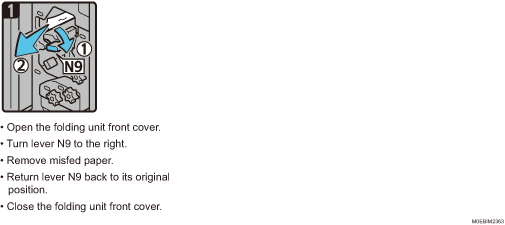
When N9 is displayed
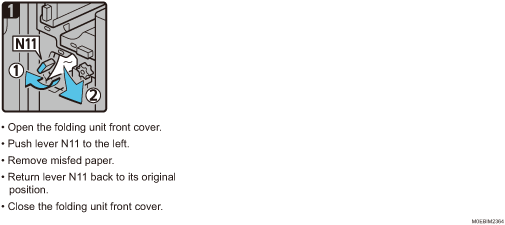
When N11 is displayed
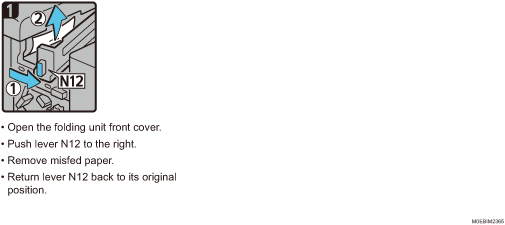
When N12 is displayed
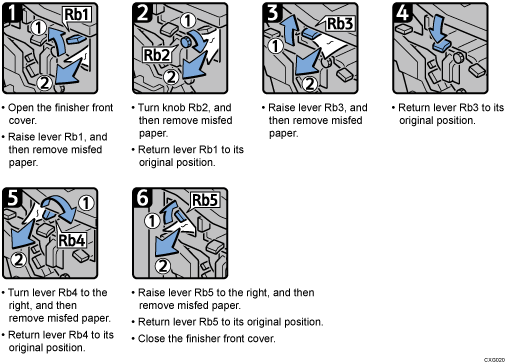
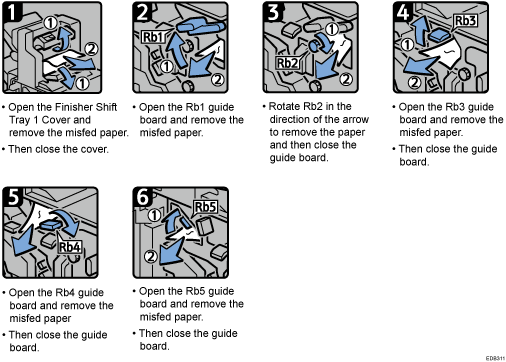
When Rb1 – Rb5 is displayed
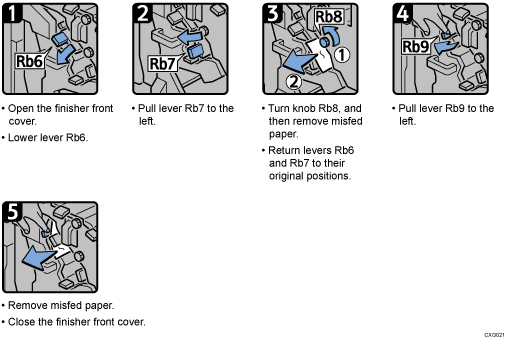
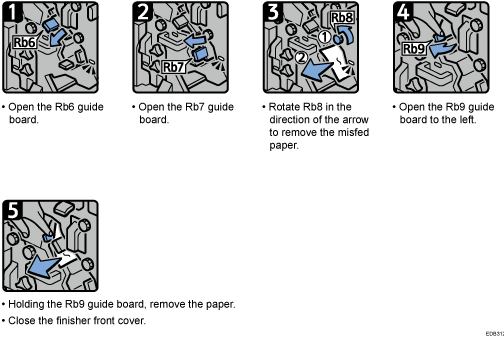
When Rb6 – Rb9 is displayed
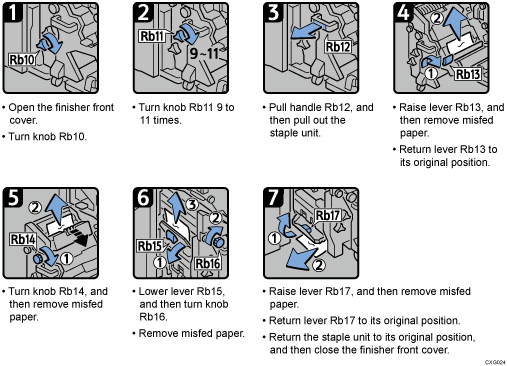
When Rb10 – Rb17 is displayed
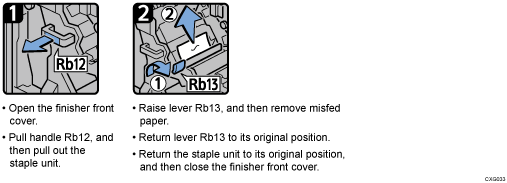
When Rb12 – Rb13 is displayed
When Rb1 – Rb5 is displayed
When Rb6 – Rb9 is displayed
When Rb10 – Rb17 is displayed
When Rb12 – Rb13 is displayed
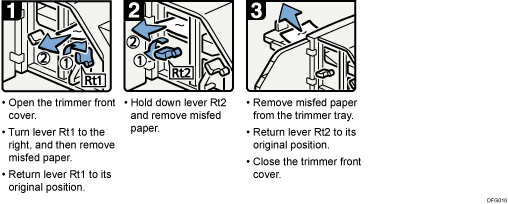
When Rt1 or Rt2 is displayed
Ejecting the Paper Jammed in the Post Processor Unit Automatically
You can specify to eject the jammed paper onto the specified tray automatically, and proceed with printing when a paper jam occurs in the finisher, booklet finisher, or high-capacity stacker.
Press [Printer Adjustment] hub  03 | [Machine: Paper Feed/Output] 0305: [Remaining Paper Output Tray When Misfeed Occurs].
On the item with  displayed to its left, click to display its subordinate items.
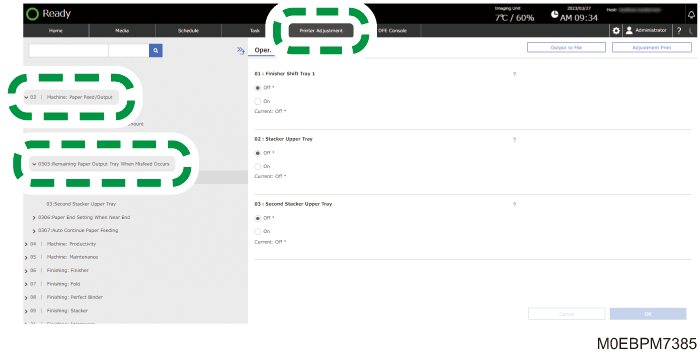
Specify [On] on the tray to which you want to eject the jammed paper.
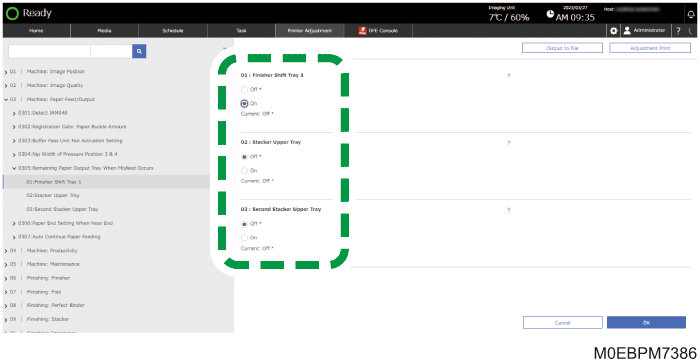
Press [OK].
The jammed paper may not be ejected depending on its condition even if you enable this setting.
If there are some sheets of paper already on the target tray, remove them as soon as possible because any jammed paper will be ejected onto them.
After ejecting the jammed paper automatically, the machine displays a message prompting you to reset the device in which the paper jam occurs.