


Using "Adjust Print Quality"
When misalignment of image position occurs, blurring and white spots appear on the printed image, or toner adhesion problem occurs, use "Adjust Print Quality" to resolve the problem.
When image position error occurs (auto adjustment)
The machine performs "Image Position", "Image Magnification", and "Trapezoidal Distortion" automatically.
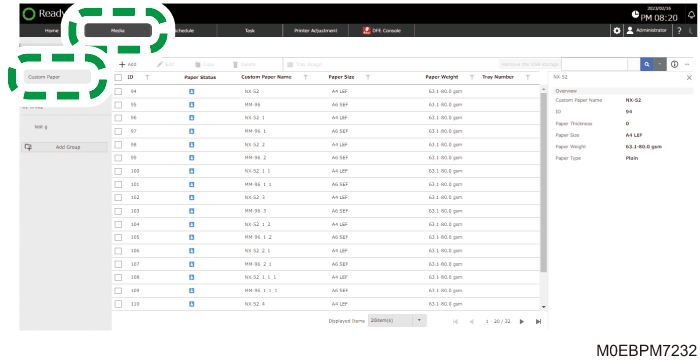
 Press the [Media] hub
  [Custom Paper].
 Select the check box of the paper to be adjusted, and press [Edit].
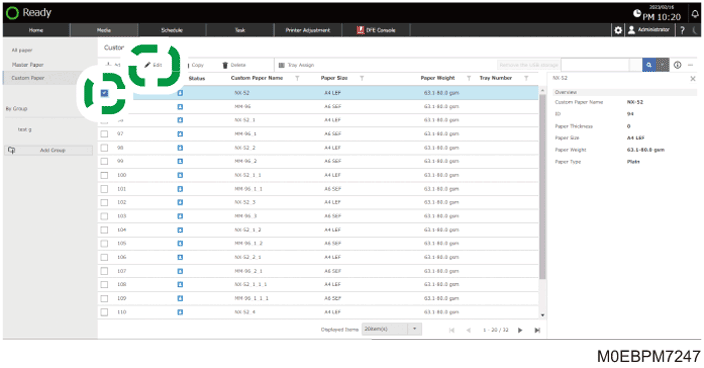
 Select the check box of the paper to be adjusted, and press [OK].
 When "Tray Not Selected" is displayed, specify the tray on which the paper to be adjusted is loaded.
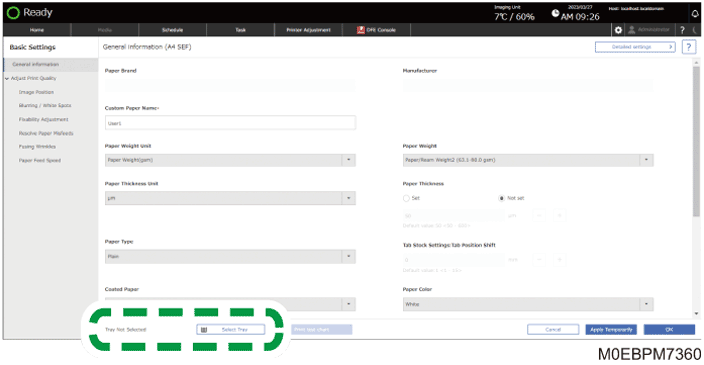
Load the paper to be adjusted onto the tray.
Press [Select Tray].
Specify the tray where you loaded the paper, and then press [OK].
 Press [Image Position] "Front Side", or [Adjust/Print] under "Front & Back Sides".
The machine adjusts the image position and scale when you specify "Front Side". To align the image positions on the front and back sides precisely, specify Front & Back Sides.
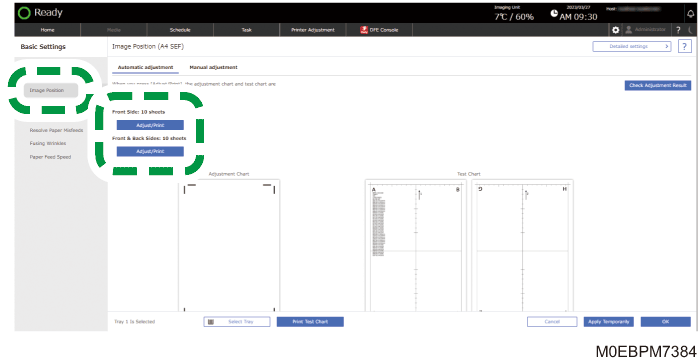
The image position is adjusted, and the adjustment result is printed.
 Press [OK].
The adjustment result is saved.
When image position error occurs (manual adjustment)
Measure the print result using a ruler or other measuring instrument, and adjust the print position.
Use this item when you are adjusting the print position on a transparent sheet or other special paper, or when you cannot adjust the print position properly in [Automatic adjustment].
Press the [Media] hub [Custom Paper].
Select the check box of the paper to be adjusted, and press [Edit].
Select the check box of the paper to be adjusted, and press [OK].
When "Tray Not Selected" is displayed, specify the tray on which the paper to be adjusted is loaded.
Load the paper to be adjusted onto the tray.
Press [Select Tray].
Specify the tray where you loaded the paper, and then press [OK].
Press [Image Position] the [Manual adjustment] tab.
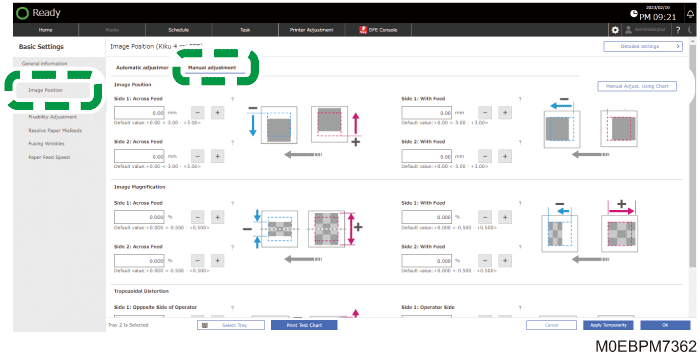
Enter the adjustment value from the print result.
When the appropriate data is unavailable, you can use the test chart that can be printed from [Print Test Chart] in the lower part of the screen.
You can calculate and enter the adjustment value.
Press [Manual Adjust. Using Chart]
[Print Test Chart].Select either [Side 1] or [Side 2], and then press [OK].
The machine adjusts the image position and scale on the front side of the paper when you select "1 Sided". To align the image positions on the front and back sides of the paper precisely, select "Front & Back Sides".
Measure the print result, and enter the value.
Enter the value for the back side when you specify [Side 2].
Press [Calculate]
[OK].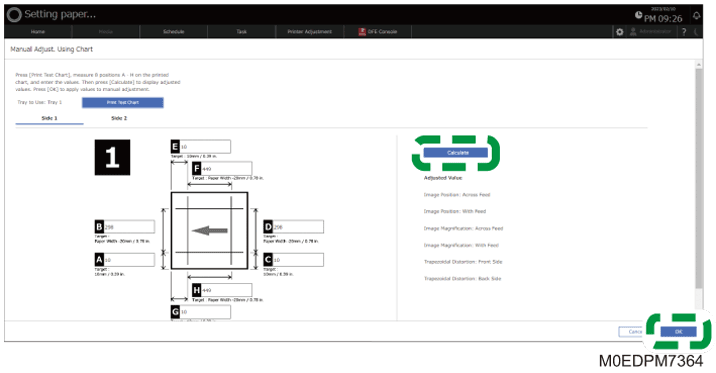
The screen returns to the [Manual Adjustment] tab, and the adjusted value is entered into the input box.
 Press [OK].
The adjustment result is saved.
When blurring or white spot appears
When blurring (hollow hole) or white spot appears on the printed page, change the machine setting to deal with the problem.

The term blurring refers to a condition in which the solid area in an image is not uniformly covered by ink layer, causing minute white spots to appear.
The result may vary depending on the ambient temperature, temperature of the paper, and other paper conditions. Paper condition is affected by temperature, humidity, and other environmental conditions and storage methods.
Results may vary depending on the paper grain and the orientation in which the paper is loaded (SEF or LEF). If no problem occurs when you change the orientation in which the paper is loaded, change the orientation, and try again.
Press the [Media] hub [Custom Paper].
Select the check box of the paper to be adjusted, and press [Edit].
Select the check box of the paper to be adjusted, and press [OK].
When "Tray Not Selected" is displayed, specify the tray on which the paper to be adjusted is loaded.
Load the paper to be adjusted onto the tray.
Press [Select Tray].
Specify the tray where you loaded the paper, and then press [OK].
Press [Blurring / White Spots], and then specify "Select Color Mode".
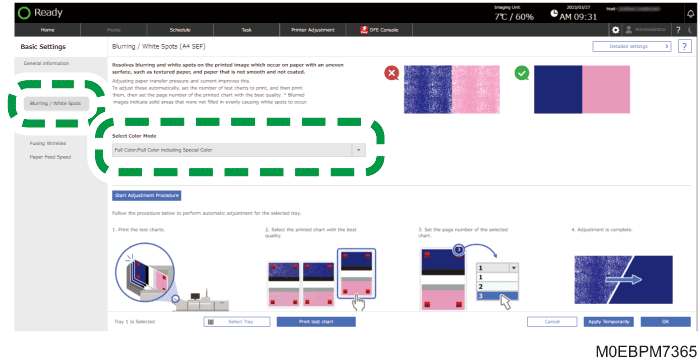
Perform adjustment.
"Auto Adjustment" tab: the machine performs adjustment automatically when you specify [Full Color/Full Color including Special Color].
Press [Start Adjustment Procedure].
Specify the adjustment method, and press [Adjust/Print].
Press [Next] after printing is complete.
Enter "Page Number of the Best Quality Printed Chart", and press [Fix Adjusted Value and Finish].
"Manual Adjustment" tab: perform adjustment manually when you specify [Black and White], or when the obtained result of the [Full Color] test chart is not suitable.
Specify [Higher Pressure Mode] or [Highest Pressure Mode] in "Paper Transfer Pressure Mode".
Change the values of "Paper Transfer Output" on Side 1 and Side 2.
On a solid image, add 2 to the current value, and subtract 2 from the value on a halftone image.
Press [OK].
The adjustment result is saved.
When the toner fixation is not adequate
When printing on paper that has a glossier finish than standard coated paper, such as mirror coated paper, change the settings of the printer to improve toner fixation.
Press the [Media] hub [Custom Paper].
Select the check box of the paper to be adjusted, and press [Edit].
Select the check box of the paper to be adjusted, and press [OK].
When "Tray Not Selected" is displayed, specify the tray on which the paper to be adjusted is loaded.
Load the paper to be adjusted onto the tray.
Press [Select Tray].
Specify the tray where you loaded the paper, and then press [OK].
Press [Fixability Adjustment], and then specify "Select Color Mode".
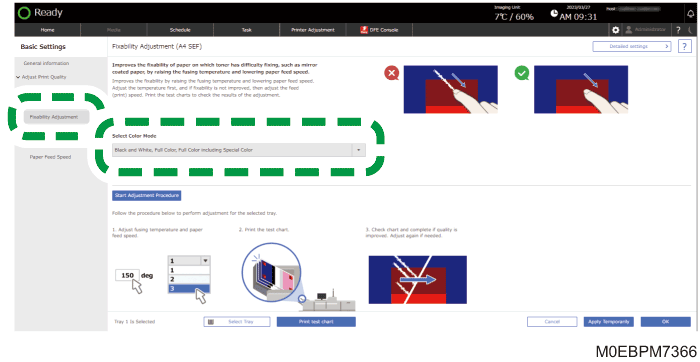
Perform adjustment.
"Follow Guide" tab: perform adjustment automatically when you specify [Black and White, Full Color, Full Color including Special Color].
Press [Start Adjustment Procedure].
Perform adjustment following the instruction displayed on the screen, and press [Next].
Specify the test chart, and press [Print].
You can specify "Print side", "Number of copies", and other print settings as required when printing.
With [How to Check Chart] selected, press [Next].
See "How to Check Chart", and check the print result.
To save the adjustment result, press [Task Complete] with [Finish] selected.
To perform readjustment, specify [Adjust Fusing Temperature/Feed Speed], and press [Next]. Repeat the procedure from Step 2.
"Manual Adjustment" tab: adjust fusibility raising the temperature.
Press [OK].
The adjustment result is saved.
When a paper jam occurs
Error Number appears in the message when a paper jam occurs. If paper jam of the same "Error Number" occur frequently, change the way you load paper on the machine, or modify the machine setting, so the same problem does not occur again.
Press the [Media] hub [Custom Paper].
Select the check box of the paper to be adjusted, and press [Edit].
Select the check box of the paper to be adjusted, and press [OK].
When "Tray Not Selected" is displayed, specify the tray on which the paper to be adjusted is loaded.
Load the paper to be adjusted onto the tray.
Press [Select Tray].
Specify the tray where you loaded the paper, and then press [OK].
Press [Resolve Paper Misfeeds], and then select the paper jam you want to resolve from "Paper misfeeds that can be resolved with this paper" and "Paper Misfeed Guide List".
"Paper misfeeds that can be resolved with this paper": select the most appropriate item from the displayed 10 recent records in the history of paper jams that occurred.
"Paper Misfeed Guide List": select the "Error Number" that occurs frequently.
Perform adjustment.
"Follow Guide" tab: follow the instruction displayed on the screen to change how paper is loaded on the machine, or to perform an adjustment on the machine settings.
Press [Start Adjustment Procedure].
Following the instruction displayed on the screen, change the way the paper is loaded on the machine, or adjust the machine settings, and press [Next].
Press [Task Complete] when you are finished performing the adjustment.
"Manual Adjustment" tab: displays the setting items related to the paper jam that occurs. Change the setting manually.
Press [OK].
The adjustment result is saved.
When output paper gets wrinkled
When paper wrinkles occur on thin paper or an envelope, change the settings of the printer to resolve the problem.
Press the [Media] hub [Custom Paper].
Select the check box of the paper to be adjusted, and press [Edit].
Select the check box of the paper to be adjusted, and press [OK].
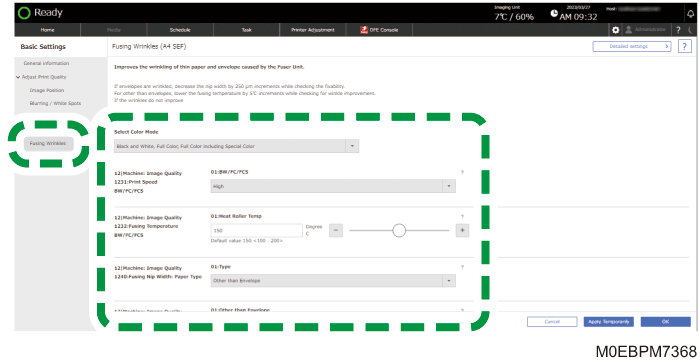
Press [Fusing Wrinkles], and change the setting.
Change the settings in the following order, and check the print result in each step. If the paper wrinkle persists even after you change the setting value, proceed to the following steps:
Check that [Other than Envelope] is specified in "Fusing Nip Width: Paper Type", and decrease the value in "Fusing Nip Width Adjustment" one step at a time.
Specify "Select Color Mode", and decrease the value in "Fusing Temperature" by five degrees at a time for each color mode.
Check the fusibility as you make adjustment.
Specify [Envelope] in "Fusing Nip Width: Paper Type", and specify [Middle] in "Print Speed".
If wrinkles persist even when you specify [Middle], specify [Low].
Specify "Select Color Mode", and decrease the value in "Fusing Temperature" by five degrees at a time for each color mode.
If paper wrinkle persists even after you lower "Fusing Temperature" and fusibility is unsatisfactory, set the value back to the one that attains satisfactory fusibility.
Press [OK].
The adjustment result is saved.
When paper is buckled or bent
Adjust the paper transfer speed in the fuser unit when a buckle, wrinkle, or bent occurs on the paper.
Press the [Media] hub [Custom Paper].
Select the check box of the paper to be adjusted, and press [Edit].
Select the check box of the paper to be adjusted, and press [OK].
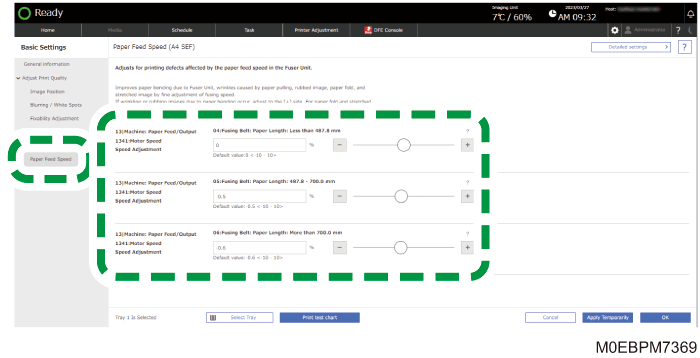
Press [Paper Feed Speed], and change the setting.
Change the setting to + when the paper gets bent, or wrinkle or rubbing marks caused by bending of paper appear on the printed image, and change it to - when the paper gets crumpled or the printed image appears stretched.
Press [OK].
The adjustment result is saved.