


Special Notes When Using External Options
For the product names of options, see Abbreviated Names of Options.
Precautions for Using the Finisher
The stapler may eject unfolded staples. Be careful not to prick your fingers.
Do not hit the finisher (for instance, do not hit the surface of the finisher repeatedly to arrange stacks of paper neatly).
Remove printouts from the finisher by lifting them straightforwardly from the left side. If you remove printouts at an angle or towards the front, the shift tray may rise and catch them.
Booklet finisher
Finisher shift tray 1 or 2
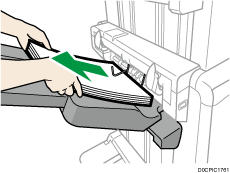
Removing Prints from Finisher /Booklet Finisher during Printing or When in Standby State
Notes on removing paper from the shift tray
When removing the paper delivered to the shift tray, if you remove the paper at an angle or towards the front of the machine, the shift tray may rise and catch on the paper. Press the [Suspend / Resume] key before removing the paper.
Removing paper during printing
When delivering paper to the shift tray with finisher or booklet finisher, the paper may be misaligned depending on the type of printed image. If this happens, suspend printing, remove the paper, and then resume printing.
If delivered to finisher shift tray 1
 Press the [Suspend / Resume] key of finisher shift tray 1.
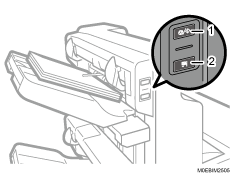
[Suspend / Resume] key
[Remove Paper] key
 Press the [Remove Paper] key.
 After the tray is lowered, remove the delivered paper.
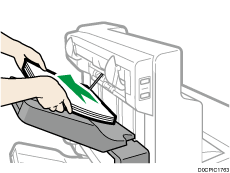
 Press the [Suspend / Resume] key to restart the print.
If delivered to finisher shift tray 2
Press the [Suspend / Resume] key of finisher shift tray 2.
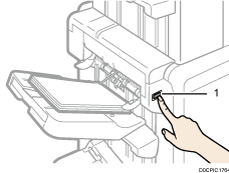
[Suspend / Resume] key
Remove the stack of paper from the finisher shift tray 2.
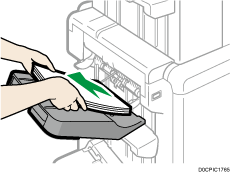
Press the [Suspend / Resume] key to restart the print.
When Using the Z-fold Function
To use the Z-fold function, you must attach the Z-fold support tray.

You cannot attach a Z-fold support tray along with an extension output banner sheet tray attached to the finisher Shift Tray 1.
Finisher/booklet finisher
Finisher shift tray 1 or 2
Attach the Z-fold support tray by inserting the two protrusions on its underside into the holes on the finisher shift tray 1 or 2.
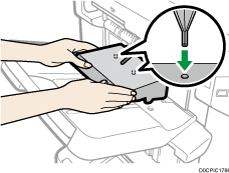
If you switch the output tray to eject paper while specifying [Enable] on the [Settings] hub
 [Printer Settings][Settings of Output Tray][Shift Tray Settings][Unlimited paper output], and also [Not stacked] in [Stack Jobs] when the Z-fold support tray is attached, the output paper may be stacked on the same output tray.
When Ejecting Thin Paper to Finisher/Booklet Finisher
Attach the thin paper support tray that is provided with the machine on the finisher shift tray when:
Printing on thin plain paper of 64 g/m2 (17 lb. Bond) or less, or thin coated paper less than 80 g/m2 (21 lb. Bond) of the size that is 420.1 mm (16.6 inches) or larger (larger than A3).
Delivering Half Folded paper, or Letter Folded paper thinner than 64g/m2 (17 lb. Bond) to the finisher.
You cannot attach a thin paper support tray along with an extension output banner sheet tray attached to the finisher Shift Tray 1.
Press the [Suspend / Resume] key on the finisher, and then remove the delivered paper.
Removing Prints from Finisher /Booklet Finisher during Printing or When in Standby State
Pull out the extension tray on the finisher shift tray 1 or 2.
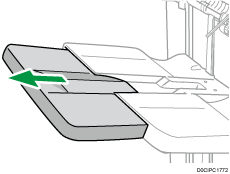
Attach the thin paper support tray by fitting its protrusions in the slots on the finisher.
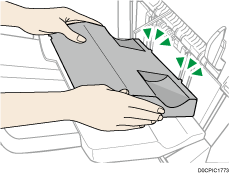
Press the [Suspend / Resume] key to resume printing.
When Ejecting Carbonless Paper Weighing 63 g/m2 or Less to Finisher/Booklet Finisher
When printing on carbonless paper weighing 63 g/m2 (17 lb. Bond) or less, set the banner support tray that is provided with the finisher on the finisher shift tray.
You cannot attach a banner support tray along with an extension output banner sheet tray attached to the finisher Shift Tray 1.
Depending on the brand of the paper being used, the paper may be ejected normally even when the banner support tray is not attached.
When the banner support tray is attached, output sheets may not be stacked neatly.
If you switch the output tray to eject paper while specifying [Enable] on the [Settings] hub
[Printer Settings][Settings of Output Tray][Shift Tray Settings][Unlimited paper output], and also [Not stacked] in [Stack Jobs] when the banner support tray is attached, the output paper may be stacked on the same output tray.
Press the [Suspend / Resume] key on finisher or booklet finisher, and then remove the delivered paper.
Removing Prints from Finisher /Booklet Finisher during Printing or When in Standby State
Pull out the extension tray on the finisher shift tray 1 or 2.
Attach the banner support tray by inserting the protrusions on its underside into the holes on the finisher shift tray 1 or 2.
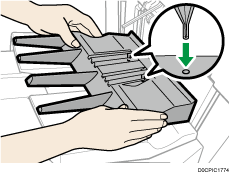
In [Adjustment Settings for Operators], set [0642: Paper Alignment Angle on Shift Tray] to "10 deg".
 Press the [Suspend/Resume] key to resume printing.
When Ejecting Banner Sheets to Finisher/Booklet Finisher
When ejecting banner sheets to booklet finisher, attach an output banner sheet tray to finisher shift tray 1 or 2. For details about attaching an output banner sheet tray, contact your service representative.
Also set the banner support tray. For details about how to attach the banner support tray, see When Ejecting Carbonless Paper Weighing 63 g/m2 or Less to Finisher/Booklet Finisher.
If you switch the output tray to eject paper while specifying [Enable] on the [Settings] hub
[Printer Settings][Settings of Output Tray][Shift Tray Settings][Unlimited paper output], and also [Not stacked] in [Stack Jobs] when the banner support tray is attached, the output paper may be stacked on the same output tray.
When Ejecting a Large Number of Booklets to the Booklet Tray of Booklet Finisher
When ejecting a large number of booklets to booklet finisher, fold the booklet finisher tray under as shown.
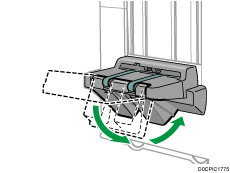
The finisher booklet tray can be folded in two angles.
The approximate number of copies that can be ejected when the finisher booklet tray is not folded is as follows:
When binding 2–5 sheets: 45 copies
When binding 6–10 sheets: 23 copies
When binding 11–15 sheets: 15 copies
When binding 16–20 sheets: 10 copies
When binding 21–30 sheets: 5 copies
When Printing on Extra-long Coated Banner Sheets (700.1 mm, 27.6 Inches or Longer) of Paper Weight 163 g/m2 (60 lb. Cover) or Less Using the Extension Output Banner Sheet Tray
Set the jump plates when printing on extra-long coated banner sheets (700.1 mm, 27.6 inches or longer) of paper weight 163 g/m2 (60 lb. Cover) or less with extension output banner sheet tray attached. Attach the jump plates aligning the  marks on the tray and the plates.
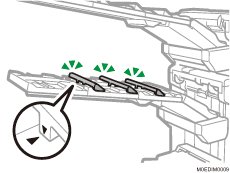
When removing paper from the tray, be careful not to dislodge the jump plates. The jump plate may come off the machine if your finger gets caught between the extension output banner sheet tray and the plate. If the jump plate comes off the machine, attach it back to its original position.
When Using the High Capacity Stacker
Stacker control panel
The high capacity stacker has a control panel that you can use to lower the stacker tray and confirm the status of the high capacity stacker.
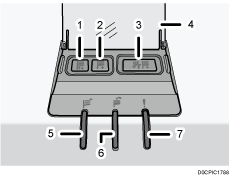
Tray Moving Indicator
This flashes blue when the stacker tray is moving up or down. When the stacker tray has moved all the way up and is in the standby state, the indicator turns off. When the stacker tray has moved all the way down, the indicator lights up blue.
Lower Tray Button
Press this button to lower the tray. The tray cannot move if the stacker front cover is open.
Paper Jam Button
This is lit red when a paper jam occurs. Pressing this button lowers the stacker tray into the paper removal position.
Cover of the Stacker Control Panel
Stacker Collecting Indicator
This flashes blue when the stacker tray is collecting output paper.
Stacker Full Indicator
This is lit red when the stacker tray is full.
Error Indicator
This is lit to indicate one or more of the following errors:
The handcart is not properly set.
The stacker front cover is open.
Jammed paper is still inside the high capacity stacker.
Removing paper

Use the stacker cart for transporting paper from the high capacity stacker. Do not use the stacker cart for any other purpose.
Do not attempt to get inside the high capacity stacker.
The paper press might leave a mark on the top of the paper stack. To prevent this, put several sheets of unwanted paper or a protective sheet between the paper press and the paper stack.
Open the cover of the stacker control panel, and then press the lower tray button.
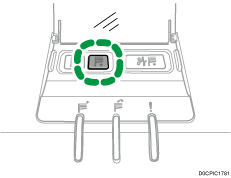
To stop the lowering stacker tray, press the lower tray button again.
To resume lowering the tray, open and close the stacker front cover, and then press the lower tray button again after the tray has risen completely.
When the stacker tray is fully lowered, the tray moving indicator stops flashing and remains lit.
Open the stacker front cover.
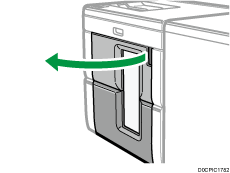
Carefully pull out the stacker cart.
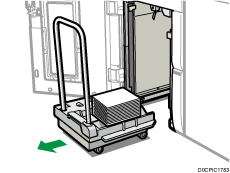
Take care not to let the paper stack topple.
Rest the paper press on top of the paper stack.
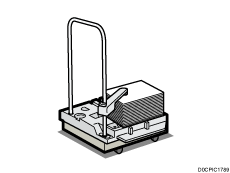
Pull the lever on the paper press toward you.
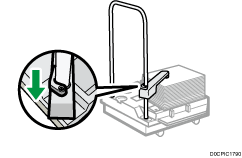
 Transport the paper to where it is required, and then unload the stacker cart.
 Return the paper press to its original position.
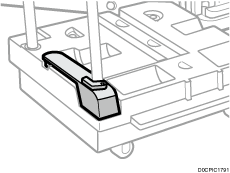
 Put the stacker cart back inside the high capacity stacker.
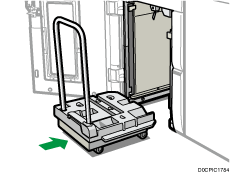
Be careful to push the stacker cart in straight, not at an angle.
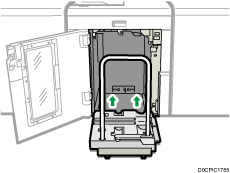
 Close the stacker front cover.
The stacker tray begins elevating automatically and the tray moving indicator begins flashing. When the tray moving indicator stops flashing, the tray is fully elevated.
Before moving the high capacity stacker, be sure to take the stacker cart out of the high capacity stacker.
When Ejecting Thick Paper or Envelopes to the Upper Tray of the High Capacity Stacker
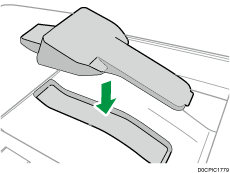
Attach the supplied thick paper support tray when ejecting the following paper to the upper tray of the high capacity stacker:
Thick paper longer than the length of B4 JIS
Envelopes that exceed 332 mm (13.1 inches) in length
Precautions Taking Booklets from the Trimmer
When taking booklets from the trimmer tray, be sure to wait until each booklet has been completely delivered to the tray. If you touch the booklet while it is still being delivered, the sensor may fail to detect the delivery, causing an error.
When taking booklets from the output tray, take care not to slide the booklets to the right (toward the paper exit). Doing so may bring the cut ends into contact with the output tray belt, causing the paper to curl.
Take booklets as from the trimmer in the following manner:
Put your hands under the booklets and align their left corners.
Raise the aligned booklets to remove from the tray.
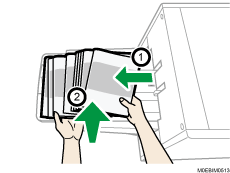
You may also put your hands under the booklets and raise the booklets as they are to take from the tray.
If any cutting scraps are stuck to the booklet or ejected onto the tray, remove the scraps.