


How to Use the "Operator Adjust." Screen
This section explains how to operate the "Operator Adjust." screen.
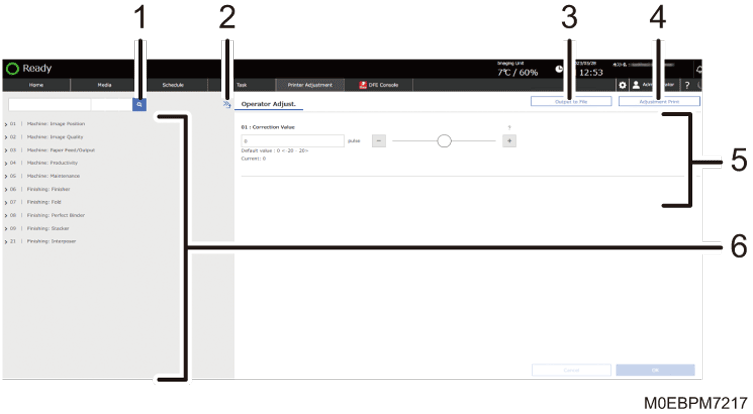
Searches for a setting item to be adjusted.
Close the hierarchy (
 )
)Press this to hide the adjustment items that are displayed in hierarchy layers, and display the root groups of the adjustment items.
[Output to File]
Press this to save the setting values of the item you adjusted to a file in the CSV format.
[Adjustment Print]
Navigates to the adjustment print screen. On the screen, you can check the changes made to the setting, and other information.
Setting Screen
Specify or modify the adjustment item.
Displays the list of groups
Select the group to display the adjustment setting that belongs to the group, and select the adjustment setting to display its current setting. When you select the adjustment setting whose value can be specified or modified, the setting screen appears to the right.

All items in Operator Adjust. appear regardless of which of the machine's optional components are installed. If you change the settings of options that are not installed, the changes will have no effect.
Configuration Procedure of Operator Adjust.
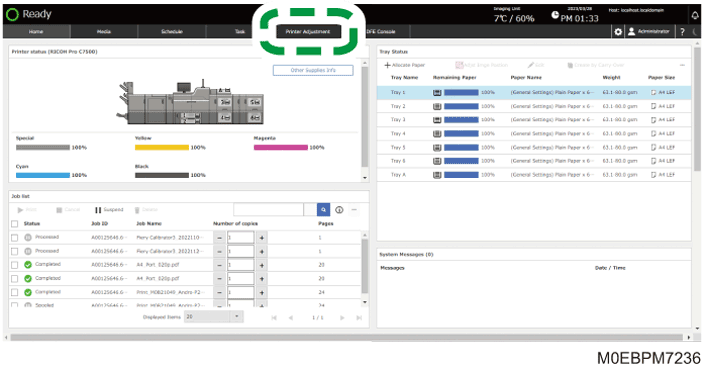
 Press the [Printer Adjustment] hub.
 Specify a group and item to adjust, and specify the setting.
The procedure varies depending on the adjustment item. For details, see Features of the Displayed Items for Operator Adjust..
 Press [OK].
Features of the Displayed Items for Operator Adjust.
The following operations are available for each adjustment item:
Value setting
Item setting
Executing
Display only
Value setting
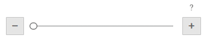
Press [ ] or [
 ], or move the slider left or right to decrease or increase the value.
A numeric keypad appears when you select an input box. Press the keypad to enter a value.
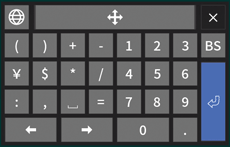
[BS]: Erases the entered value one character at a time.
 : Press this to fix the entered value.
Item setting
Select the item you require.

Executing
Press [Execute] to perform a selected function.
Display only
You can check the setting of the selected item.