


Exporting/Importing the Settings of Custom Paper


Custom paper settings can be used with the following machine models. You can import custom paper settings that you exported from one of these models to another.
Pro C9500/C9500H
Pro C9200/C9210
Pro C7200S/C7200SL/C7200SX/C7210S/C7210SX
Pro C7200/C7200e/C7200X/C7210/C7210X
Pro C7500/C7500H
Exporting the Settings
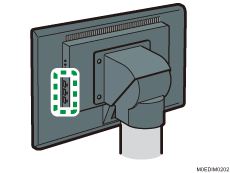
 Insert a USB memory into a USB host interface on the control panel of the machine.
 Press the [Media] hub.
 Select the check box of the Paper Setting to Export.
Press [Custom Paper] or a group to specify the size from each list.
To select all the paper in the list, select the check box in the column title.
 Press [
 ]
]  [Export].
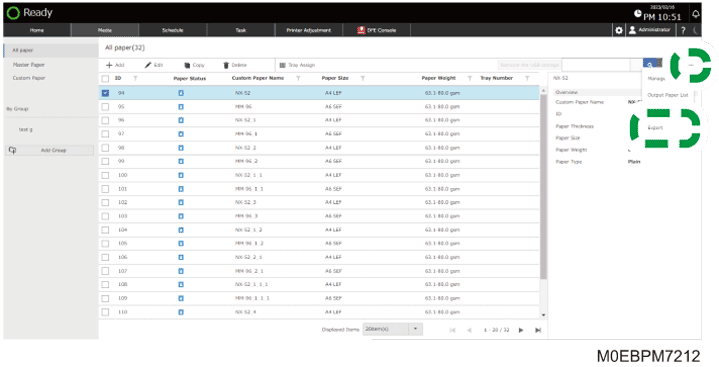
 Enter the file name, and then press [OK].
 Specify the location to save the file, and press [OK].
The settings of the Custom Paper are saved to the USB memory.
When the paper setting is assigned to a tray in "General Settings", the setting is saved to "General Settings" as well.
Importing the Settings
Insert the USB memory in which the file of the exported data is saved into a USB host interface on the control panel of the machine.
Press the [Media] hub [] [Import].
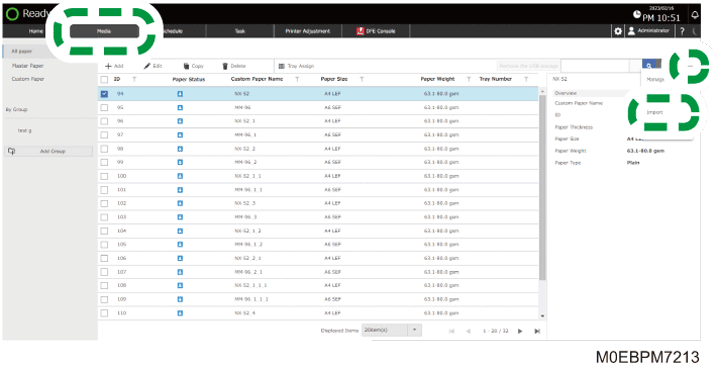
Specify the file in which the paper setting is saved, and then press [OK].
Specify the paper to import, and press [OK].
The imported setting is applied to the machine.
You can create a backup the paper settings as well while creating a backup of the system settings. For details, see Creating a Backup of/Restoring the Setting Information.