


Detailed Settings Screen for a Custom Paper
This section describes how to operate on the "Detailed Settings" screen.
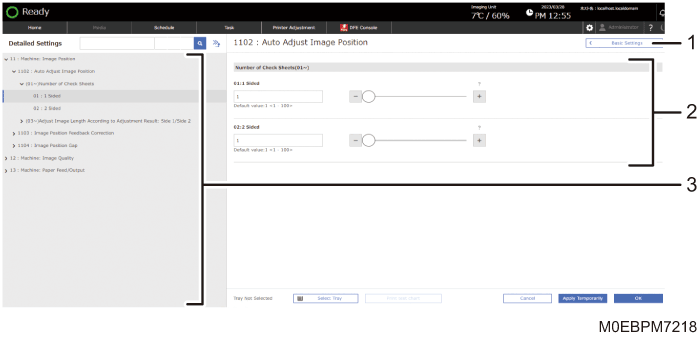
[Basic Settings]
Displays the setting screen of [General information].
Setting Screen
Specify or modify the adjustment item.
Displays the list of groups
Select the group to display the adjustment setting that belongs to the group, and select the adjustment setting to display its current setting. When you select the adjustment setting whose value can be specified or modified, the setting screen appears to the right.
Procedure for Specifying the Detailed Settings of a Custom Paper
 Press the [Media] hub.
Press [Master Paper] or Group, and specify the settings in each list.
 Select the check box of the paper to specify the settings, and press [Edit].
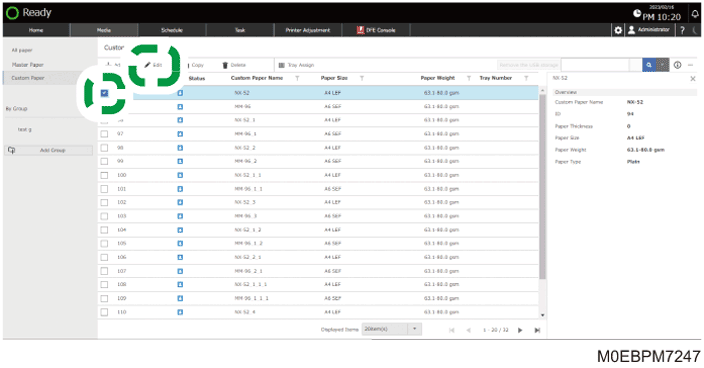
 Select the check box of the paper size to adjust, and then press [OK].
 Press [Detailed settings].
 Specify a group and item to be adjusted, and specify the setting.
The procedure varies depending on the adjustment item. For details, see Specifying the Detailed Settings of a Custom Paper.
 Press [OK].
Specifying the Detailed Settings of a Custom Paper
There are several ways to adjust the settings of items as follows:
Specifying a value
Specifying a setting item
Selecting to execute an adjustment
Specifying a value
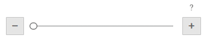
Press [ ] or [
 ], or move the slider left or right to decrease or increase the value. You can also use the numeric keypad to enter a value.
A numeric keypad appears when you select an input box. Press a key on the keypad to enter a value.
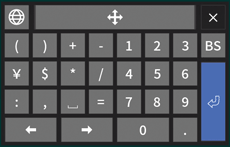
[BS]: Press this to erase the entered value one character at a time.
 : Press this to fix the entered value.
Specifying a setting item
Select an item to be modified. When the item is in a pop-up menu, press  , and then specify the item.
