


Changing the Keyboard Type and Settings
When an external keyboard is not connected to the control panel, touch the keys of the software keyboard that appears on the screen to enter characters, numbers, or symbols.
The keyboard is available in the following forms.
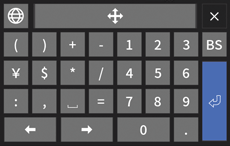
Numeric Keypad with Symbols
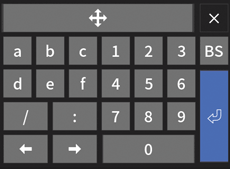
Numeric Keypad for Entering IPv6 Address
Alphanumeric Keyboard (with/without Candidate Window)
Keyboard for Each Language

You can enter characters on the control panel by connecting an external keyboard to the machine and entering characters using the keyboard. Specify the appropriate keyboard layout that matches the connected external keyboard.
You cannot display the software keyboard when you access the control panel from a client computer.
Numeric Keypad with Symbols
You can enter numbers and symbols.
Numeric Keypad for Entering IPv6 Address
You can enter numbers and symbols that are used in an IPv6 address.
Alphanumeric Keyboard (with/without Candidate Window)
You can enter alphabets, numbers, and symbols.
The key layout is the same as the full keyboard (QWERTY keyboard) of a computer.
When you specify an alphanumeric keyboard with a candidate window, entry candidates are displayed as you make your entry.
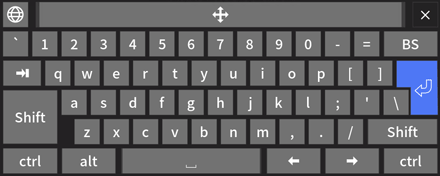
Keyboard for Each Language
You can enter alphanumeric characters, symbols, and characters for various languages.
In addition to the key layout that is the same as the full keyboard (QWERTY keyboard) of a computer, various layouts matching each language are available.
When you are using Command Workstation while an external keyboard is not connected to the control panel of the machine, press
 in the lower right of the screen to display the software keyboard.
How to Use the Modifier Keys
The status of [Shift], [Ctrl], [Alt], or other modifier key changes according to the number of times you press the key in repetition. Pressing a modifier key a number of times allows you to press a different key together with the modifier key.
Press Once:
The modifier key is activated temporarily, allowing you to press a different key in combination with the modifier, but the modifier is canceled once you finish pressing the additional key.
Press Twice:
The modifier key is activated, allowing you to press a different key in combination with the modifier. The modifier key stays pressed, even if you continue to press another key.
Press Three Times:
The modifier key is deactivated.