Configuring the Settings to Send E-mails from the Machine
You can send e-mails by the Internet Fax or scanner from the machine. Configure the settings required for connecting to and authenticating the server before sending an e-mail to a specified e-mail address.
You can send an e-mail easily by configuring the following settings in advance.
-
The e-mail address of the administrator as the sender (From:). You will not need to specify the sender for each e-mail.
-
Fixed messages of salutations or information about the sender to use in e-mails.
-
On the Home screen, press [Settings].

-
Press [System Settings].

-
Press [Send (Email/Folder)]
 [Email] [SMTP Server].
-
Configure the information of the server.

-
Server Name: Enter the IPv4 address of the SMTP server or the FQDN (Fully Qualified Domain Name without omitting the domain name, subdomain name, or host name used in the TCP/IP network). When you enter the FQDN, configure [DNS Configuration] on [System Settings]
[Network/Interface].
Network/Interface
Ask the administrator of the network or the internet service provider (ISP) about information for the SMTP server. -
Use Secure Connection (SSL): Specify whether to use SSL.
-
Port Number: Enter the port number to use for the connection to the SMTP server.
-
-
Press [Connection Test], confirm that the machine is connected to the server, and then press [OK].
-
If the machine fails to connect to the server, check with the administrator of the network or internet service provider (ISP) that the entered information is correct.
-
-
According to the settings on the SMTP server to connect, configure [SMTP Authentication] or [POP before SMTP].
Send (Email/Folder) -
After completing the configuration, press [Home] (
 ).
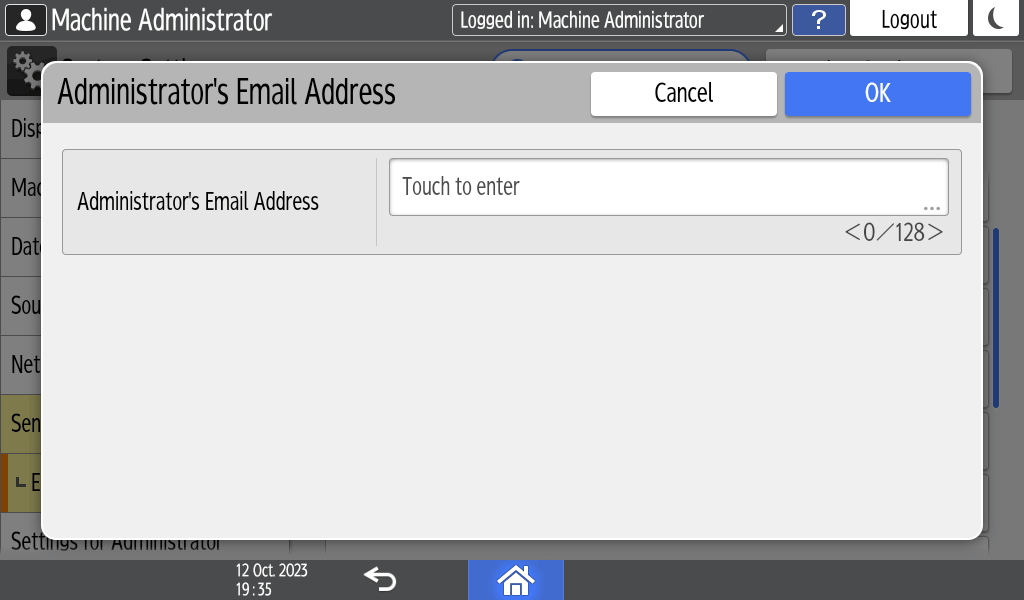
Register the e-mail address of the administrator on [System Settings] [Send (Email/Folder)] [Email] [Administrator's Email Address] to enable the sender name to be specified automatically.

-
When sending e-mail with the scanner function or Internet fax, you can specify the e-mail address using the procedure below.
-
On the Home screen, press [Settings].
-
Press [System Settings].
-
Press [Send (Email/Folder)]
[Email] [Administrator's Email Address]. -
Press the input field for the [Administrator's Email Address], and then enter the Administrator's Email Address.
-
Press [OK].
-
Press [Auto Specify Sender Name].
-
Select [On], and then press [OK].
-
After completing the configuration, press [Home] (
).
-
To use an e-mail address other than that of the administrator as the sender, specify the sender name manually.
Scanning Documents and Sending the Scanned Data by E-mail -
When you use another account to send e-mail with Internet Fax, specify [Fax Email Account].
Preparing the Machine for Sending and Receiving Documents by Internet Fax
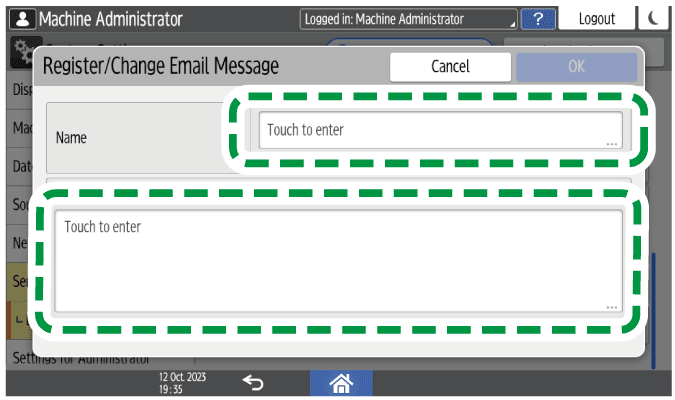
Register fixed messages to use in e-mails on [System Settings] [Send (Email/Folder)] [Email] [Register/Change/Delete Email Message].
-
On the Home screen, press [Settings].
-
Press [System Settings].
-
Press [Send (Email/Folder)]
[Email] [Register/Change/Delete Email Message]. -
Select the item you want to register, and then press [Register/Change].
-
Press the input field for the name and text, and then enter them.
-
Press [OK].
-
After completing the registration, press [Home] (
).
-
To change or delete the registered message, press [System Settings]
[Send (Email/Folder)] [Email] [Register/Change/Delete Email Message] to display the screen, and then select the item and press [Register/Change] or [Delete]. -
For details about the procedure to insert fixed phrases in the e-mail message, see the sections below.
Preparing the Machine for Sending and Receiving Documents by Internet Fax
Editing the Subject and Message When Sending the Scanned Document by E-mail