Editing the Subject and Message When Sending the Scanned Document by E-mail
You can specify the subject and message in the e-mail to send from the machine so that the recipient can find the corresponding e-mail message in the e-mail client application.
-
The subject becomes "the-host-name-of-the-machine" when you do not specify a subject.
-
Specify whether to enter the message manually or select from fixed phrases. You can also send an e-mail without a message.
-
You can register frequently used texts as fixed phrases. Register the fixed phrase in advance. Refer to the following for the registration method.
Registering Fixed Messages
-
Press [Scanner] on the Home screen.
-
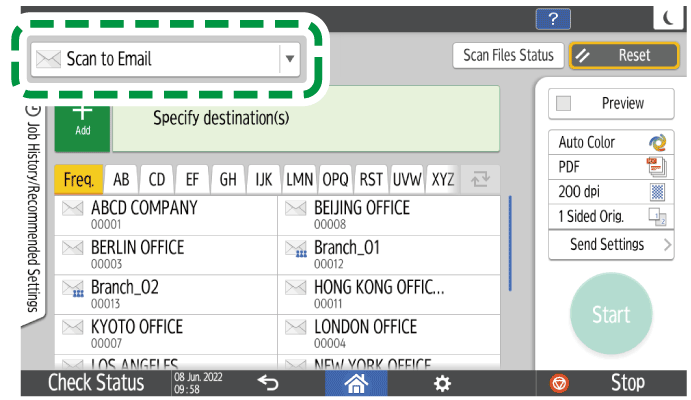
Select [Scan to Email] on the scanner screen.
-
Place the original on the scanner.
Placing an Original to Scan -
Press [Send Settings] on the scanner screen.

-
Press [Sender] and specify the sender.
When a logged in user is operating the machine, the logged in user becomes the sender.
Scanning Documents and Sending the Scanned Data by E-mail -
Press [Subject] to enter the subject.

-
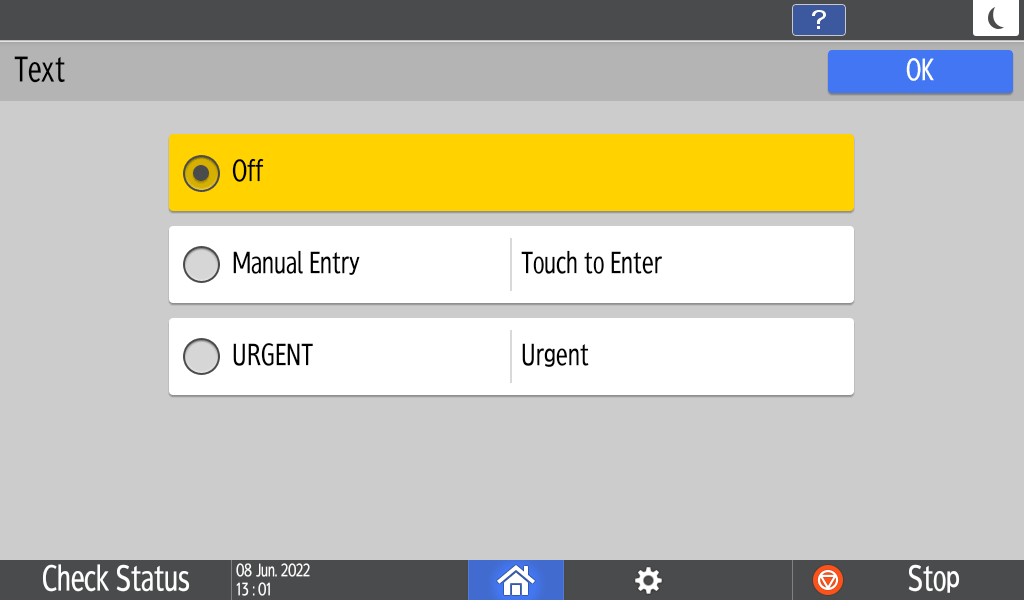
Press [Text] and specify the message.
-
Off: An e-mail without a message is sent.
-
Manual Entry: Enter the message manually.
-
Standard message: Select the message to include in the e-mail from the registered fixed phrases.
-
-
Configure the scan settings according to the purpose of the scanned data.
Scanning an Original with Suitable Quality and Density
Specifying the File Type or File Name When Scanning a Document -
Specify the destination on the scanner screen, and press [Start].

-
You can change the default subject from the host name of the machine to any text string. Configure the setting in [Scanner Settings]
 [Sending Settings] [Email (Subject/Text)] [Default Email Subject].
Sending Settings