Scanning an Original and Dividing the Scanned Data into Multiple Files
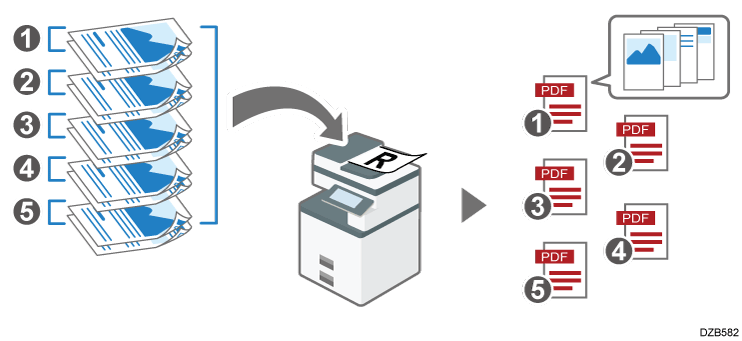
Scan an original with multiple pages and divide the scanned data into a specified number of pages.
For example, you can scan 5 sets of a pair of two-sided sheets in a batch and divide and save the scanned data as 5 files of four pages each automatically.
-
Press [Scanner] on the Home screen.
-
Place the original on the scanner.
Placing an Original to Scan -
Press [Send Settings] on the scanner screen.

-
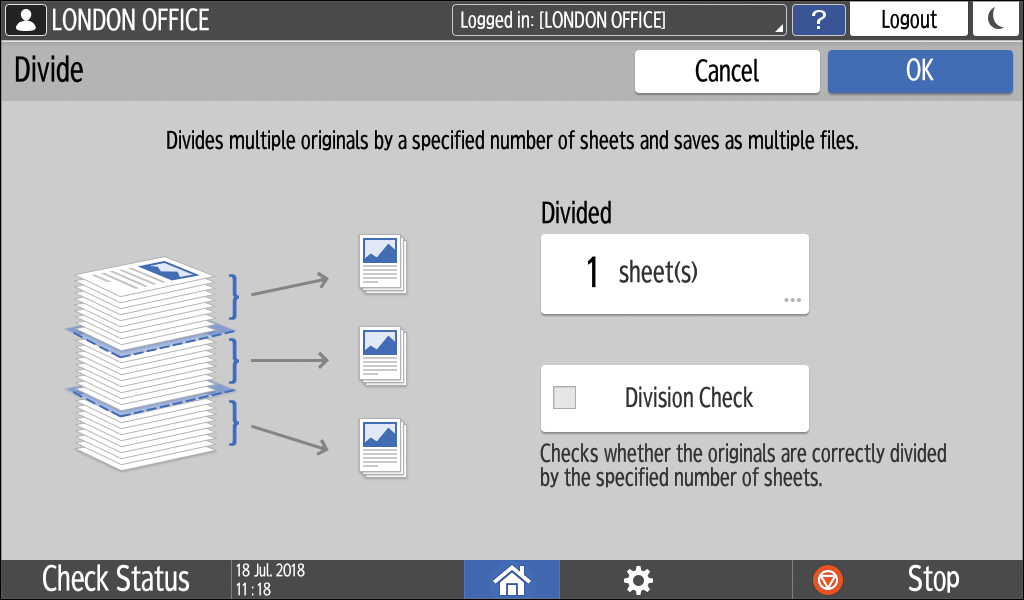
Press [Divide] and specify the number of pages to divide the data in each file in [Divided].
-
To display a confirmation screen prompting to cancel or continue scanning when the number of scanned pages does not match the integral multiple of the number to split the data, select the [Division Check] check box.
-
Clear the check box to divide the scanned data into a specified number of pages regardless of the actual number of scanned pages. The number of pages in the last file may be less than the specified number in such case.
-
-
Specify the scan settings according to the purpose of the scanned data.
Scanning an Original with Suitable Quality and Density
Specifying the File Type or File Name When Scanning a Document -
To send the scanned document to an e-mail address, press [Sender] and then specify the sender.
When a logged in user is operating the machine, the logged in user becomes the sender.
Scanning Documents and Sending the Scanned Data by E-mail -
Specify the destination on the scanner screen, and press [Start].

-
If the last page of a two-sided original is blank, you can specify to skip scanning the last page. Specify the page opening orientation in [Send Settings]
 [Original Settings] [Others] and select the [Scan 1 Side of Last Page] check box.