Using Only the Specified Color Toner for Printing
Specify one or two colors to print a document from cyan (C), magenta (M), yellow (Y), or black (K). You can print in colors at a low cost.

-
The function is enabled in the PostScript 3 printer driver.
When you use one or two colors to print, the printed color is formed as follows:
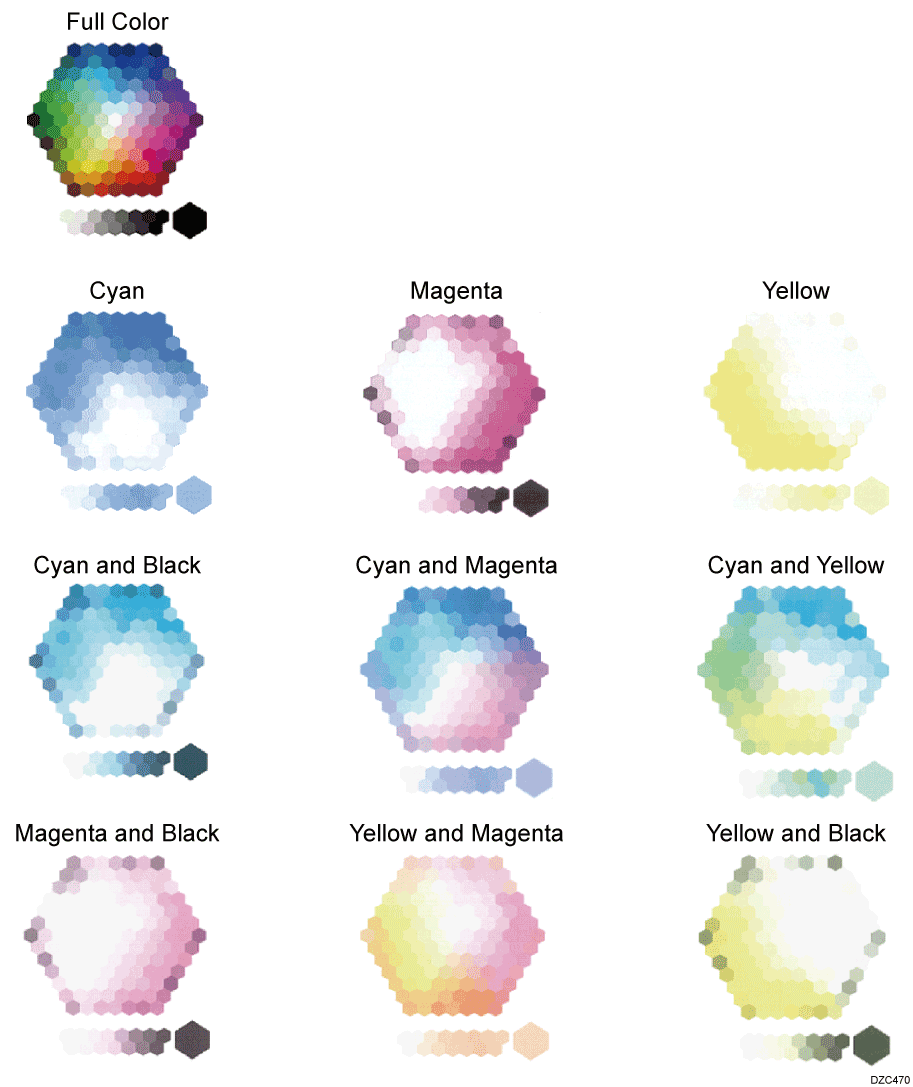
Configure the settings on the [Image Quality] tab.
-
Open a document to print on the computer, and display the setting screen of the printer driver from the print menu in the application.
-
Specify Paper Size, Paper Type, Orientation and other settings.
Basic Procedure for Printing Documents -
In [Color Mode:], select [Color].
-
On the [Image Quality] tab, click [Separate into CMYK and Print], and then select the colors to use.
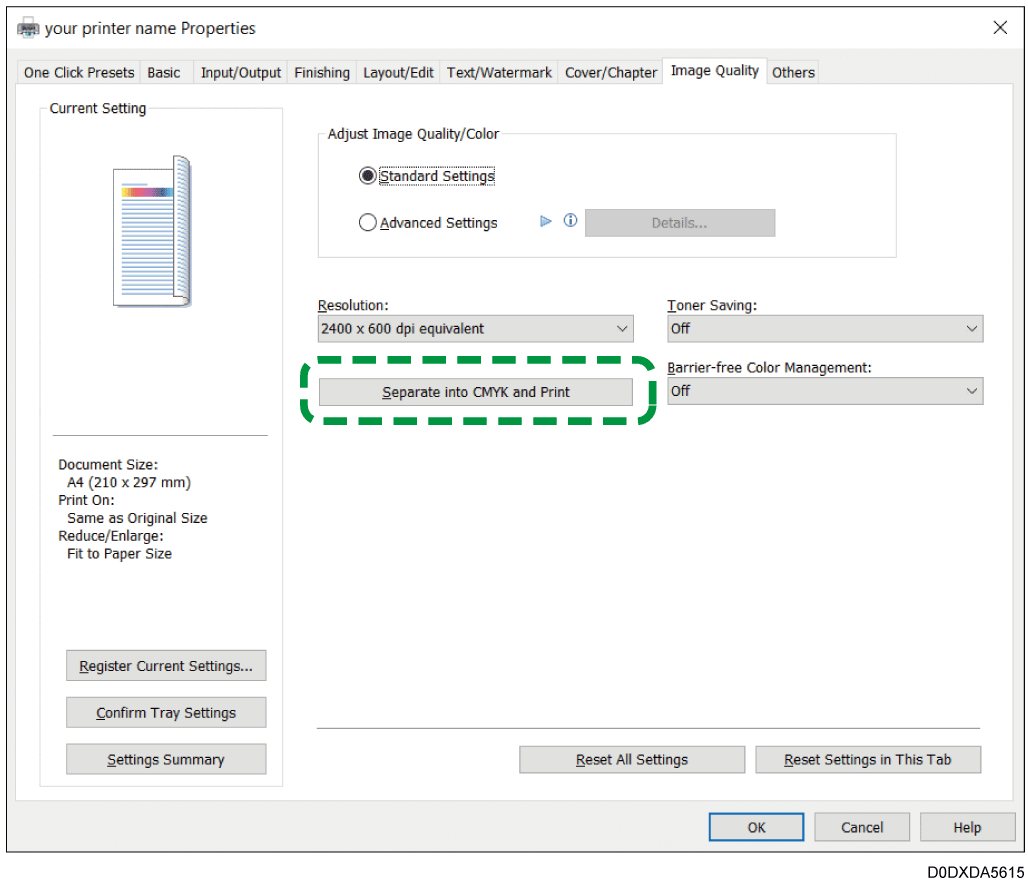
-
After completing the configuration, click [OK] to print.
Configure the settings in [Print Quality] on "Feature Sets" of [Printer Features].
-
Open a document to print on the computer, and display the setting screen of the printer driver from the print menu in the application.
-
Specify Paper Size, Orientation, Paper Type, and other settings.
Basic Procedure for Printing Documents -
In [Color Mode] on [Basic] of "Features Sets", select [Color].
-
On [Print Quality] of "Features Sets", click "Separate into CMYK" and select the colors to use.
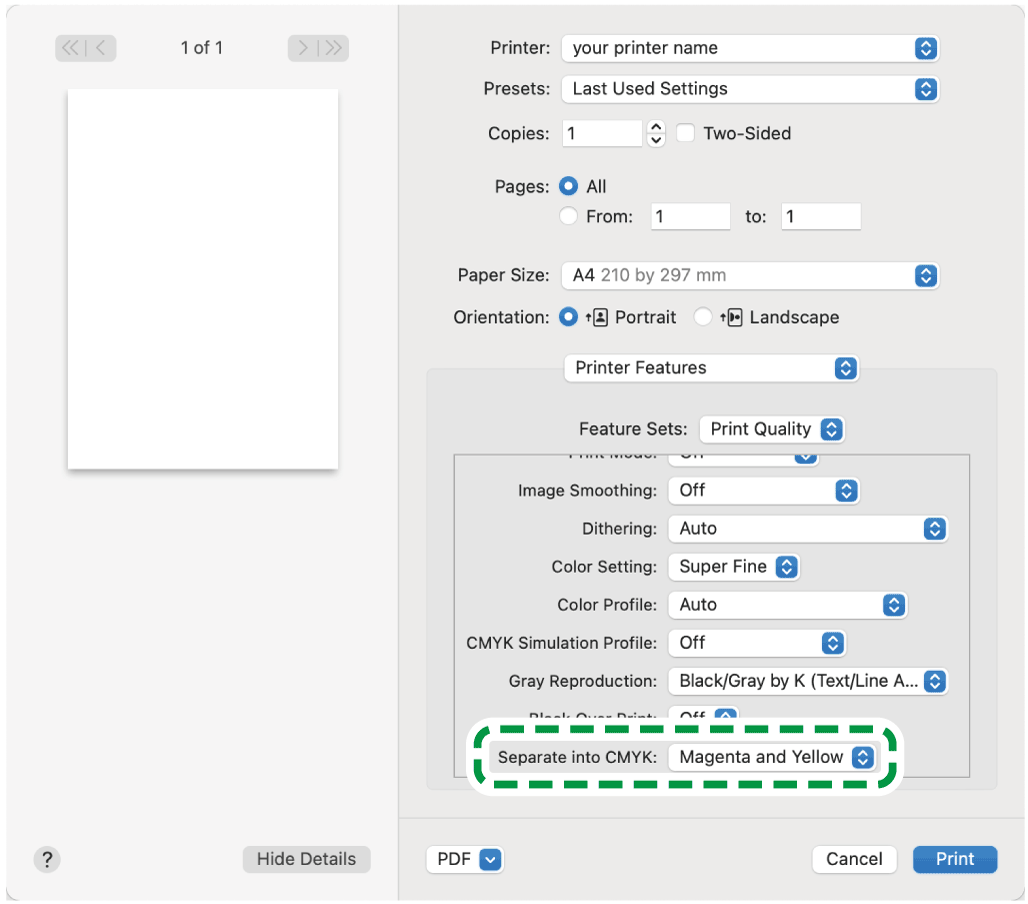
-
After completing the configuration, click [Print] to print.