Displaying Frequently Used Functions on the First Screen
You can change the screen that is displayed when the machine is turned on or left without operation for a certain period of time. You can change this from the Home screen to a screen displaying a frequently used function. This is useful to display frequently used functions such as Copy or Scanner.
-
To display the Home screen, press [Home] (
 ).
-
Press [Settings] on the Home screen.
-
Press [System Settings].
-
Press [Display/Input]
 [Display] [Function Priority (Default Displayed Application)].
-
Press the button to the right of [Function Priority (Default Displayed Application)].
-
Select the functions to display, and then press [OK].
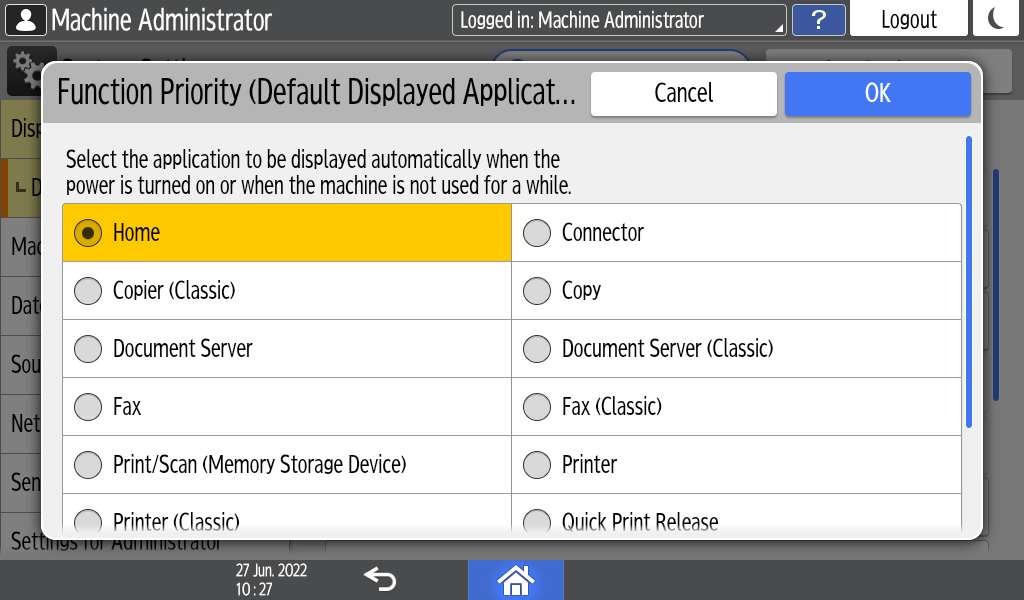
You can select from the installed applications.
You cannot select the following functions:-
Settings
-
Address Book
-
Browser
-
Quick Card Authentication Config.
-
User Guide
-
Gallery
-
Application Site
-
-
Press [OK].
-
After completing the configuration, press [Home] (
).