Assigning Frequently Used Functions to the Function Keys
By assigning frequently used functions to the function keys, you can switch between the modes without returning to the Home screen.
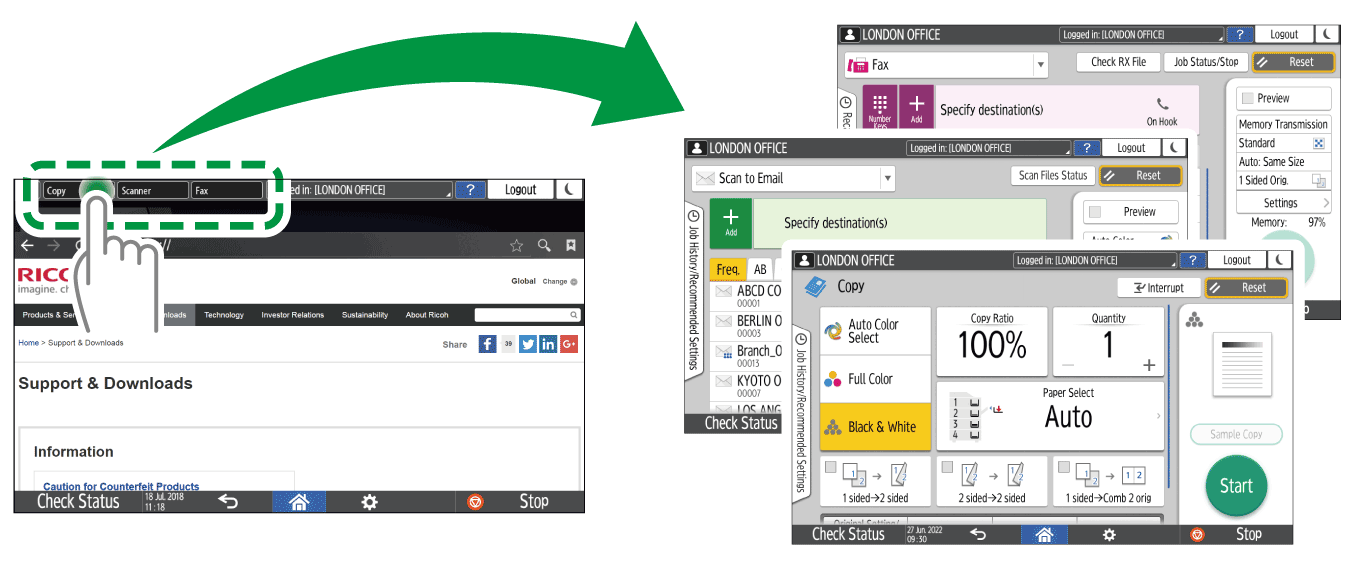
-
The function keys are not displayed when they are disabled in [Function Key Settings].
Key/Keyboard/Input Assistance
You can change the functions assigned to the function keys using the following procedure:
-
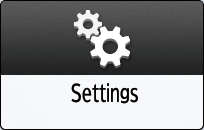
Press [Settings] on the Home screen.
-
Press [System Settings].

-
Press [Display/Input]
 [Key/Keyboard/Input Assistance] [Function Key Settings].
-
Press [Function Key 1], [Function Key 2], or [Function Key 3] to specify.
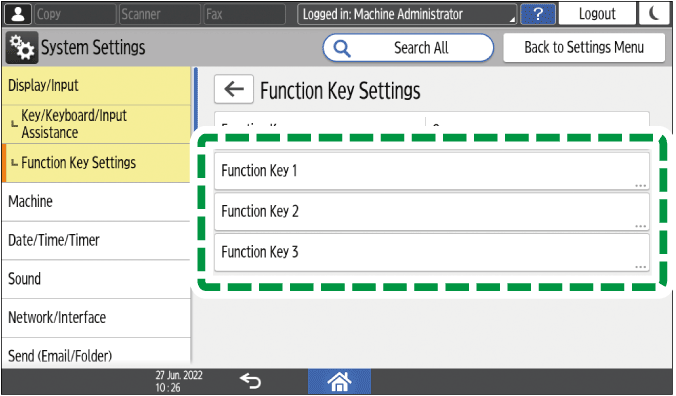
If the function key is inactive, set [Function Key] to [On].

-
Press [Allocated Function].
-
Press the button to the right of [Allocated Function].
-
Select a function from the list shown, and then press [OK] twice.
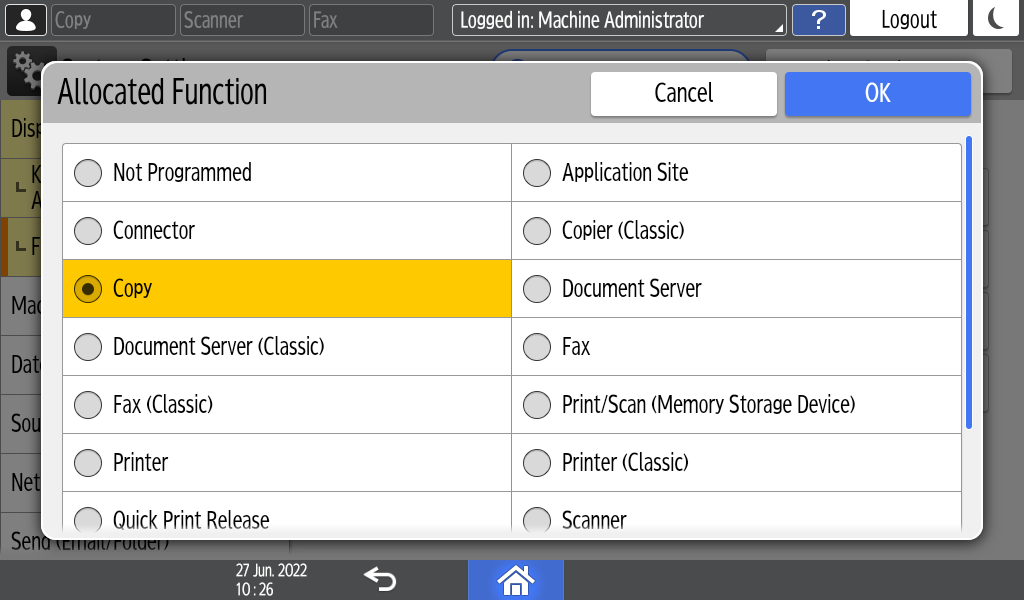
The settings are complete.
If you want to change the display name, proceed to the steps below. -
Press [Change Display Name].
-
Select [Change], and then press [OK].
-
Press [Display Name].
-
Press the input field to the right of [Display Name].
-
Enter the name to display on the function key, and press [OK].
-
After completing the procedure, press [Home] (
 ).