Viewing the Transmission Result of an Outgoing LAN-Fax
You can confirm the result of a LAN-Fax transmission by e-mail, report, or using Web Image Monitor.
E-mail Transmission Results
You can receive this type of notification when transmission of a document from the machine to the destination device is completed normally.
LAN-Fax Result Notification E-mail
You can receive this type of notification in one of the following cases:
When transmitting a document from your computer to the machine and printing it at the same time
When a transmission failure occurs while transmitting a document from your computer to the machine
LAN-Fax Result Report/Communication Result Report
You can check if transmitting a document from your computer to the machine has been completed normally in the LAN-Fax Result Report. Also, check the Communication Result Report to see if the fax has been transmitted normally from the machine to the destination device.

-
Configure the machine to enable sending of e-mails in advance.
Configuring the Settings to Send E-mails from the Machine

-
You can also confirm the result of a LAN-Fax transmission by displaying the "Fax TX Results" screen on your computer.
-
Example of Windows 10: Select "LAN-Fax Generic Utilities" from [Start] and click "LAN-Fax TX Results".
To receive notifications by e-mail, configure the settings in the driver before sending a LAN-Fax.
-
Display the “Devices and Printers” screen.
Windows 10 (version 1703 or later), Windows Server 2019, Windows Server 2022
-
On the [Start] menu, click [Windows System]
 [Control Panel].
-
Click [View devices and printers].
Windows 10 (earlier than version 1703), Windows Server 2016
-
Right-click [Start], and then click [Control Panel].
-
Click [View devices and printers].
Windows 11
-
On the [Start] menu, click [All apps]
[Windows Tools]. -
Double-click [Control Panel].
-
Click [View devices and printers].
Windows 8.1, Windows Server 2012/2012 R2
-
On the Charm Bar, click [Set]
[Control Panel]. -
Click [View devices and printers].
-
-
Right-click the LAN-Fax icon, and then click [Printing preferences].
-
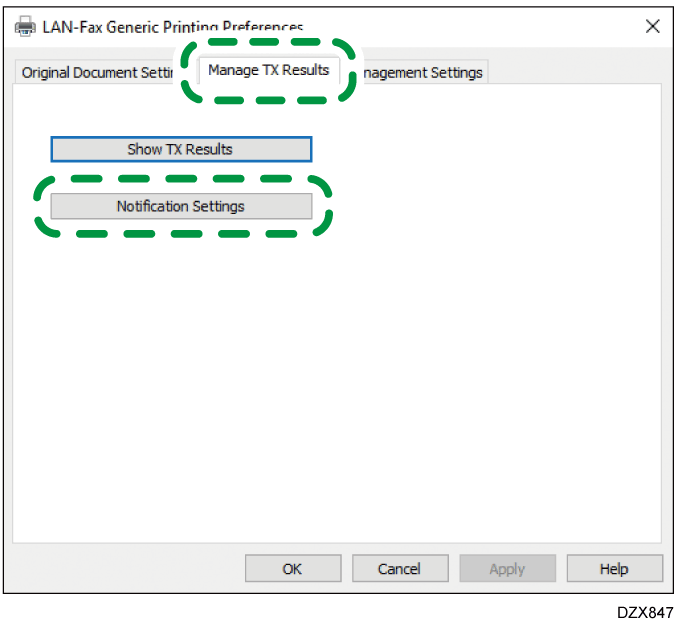
Select the [Manage TX Results] tab, and click [Notification Settings].
-
Select [Always Notify] or [Notify When Errors Occur].
-
Select the [By Email] check box under "Notification Method" and specify the destination.
-
To enter a destination e-mail address manually, select [Specify Destination Email Address] and enter the e-mail address.
-
To select a destination in the address book of the machine, select [Use Email Address Registered in Device] and enter the registration number.
-
-
Click [OK]
[OK].
-
If you have selected the [By Pop-up Message] check box under "Notification Method" in Step 5, the fax transmission result will be indicated in the notification area of your computer.
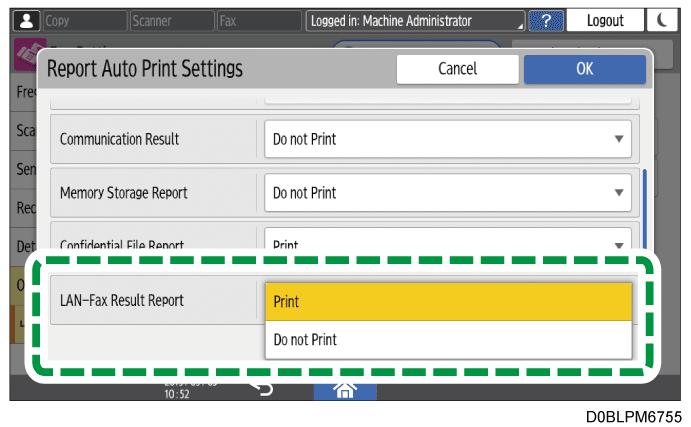
Specify to print the LAN-Fax result report in [Others] under [Fax Settings].
-
Press [Settings] on the Home screen.
-
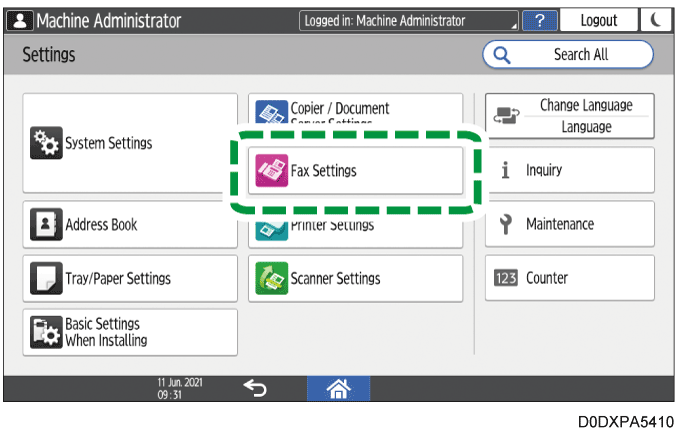
Press [Fax Settings] on the Settings screen.
-
Press [Others]
[Report Output Settings] [Report Auto Print Settings].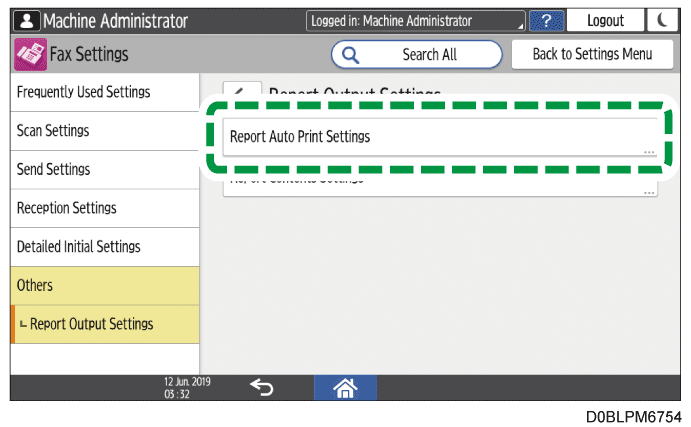
-
Select [Print] for [LAN-Fax Result Report].
-
Press [OK].
-
Press [Home] (
 ) after specifying the settings.
-
Access Web Image Monitor.
-
From the [Status/Information] menu, click [Job].
-
Click [LAN-Fax] under [Fax History].
-
Confirm the transmission history.
-
You can view up to 70 of the latest total results of the transmission and reception history.
-
-
Close the Web browser.