Updating the Driver (Windows)
You can obtain the latest version of the driver using one of the following methods:
-
Downloading the driver using Device Software Manager (printer driver only)
-
Downloading the driver from the manufacturer's website

-
Administrator permission is required to update or delete the driver in use. Log on as an Administrators group member.
-
When updating the driver, select a driver for the same model and type as the installed driver. If you use a driver for a different model or type for the update, an error may occur.

-
If the "User Account Control" dialog box appears, click [Yes] or [Continue].
-
If the "Windows Security" dialog box appears, click [Install this driver software anyway].
Update the printer driver using Device Software Manager that is already installed. To newly download the installer, see the following;
Installing the Printer Driver by Using Device Software Manager Installer
-
On the [Start] menu or from the shortcut on the desktop, start the printer driver installer.

The installer confirms the latest version. -
On the "End User License Agreement" screen, click [Agree and Go to Next].
-
Click [Update Driver].

-
Follow the instructions on the screen to update the driver.
Download the latest driver and perform updates from [Printer properties].
-
Display the "Devices and Printers" screen.
Windows 11
-
On the [Start] menu, click [All apps]
 [Windows Tools] [Control Panel].
-
Click [View devices and printers].
Windows 10 (version 1703 or later), Windows Server 2019/2022
-
On the [Start] menu, click [Windows System]
 [Control Panel].
-
Click [View devices and printers].
Windows 10 (before version 1703), Windows Server 2016
-
Right-click [Start], and then click [Control Panel].
-
Click [View devices and printers].
Windows 8.1, Windows Server 2012/2012 R2
-
On the Charm Bar, click [Settings]
[Control Panel]. -
Click [View devices and printers].
-
-
Right-click the machine, and then click [Printer properties].
-
On the [Advanced] tab, click [New Driver...]
[Next].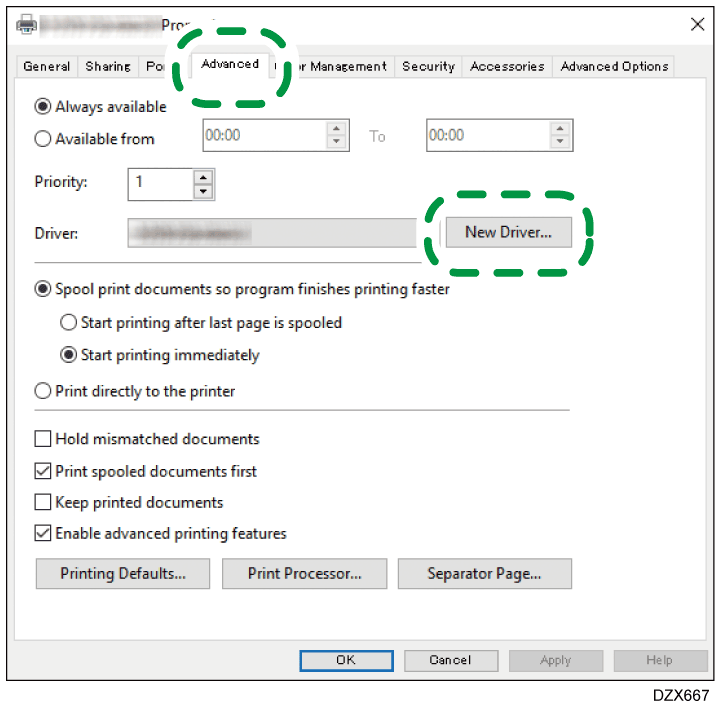
-
Click [Have Disk...]
[Browse...], specify the driver to update, and then click [OK]. -
Select the machine, and then click [Next].

-
Click [Finish]
[Apply]. -
Click [OK] to close property.
Delete the driver of the current version, and then install the latest TWAIN driver.
-
Delete the driver of the current version.
Deleting the Driver (Windows) -
Obtain the latest driver from the manufacturer's website.
-
Install the latest driver.
Installing the TWAIN Driver
Download the latest driver and perform updates from [Printer properties].
-
Display the "Devices and Printers" screen.
Windows 11
-
On the [Start] menu, click [All apps]
[Windows Tools] [Control Panel]. -
Click [View devices and printers].
Windows 10 (version 1703 or later), Windows Server 2019/2022
-
On the [Start] menu, click [Windows System]
[Control Panel]. -
Click [View devices and printers].
Windows 10 (before version 1703), Windows Server 2016
-
Right-click [Start], and then click [Control Panel].
-
Click [View devices and printers].
Windows 8.1, Windows Server 2012/2012 R2
-
On the Charm Bar, click [Settings]
[Control Panel]. -
Click [View devices and printers].
-
-
Right-click the machine, and then click [Printer properties].
-
On the [Advanced] tab, click [New Driver...]
[Next]. -
Click [Have Disk...]
[Browse...], specify the driver to update, and then click [OK]. -
Select the machine, and then click [Next].
-
Click [Finish]
[Apply]. -
Click [OK] to close property.