Installing the TWAIN Driver
To use the scanner of the machine in an application that supports TWAIN, install the TWAIN driver.

-
To use this machine as a network TWAIN scanner, a TWAIN-compliant application must be installed on the client computer.
-
To import images into the computer directly, you need to install both the TWAIN driver and the application that supports TWAIN.

-
When the installation is complete, a message about restarting the client computer may appear. In this case, restart the client computer.
-
Notes on using the network TWAIN scanner are provided in "Readme.txt". Be sure to read them before use.
-
Download the latest TWAIN driver from the manufacturer's website.
-
Double-click the downloaded file.
-
Specify the location of the unzipped file, and then click [OK].
-
If the "Security Warning" screen is displayed, click [OK].
-
If the "User Account Control" screen is displayed, click [Yes] or [Allow].
-
-
On the setup screen, click [Next].
-
On the "License Agreement" screen, select [I accept the terms of the license agreement], and then click [Next].
-
On the "Select Program Folder" screen, click [Next].
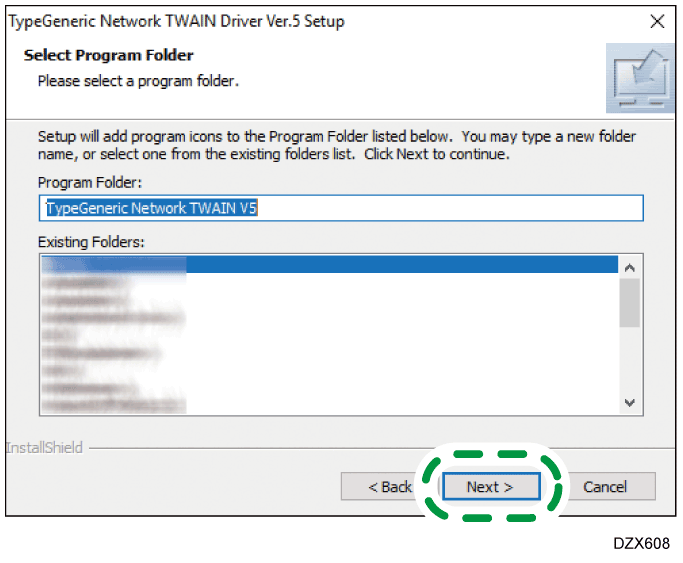
Installation starts. -
After completing the installation, click [Finish].
To use only the scanner of the machine, or if the machine is not detected automatically, register the machine in "Network Connection Tool".
-
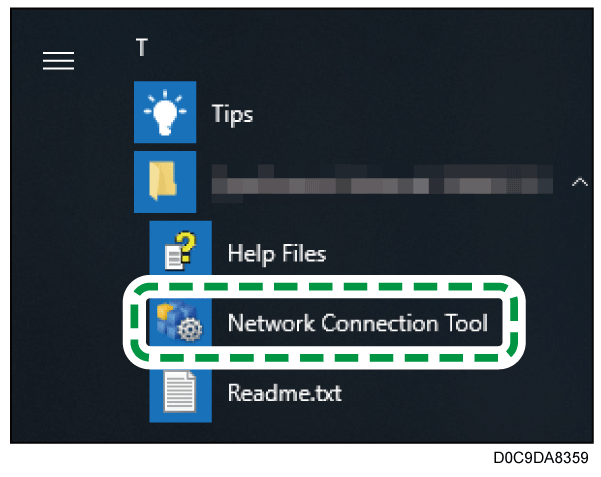
On the application menu of the computer, click [Network Connection Tool] on [TypeGeneric TWAIN V5].
-
Select the [Specify scanner(s) to use.] check box, and then click [Scanner Search/Registration].
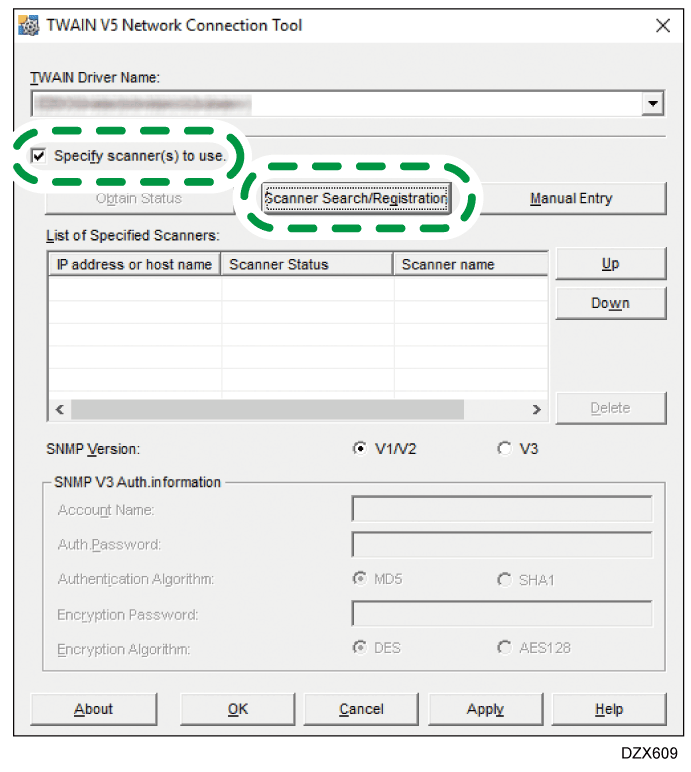
The tool searches for the scanner. -
On the "List of Search Results:" screen, select the machine and click [OK].
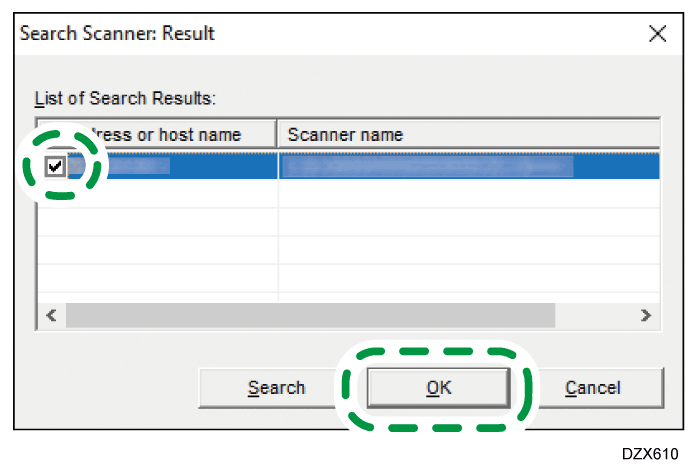
If the machine is not detected, cancel search, click [Manual Entry], and then enter the IP address of the machine. -
Confirm that the machine is added to "List of Specified Scanners:", and then click [OK].