Installing the Printer Driver for USB Connection (macOS)
Install the PPD file (printer driver) under macOS, and then register the machine on the computer from the system preferences.
-
Download the latest printer driver from the manufacturer's website.
-
Double-click the downloaded file.
-
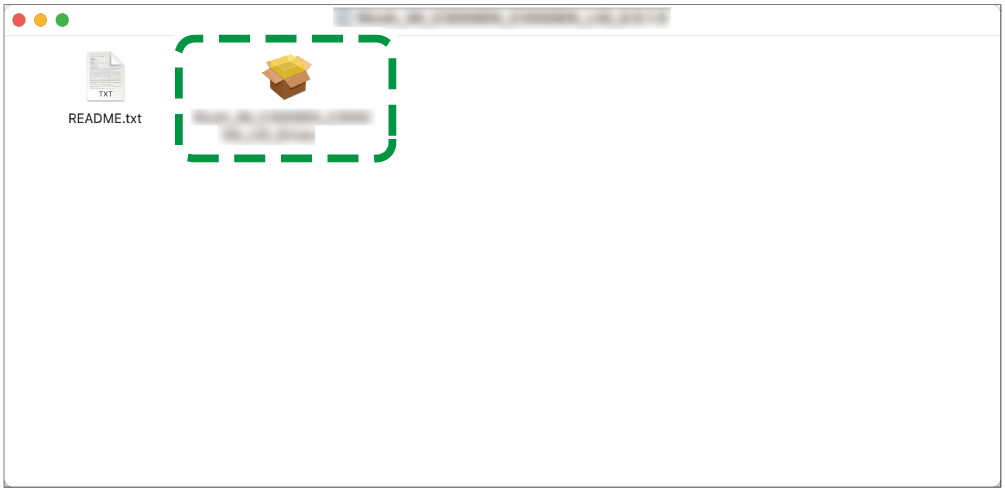
Double-click the package file.
-
When the install confirmation screen is displayed, click [Continue].
-
-
On the "Introduction" screen, click [Continue].
-
On the "License" screen, click [Continue] and then click [Agree].
-
When prompted to select where to install the driver, specify the install location, and click [Continue].
-
-
Click [Install].
-
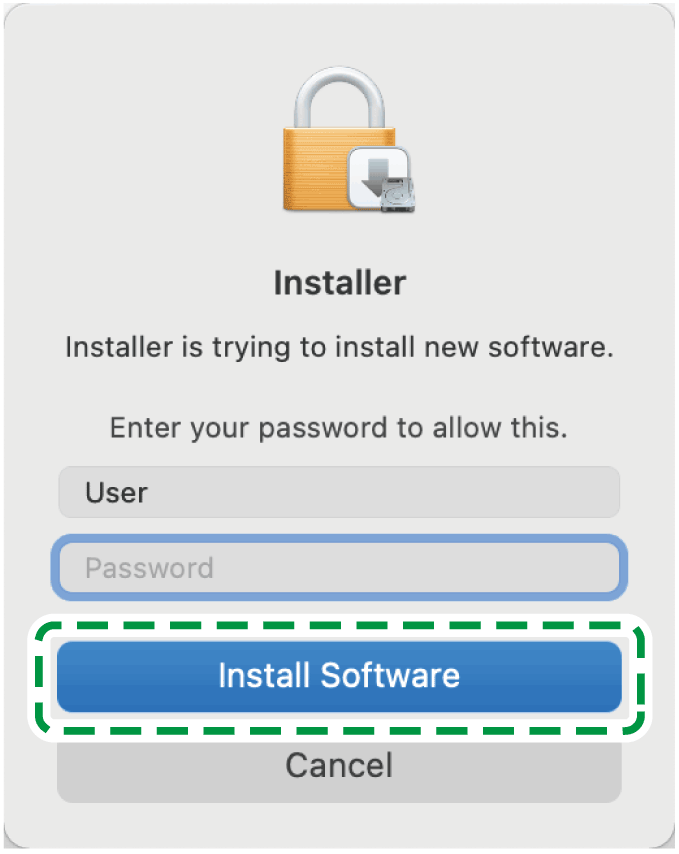
Enter the administrator’s user name and password, and then click [Install Software].
The installation of the PPD file starts. -
When the installation is complete, click [Close].
Register the PPD file of the machine in the system preferences to enable printing.
-
Connect the machine and the computer with the USB cable.
-
Select [System Preferences...] from the Apple menu.
-
Click [Printers & Scanners].
-
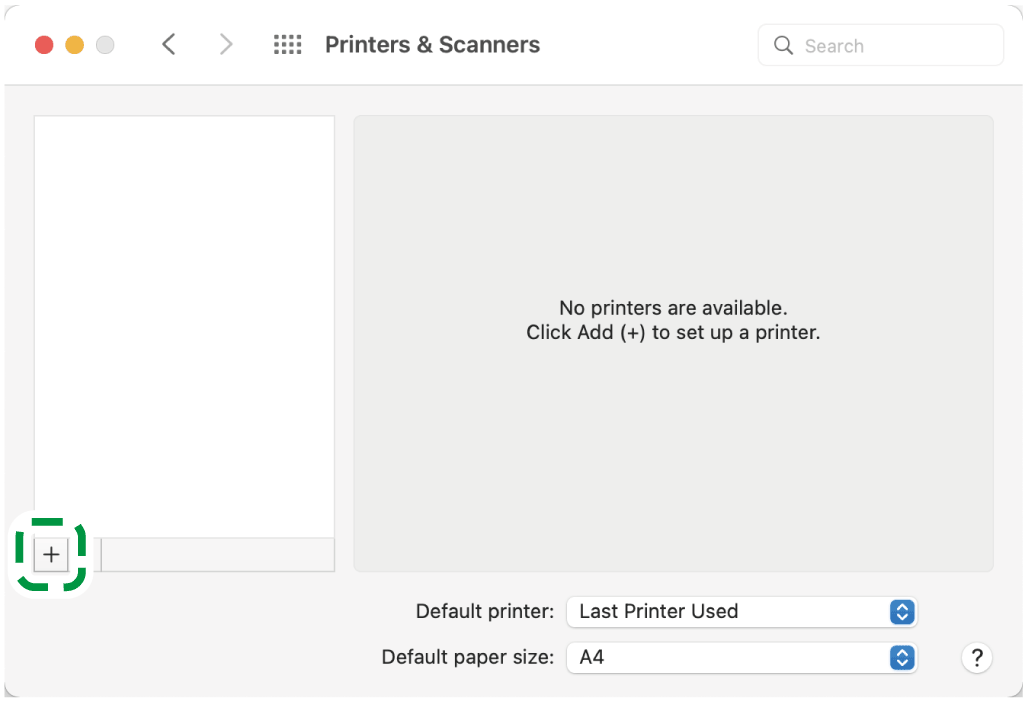
Click [+].
-
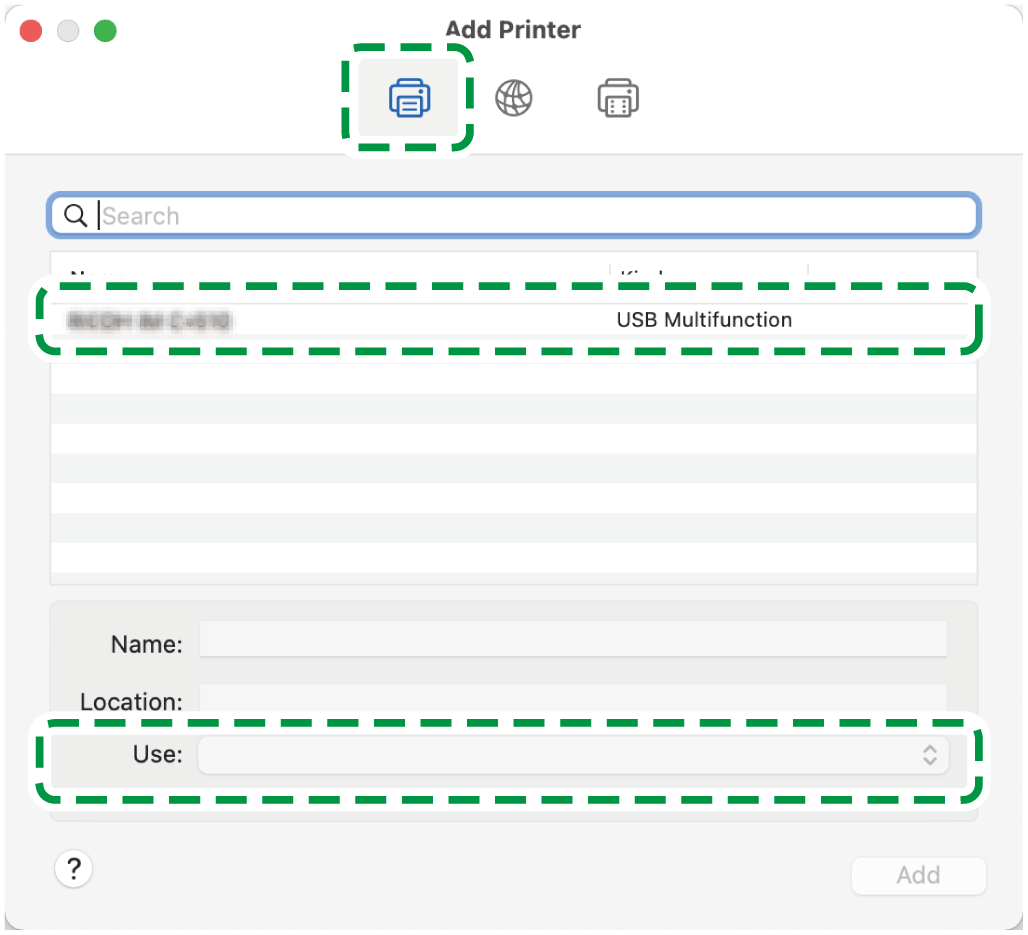
Click
 (Default) and select the machine from the list, and check that the machine name is displayed in "Use".
When "Generic PostScript Printer" is displayed
-
Check the USB cable is connected correctly, and then register again.
-
-
Click [Add].
The progress screen is displayed.-
If the progress screen does not close after a while, click [Configure...] and configure the option configuration of the printer. For the procedure of the option configuration, see Specifying the Option Configuration of the Machine to the Printer Driver (USB Connection).
-
-
Check that the machine name is added to the [Printers & Scanners] screen.
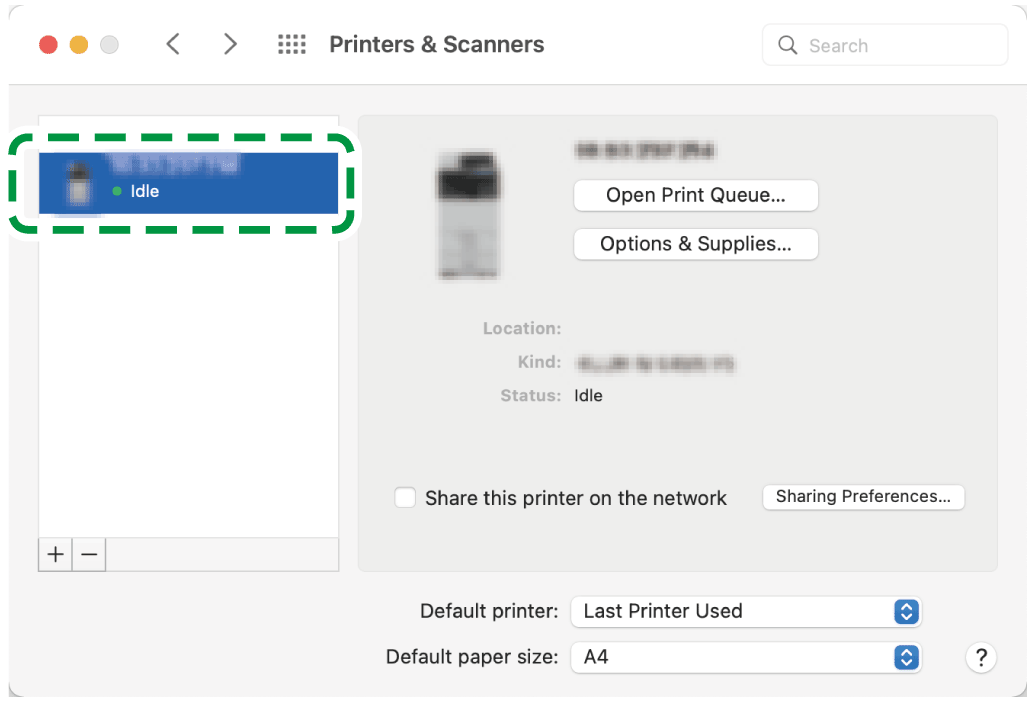
-
Close the system preferences screen.
Select the option installed on the machine in [Printers & Scanners].

-
Make sure the computer and the printer are connected using the USB cable, and the power of the devices are turned on beforehand.
-
Select [System Preferences...] from the Apple menu.
-
Click [Printers & Scanners].
-
Select the machine from the list, and then click [Options & Supplies...].
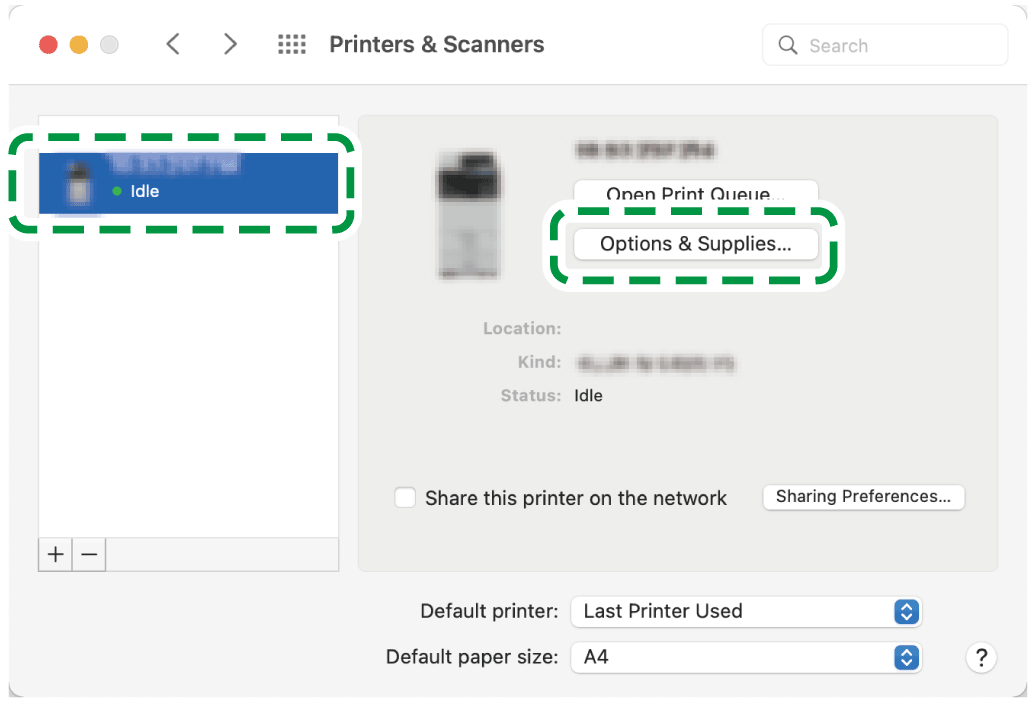
-
Click [Options], select the option installed on the machine, and then click [OK].
-
If the usable options are not displayed, the PPD file has not been registered properly. For details about the procedure to register the PPD file, see Registering the Machine in [Printers & Scanners] (USB Connection).
-
-
Close the system preferences screen.