Poster
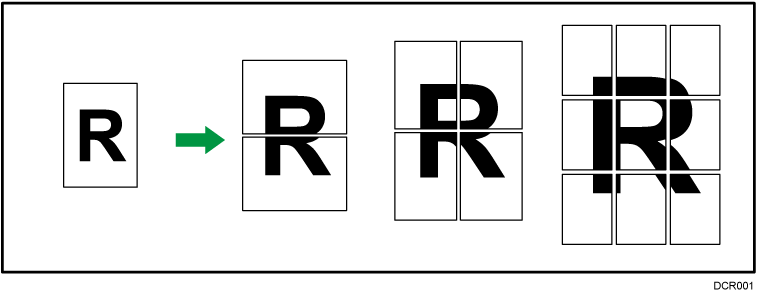
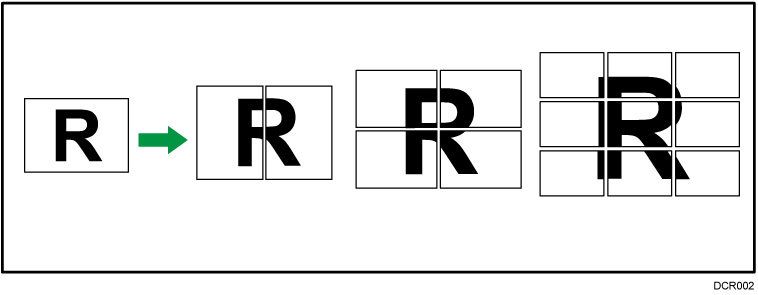
This function allows you to divide an original, enlarge its parts, and then print them on multiple sheets of paper, which you can align to create a copy as large as a poster. The divided images are printed with an overlap of 15 mm (0.59 inches) on the margin of each sheet, so you can paste them seamlessly.

You cannot use the ADF with this function.
You cannot use the bypass tray with this function.
The Duplex function cannot be used with this function. If [1 sided → 2 sided:TtoT] is selected, cancel the setting.
The Auto Color Select function cannot be used with this function.
There are three types of Poster.
1 page into 2 sheets
Enlarges a 1-page original into two sheets of paper.
1 page into 4 sheets
Enlarges a 1-page original into four sheets of paper.
1 page into 9 sheets
Enlarges a 1-page original into nine sheets of paper.
Portrait
Landscape
Press [Original Settng].

Press [Original Size].
Specify the original size, and then press [OK].
Press [Original Orientation].
Select original orientation.

Press [OK].
Press [Dup./Combine/Series].

Press [Series/Poster].

Press [Poster].
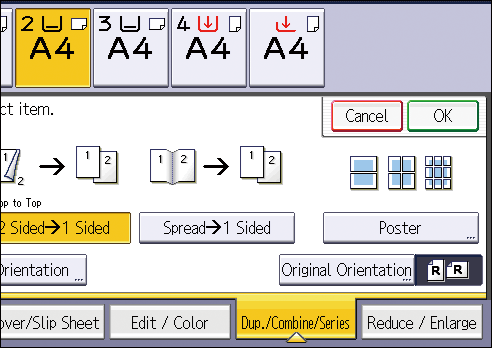
Select the number of sheets of paper you want to put in one poster.
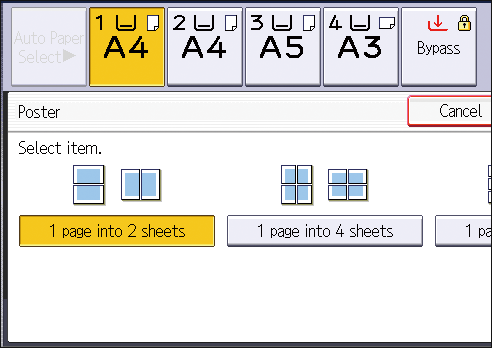
Press [OK].
Press [Original Orientation].
Select the original orientation, and then press [OK] twice.
Select the paper tray.