Date Stamp
Use this function to print dates on your copies.


You cannot use the bypass tray with this function.
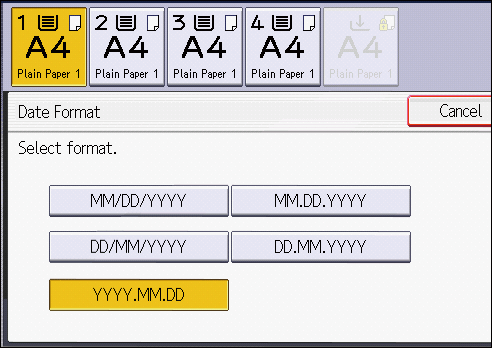
Date stamp formats
You can select from the following styles:
MM/DD/YYYY
MM.DD.YYYY
DD/MM/YYYY
DD.MM.YYYY
YYYY.MM.DD
Combine with series copying and combined copying
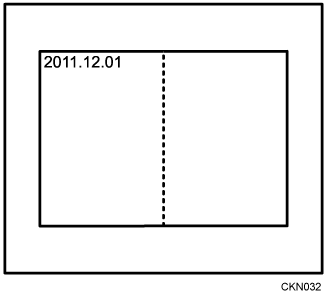
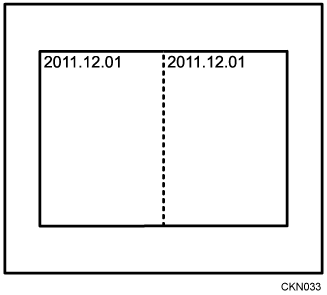
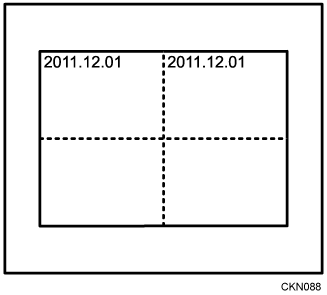
When Date Stamp is used with the Combine function or a bookbinding function such as Booklet, the date stamp is printed as follows:
With the Combine function
With the Magazine or Booklet function
With Magazine & Combine or Booklet & Combine function
Press [Edit / Color].

Press [Stamp] twice.
Press [Date Stamp].

Press [Change Format].
Select the date format, and then press [OK].
Press [Change].
Select the stamp position, and then press [OK].

Press [All Pages] or [1st Page Only] to select the print page.
Press [Stamp Color].
Select the stamp color, and then press [OK].
Press [OK] three times.

For details about stamp positions, see Stamps.
You can change the settings for Date Stamp under [Date Stamp] in Settings. For details, see User Guide of your device.