Preset Stamp
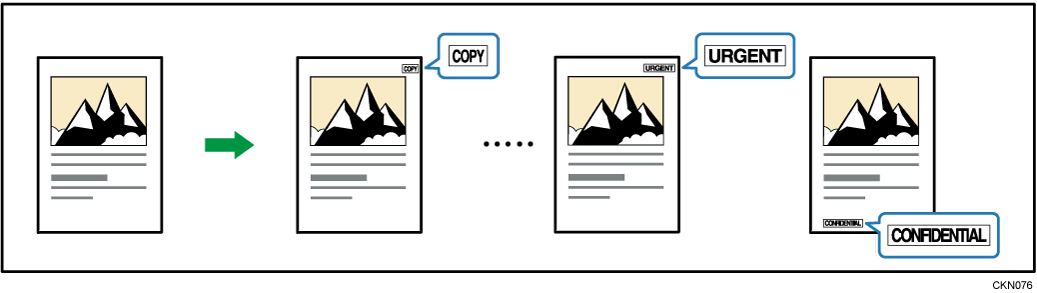
Messages registered in advance, such as "COPY", are stamped on copies.

You cannot use the bypass tray with this function.
Only one message can be stamped at a time.
The following eight messages are available for Preset Stamp:
"COPY", "URGENT", "PRIORITY", "For Your Info.", "PRELIMINARY", "For Internal Use Only", "CONFIDENTIAL", "DRAFT"
Press [Edit / Color].

Press [Stamp] twice.
Press [Preset Stamp].

Select the desired message.
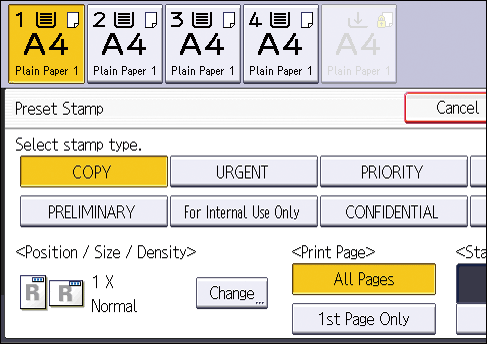
Press [Change].
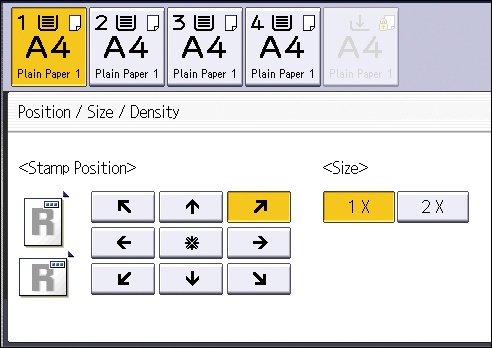
Select the stamp position, size, and density, and then press [OK].
Press [All Pages] or [1st Page Only] to select the print page.
Press [Stamp Color].
Select the stamp color, and then press [OK].
Press [OK] three times.

Depending on paper size, if you change the stamp size, parts of the stamp might not be printed.
You can change the size and pattern of stamps. Depending on the setting, stamp density may change.
For details about stamp positions, see Stamps.
You can change the settings for Preset Stamp under [Preset Stamp] in Settings. For details, see User Guide of your device.