Sort
The machine assembles copies as sets in sequential order.
Depending on your model and which options are installed on it, some of these functions might not be available. For details, see User Guide of your device.

You cannot use the bypass tray with Rotate Sort.
Sort/Shift Sort
Copies are assembled as sets in sequential order.
To use Shift Sort, a finisher or the internal shift tray is required. Each time the copies of one set or a job are delivered, the next copy is shifted to separate each set or job.

Rotate Sort
Every other copy set is rotated by 90 degrees (
) and delivered to the copy tray.
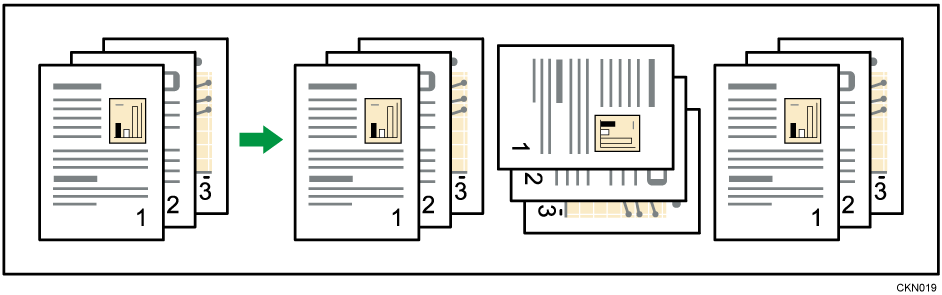
To use the Rotate Sort function, two paper trays loaded with paper of the same size and type, but in different orientation ( ), are required. For details, see User Guide of your device.
Press [Finishing].

Select [Sort] or [Rotate Sort], and then press [OK].
Enter the number of copy sets using the number keys.
Place the originals.
To confirm the type of finishing, press [Sample Copy].Select the paper tray.
Press [Start].

If you are copying from the exposure glass, a single copy of each original is made first. If the first copy set is acceptable, you can make the remaining copy sets by pressing [
 ]. The time required for copy sets to be delivered varies depending on the print settings.
For details about the number of sheets that can be placed in other output trays, see User Guide of your device.
You can change the settings for the Sort function in the following settings. For details, see User Guide of your device.
Settings screen type: Standard
[Copier / Document Server Settings] [Finishing] [Sort] [Memory Full Auto Scan Restart]
Settings screen type: Classic
[Copier / Document Server Settings] [Input / Output] [Memory Full Auto Scan Restart]
When using the Rotate Sort function, the capacity may be reduced.
When the number of copies exceeds capacity, copying stops. If this happens, remove copies from the tray to resume copying.
For details about the number of sheets that can be placed in other output trays, see User Guide of your device.
Use this function to check the copy settings before making a long copy run.
This function can be used only when the Sort function is selected.
Select Sort and any other necessary functions, and then place the originals.
Enter the number of copy sets with the number keys.
Press [Sample Copy] on the right of the screen.
One copy set is delivered as a sample.If the sample is acceptable, press [Continue].
The number of copies made is the number specified, minus one for the proof copy.
If you press [Suspend], you can change the copy settings. However, depending on the combination of functions, you may not be able to change some settings.
You can change the number of copy sets during copying.
This function can be used only when the Sort function is selected.
While Copying... is displayed, press [Stop].
Enter the number of copy sets with the number keys.
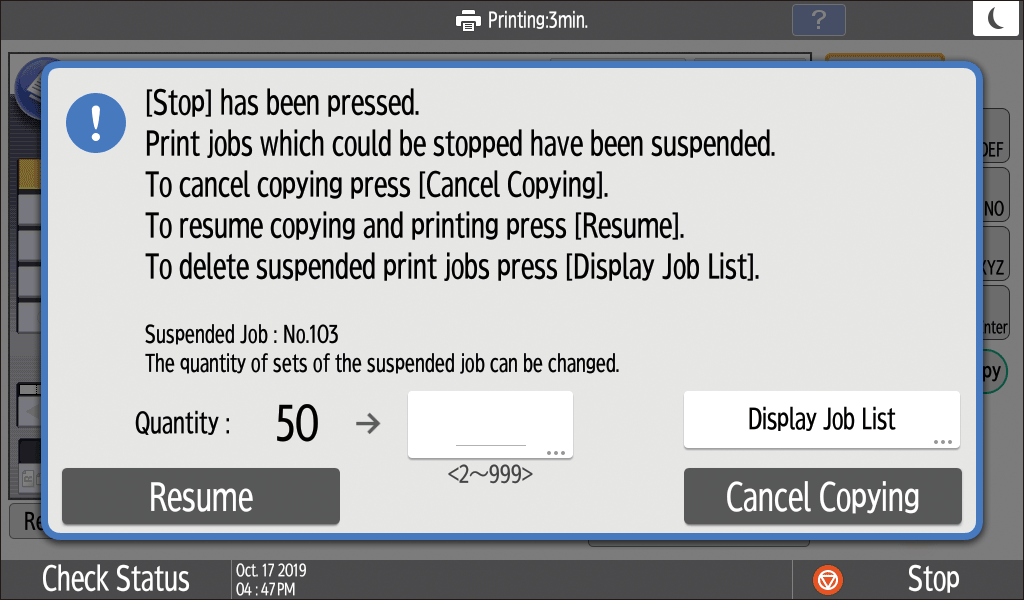
Press [Resume].
Copying starts again.
The number of sets you can enter in Step 2 differs depending on when [Stop] is pressed.