



 Previous
 Log in as the user administrator.
 Press [User Tools] (
 ) on the Home screen.
 Press [Screen Features].
 Press [Screen Device Settings].
 Press [Application Authentication Settings].
 Press [Privileges to Use for Each User].
 Select or search for the user to specify privileges.
 Select [Has Privileges] for the applications the user can use, and then press [OK].
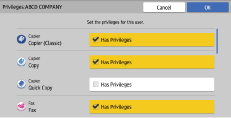
 To configure privilege settings for other users, repeat Steps 7 and 8.

After enabling Application Authentication from [Screen Features], you can also configure settings below by using Web Image Monitor:
Using [Address Book], you can specify privileges for each user to use applications.
In [Basic Authentication Settings] and [LDAP Authentication Settings] in [User Authentication Management] in [Device Settings], you can specify default privileges for all users to use applications.
[Auth. Not Required] is specified for Application Authentication for newly installed applications. Configure the settings above when Application Authentication is enabled.
The previous settings of Application Authentication are inherited when applications are updated.
Be sure to back up the Address Book in advance and restore it after an application is installed when:
The application needs to be uninstalled prior to the application update
The configured settings of Application Authentication are also used for other devices
Privileges cannot be configured for each Windows Authentication group. When Windows Authentication is used, privileges configured for each user is applied. When privileges for each user are not configured, the default privileges for each application are applied.


